UI Configuration
Customize Potato's annotation interface — header layout, sidebar sections, keyboard shortcuts, instance ordering, pagination, and display block positioning.
Potato gives administrators a range of options for customizing the annotation interface, including its appearance and behavior.
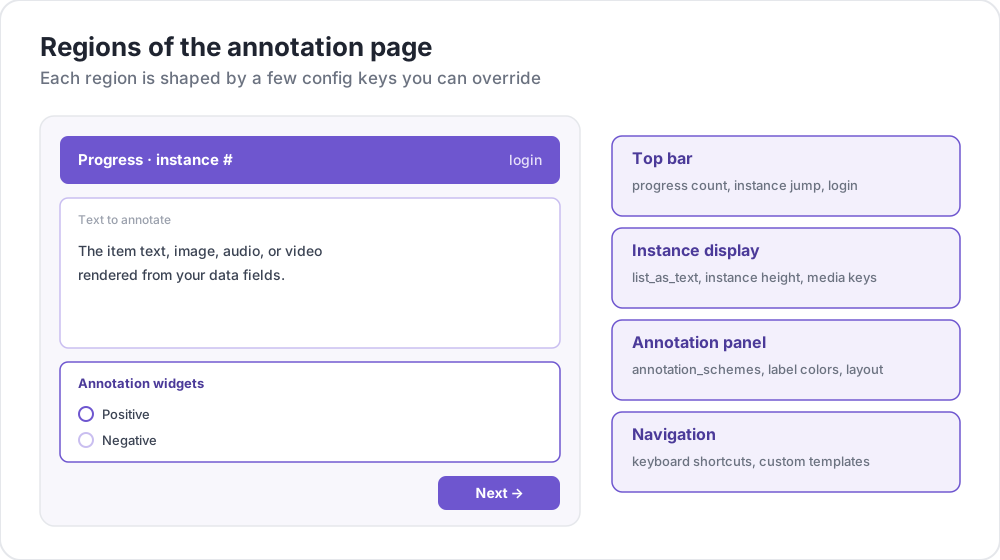 Regions of the annotation page
Configuration Structure
All UI configuration options are defined in the ui section of your configuration file:
ui:
  max_instance_height: 300
  show_progress: true
Instance Height Control
Control the maximum height of the instance text display area to keep annotation options visible for long texts.
ui:
  max_instance_height: 300  # 300 pixels maximum height
Benefits:
- Long text instances no longer push annotation options out of view
- Annotation options remain in a predictable location
- Scrollable text area for long content
Label Colors
Configure custom colors for labels across all annotation types.
Global Label Colors
Define colors for labels across all schemas:
ui:
  label_colors:
    sentiment:
      positive: "#22C55E"      # Green
      negative: "#EF4444"      # Red
      neutral: "#9CA3AF"       # Gray
    emotion:
      happy: "rgba(34, 197, 94, 0.8)"
      sad: "rgba(59, 130, 246, 0.8)"
Inline Label Colors
Define colors directly on each label:
annotation_schemes:
  - annotation_type: radio
    name: sentiment
    description: "What is the overall sentiment?"
    labels:
      - name: positive
        color: "#22C55E"
        tooltip: "Positive sentiment"
      - name: negative
        color: "#EF4444"
Span-Specific Colors (Legacy)
The original span-only color configuration:
ui:
  spans:
    span_colors:
      sentiment:
        positive: "(220, 252, 231)"  # RGB format
        negative: "(254, 226, 226)"
Color Format Support
All color options support multiple formats:
- Hex:
"#FF8000"or"#F80" - RGB:
"(255, 128, 0)"or"rgb(255, 128, 0)" - RGBA:
"rgba(255, 128, 0, 0.8)" - Named:
"red","blue","green"
Default Colors
If no custom color is specified, Potato assigns colors based on label names:
| Label Name | Color |
|---|---|
| positive, yes, true, happy | Green |
| negative, no, false, angry | Red |
| neutral, maybe | Gray |
| mixed, surprise | Amber |
| sad | Blue |
| fear | Violet |
Labels outside that list take a color from the default palette based on their position.
Color Priority
When more than one source names a color for the same label, the first match wins:
ui.label_colorsui.spans.span_colors, for span annotations- An inline
coloron the label definition - The span color palette
- A default color matched from the label name
- A palette color chosen by position
Interface Display Options
Control the visibility and functionality of interface elements:
ui:
  show_progress: true        # Show progress indicators
  show_instructions: true    # Show instruction panels
  allow_navigation: true     # Allow navigation between instances
  allow_editing: true        # Allow editing of annotations
Task Layout Customization
Potato automatically generates HTML layouts based on your configuration.
Auto-Generated Layouts
When you run Potato, it generates a layout file at:
{task_dir}/annotation_layouts/annotation_layout.html
This file is regenerated when your config changes.
Custom Task Layouts
For more control, provide a custom HTML file:
task_layout: "my_custom_layout.html"Creating a Custom Layout:
- Start from the generated layout as a template
- Modify HTML, add custom elements
- Reference your file in the config
For detailed guidance on creating sophisticated custom layouts with CSS grid, color-coded options, and section styling, see the Layout Customization guide.
Layout Structure Requirements
Custom layouts must include certain elements:
| Element | Purpose | Required |
|---|---|---|
.annotation-form | Container for each scheme | Yes |
data-annotation-id | Unique ID matching config | Yes |
data-schema-name | Schema name for colors | Recommended |
.ai-help | AI assistant buttons | If using AI |
CSS Classes Reference
Form Structure:
.annotation-form- Main form container.annotation-form-header- Header with name and AI buttons.annotation-form-body- Body with input options.annotation-name- Schema name display.annotation-desc- Description text
Input Options:
.shadcn-radio-option- Radio button option.shadcn-checkbox-option- Checkbox option.shadcn-span-option- Span annotation option
Site Directory Configuration
Custom Templates
Point site_dir at your own template folder:
site_dir: "custom_templates"Or name the built-in templates explicitly:
site_dir: "default"Custom JavaScript
Inject custom JavaScript code:
customjs: "http://localhost:8080/custom.js"
customjs_hostname: "localhost:8080"
Complete Example
annotation_task_name: "UI Configuration Example"

# Annotation schemes with inline colors
annotation_schemes:
  - annotation_type: radio
    name: sentiment
    description: "What is the overall sentiment?"
    labels:
      - name: positive
        color: "#22C55E"
        tooltip: "Positive sentiment"
        key_value: p
      - name: negative
        color: "#EF4444"
        tooltip: "Negative sentiment"
        key_value: n
      - name: neutral
        color: "#9CA3AF"
        key_value: u

# UI Configuration
ui:
  max_instance_height: 400

  label_colors:
    sentiment:
      positive: "#22C55E"
      negative: "#EF4444"
      neutral: "#9CA3AF"

  show_progress: true
  show_instructions: true
  allow_navigation: true
  allow_editing: true

site_dir: "default"
Browser Compatibility
All UI configuration options work across modern browsers:
- Chrome/Edge: Full support with custom scrollbar styling
- Firefox: Full support with standard scrollbar
- Safari: Full support with standard scrollbar
- Mobile: Responsive design with touch-friendly interactions
Best Practices
- Test Your Configuration: Always test UI changes with your specific data
- Consider Accessibility: Ensure color choices provide sufficient contrast
- Mobile Responsiveness: Test configurations on mobile devices
- Performance: Large custom JavaScript files may impact loading times
Troubleshooting
Colors Not Appearing
Ensure RGB format uses parentheses and spaces: "(255, 128, 0)"
Height Limit Not Working
Check that max_instance_height is a positive integer.
Custom Templates Not Loading
Verify site_dir path exists and contains valid templates.
Further Reading
- Layout Customization - Custom HTML templates and CSS
- Instance Display - Configure content display
- Annotation Schemes - Schema configuration
- Productivity Features - Keyboard shortcuts and tooltips
- AI Support - AI assistant configuration
For implementation details, see the source documentation.