Annotation Schemes
Define annotation schemes in YAML with radio, multiselect, span, likert, slider, text and 55 more types. Configure labels, questions and required fields.
Annotation schemes define the labeling tasks for your annotators. Potato supports 61 annotation types that can be combined to create complex annotation tasks.
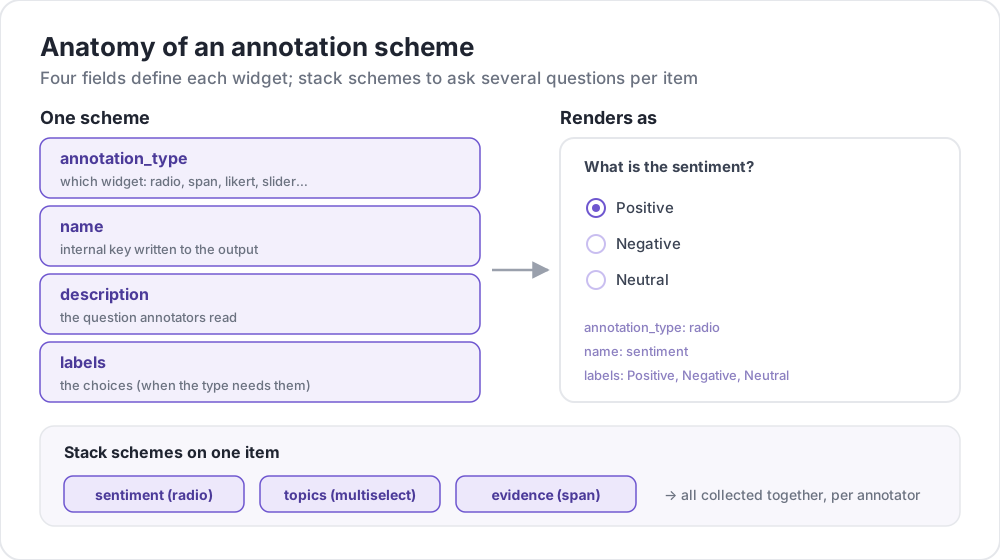 Anatomy of an annotation scheme
Basic Structure
Each scheme is defined in the annotation_schemes array:
annotation_schemes:
  - annotation_type: radio
    name: sentiment
    description: "What is the sentiment?"
    labels:
      - Positive
      - Negative
      - Neutral
Required Fields
Every scheme carries these three fields. Individual types add their own required fields on top, listed with each type below.
| Field | Description |
|---|---|
annotation_type | Type of annotation (radio, multiselect, likert, span, text, number, slider, multirate, select, pairwise, bws, soft_label, confidence, constant_sum, range_slider, semantic_differential, hierarchical_multiselect, card_sort, rubric_eval, extractive_qa, error_span, triage, coreference, span_link, and more) |
name | Internal identifier (no spaces, used in output) |
description | Instructions shown to annotators |
Supported Annotation Types
1. Radio (Single Choice)
Select exactly one option from a list:
- annotation_type: radio
  name: sentiment
  description: "What is the sentiment of this text?"
  labels:
    - Positive
    - Negative
    - Neutral

  # Assigns keys 1, 2, 3... in the order the labels are listed
  sequential_key_binding: true

  # Horizontal layout instead of vertical
  horizontal: true
Sequential bindings map the digits 1-9 onto the first nine labels, so reordering the label list reassigns the keys. For a binding that survives reordering, give each label its own key (see Keyboard Shortcuts).
2. Likert Scale
Rating scales with labeled endpoints:
- annotation_type: likert
  name: agreement
  description: "How much do you agree with this statement?"
  size: 5  # Number of scale points
  min_label: "Strongly Disagree"
  max_label: "Strongly Agree"

  # Show the numeric value of the selected point
  displaying_score: true
size is required along with both endpoint labels. Five points give annotators a neutral midpoint; an even size forces a direction.
3. Multiselect (Multiple Choice)
Select multiple options from a list:
- annotation_type: multiselect
  name: topics
  description: "Select all relevant topics"
  labels:
    - Politics
    - Technology
    - Sports
    - Entertainment
    - Science

  # Require at least one box before the annotator can move on
  label_requirement:
    required: true

  # Allow free text response
  has_free_response: true
has_free_response adds an "other" text box, which is worth enabling while the label set is still being revised because the entries it collects name the categories you are missing.
4. Span Annotation
Highlight and label text segments:
- annotation_type: span
  name: entities
  description: "Highlight named entities in the text"
  labels:
    - PERSON
    - ORGANIZATION
    - LOCATION
    - DATE

  # Show the label name on each highlighted span
  show_span_labels: true

  # Ctrl/Cmd+click to add non-contiguous ranges to one annotation
  allow_discontinuous: false

  # Keyboard shortcuts for labels
  sequential_key_binding: true
allow_discontinuous covers spans made of separate ranges, such as split antecedents, not spans that overlap each other. Leave it off unless the phenomenon you are labeling actually breaks across a gap, since the Ctrl/Cmd-click gesture is easy to trigger by accident.
5. Slider
Continuous numerical range:
- annotation_type: slider
  name: confidence
  description: "How confident are you in your answer? (0 = not at all, 100 = completely)"
  min_value: 0
  max_value: 100
  starting_value: 50
  step: 1

  # Shows min_value and max_value at the ends of the track
  show_labels: true
All three of min_value, max_value and starting_value are required. A slider takes no labels list. Adding one switches the question to a radio layout and the slider disappears, so put any wording for the ends of the scale in description. The starting value is where every annotator's handle sits before they touch it, so a midpoint avoids anchoring them toward either end.
6. Text Input
Free-form text responses:
- annotation_type: text
  name: explanation
  description: "Explain your reasoning"

  # Multi-line input
  rows: 4

  # Require a minimum length and show a running count
  min_chars: 20
  show_char_count: true

  # Placeholder text
  placeholder: "Enter your explanation here..."

  # Disable paste (for transcription tasks)
  allow_paste: false
allow_paste: false matters for transcription and free-recall tasks, where a pasted answer is copied from the source rather than produced by the annotator.
7. Number Input
Numerical input with constraints:
- annotation_type: number
  name: count
  description: "How many entities are mentioned?"
  min: 0
  max: 100
  step: 1
8. Multirate (Matrix Rating)
Rate multiple items on the same scale:
- annotation_type: multirate
  name: quality_aspects
  description: "Rate each aspect of the response"

  # Rows: the items being rated
  options:
    - Accuracy
    - Fluency
    - Relevance

  # Columns: the shared rating scale
  labels:
    - Poor
    - Fair
    - Good
    - Very Good
    - Excellent

  # Randomize row order per annotator
  option_randomization: true

  # Layout options
  arrangement: "vertical"
  display_config:
    num_columns: 2
Both options and labels are required, since a matrix needs rows and columns. Randomizing the row order spreads any order effect across items instead of concentrating it on whichever aspect happens to be listed first.
Common Options
Keyboard Shortcuts
Speed up annotation with keyboard bindings:
# Automatic sequential binding: digits 1, 2, 3... in label order
sequential_key_binding: true
For a binding that does not move when the label list changes, pass label objects and give each one a key_value:
labels:
  - name: Positive
    key_value: "1"
  - name: Negative
    key_value: "2"
  - name: Neutral
    key_value: "3"
Tooltips
Provide hover hints on individual labels. Tooltips attach to the label, not to the scheme, so they are configured inside labels:
labels:
  - name: Positive
    tooltip: "Expresses happiness, approval, or satisfaction"
  - name: Negative
    tooltip: "Expresses sadness, anger, or disappointment"
  - name: Neutral
    tooltip: "No clear emotional content"
For formatted guidance, point tooltip_file at an HTML file instead:
labels:
  - name: Economic
    tooltip_file: "config/tooltips/economic.html"
Label Colors
Custom colors for visual distinction, defined once for the whole project under ui:
ui:
  label_colors:
    entities:
      PERSON: "#3b82f6"
      LOCATION: "#10b981"
      ORGANIZATION: "#f59e0b"
The colors are keyed by scheme name, then by label. A color can also be set on an individual label alongside its tooltip:
labels:
  - name: positive
    color: "#22C55E"
    tooltip: "Positive sentiment"
Required Fields
Make a scheme required before submission:
- annotation_type: radio
  name: sentiment
  description: "What is the sentiment?"
  label_requirement:
    required: true
  labels:
    - Positive
    - Negative
To require one particular option rather than any answer, name it with required_label, which accepts a single label or a list.
Multiple Schemes
Combine multiple annotation types per instance:
annotation_schemes:
  # Primary classification
  - annotation_type: radio
    name: sentiment
    description: "Overall sentiment"
    labels:
      - Positive
      - Negative
      - Neutral
    label_requirement:
      required: true
    sequential_key_binding: true

  # Confidence rating
  - annotation_type: likert
    name: confidence
    description: "How confident are you?"
    size: 5
    min_label: "Guessing"
    max_label: "Certain"

  # Topic tags
  - annotation_type: multiselect
    name: topics
    description: "Select all relevant topics"
    labels:
      - Politics
      - Technology
      - Sports
      - Entertainment
    has_free_response: true

  # Notes
  - annotation_type: text
    name: notes
    description: "Any additional observations"
    rows: 4
    label_requirement:
      required: false
Only the sentiment label is required here. Making the confidence rating and the notes optional keeps the required set to the one field the study depends on, so annotators are not blocked by a box that carries no analysis weight.
Advanced Features
Pairwise Comparison
Compare two items. The items come from the instance itself, named by items_key:
- annotation_type: pairwise
  name: preference
  description: "Which response is better?"
  mode: binary
  items_key: "responses"   # Field holding a list of 2+ items

  # Labels for the two sides
  show_labels: true
  labels:
    - "Response A"
    - "Response B"

  # Tie option (opt-in)
  allow_tie: true
  tie_label: "No preference"
The data file supplies the pair, so each line carries a list of at least two items:
{"id": "1", "responses": ["First response text", "Second response text"]}A tie button is worth adding when genuinely equivalent pairs are common, because without one annotators break ties arbitrarily and the noise shows up as disagreement.
Best-Worst Scaling
Rank items by selecting the best and worst from a tuple. The tuples are built by a top-level bws_config block rather than from the scheme, and a bws scheme without it renders a question over an empty item list:
bws_config:
  tuple_size: 4              # Items per tuple
  min_item_appearances: 8    # Minimum appearances per item across tuples
  seed: 42
  scoring:
    method: counting         # counting | bradley_terry | plackett_luce

annotation_schemes:
  - annotation_type: bws
    name: ranking
    description: "Sentiment Intensity"
    best_description: "Which sentence expresses the MOST positive sentiment?"
    worst_description: "Which sentence expresses the LEAST positive sentiment?"
    tuple_size: 4
    sequential_key_binding: true
Each row of the data file is one item, and Potato samples tuples from the pool. Raising min_item_appearances tightens each item's score at the cost of more comparisons.
Dropdown Select
Space-efficient single selection:
- annotation_type: select
  name: category
  description: "Select a category"
  labels:
    - Category A
    - Category B
    - Category C
    - Category D
    - Category E

  # Vary the option order between annotators
  randomize_order: true
A dropdown hides the options until it is opened, so it suits long label sets where radio buttons would push the text off the screen. For short sets, radio buttons are faster because they take one click instead of two.
Data Format Reference
Input
Annotation schemes work with your data format:
{
  "id": "doc_1",
  "text": "This is the text to annotate."
}
Output
Annotations are saved with scheme names as keys:
{
  "id": "doc_1",
  "annotations": {
    "sentiment": "Positive",
    "confidence": 4,
    "topics": ["Technology", "Science"],
    "entities": [
      {"start": 0, "end": 4, "label": "ORGANIZATION", "text": "This"}
    ],
    "notes": "Clear positive sentiment about technology."
  }
}
Best Practices
1. Clear Labels
Use unambiguous, distinct labels:
These labels name distinct points on one dimension:
labels:
  - Strongly Positive
  - Somewhat Positive
  - Neutral
  - Somewhat Negative
  - Strongly Negative
These do not. Two annotators will not draw the same line between "OK", "Fine", and "Acceptable", and the disagreement that follows is about the label set rather than the data:
labels:
  - Good
  - OK
  - Fine
  - Acceptable
2. Helpful Tooltips
Add tooltips for nuanced labels:
labels:
  - name: Sarcasm
    tooltip: "The text says the opposite of what it means"
  - name: Irony
    tooltip: "A mismatch between expectation and reality"
3. Keyboard Shortcuts
Enable shortcuts for high-volume tasks:
sequential_key_binding: true4. Logical Order
Order labels consistently:
- Most common first
- Alphabetically
- By intensity (low to high)
5. Limit Options
Too many choices slow annotation:
- Radio: 2-7 options
- Multiselect: 5-15 options
- Likert: 5-7 points
6. Test First
Annotate several examples yourself before deploying to catch:
- Ambiguous labels
- Missing categories
- Unclear instructions