データ形式
Potatoの入力形式はテキスト、JSON、JSONL、CSV、画像、音声、動画。出力はCoNLL、HuggingFace Datasets、COCO、YOLO、Parquetなどに対応します。
PotatoはJSON、JSON Lines、CSV、TSVファイルからアノテーションの入力を読み込みます。このガイドでは、データの構造化方法、Potatoが各レコードから必要とするフィールド、そしてアノテーションの保存先を説明します。
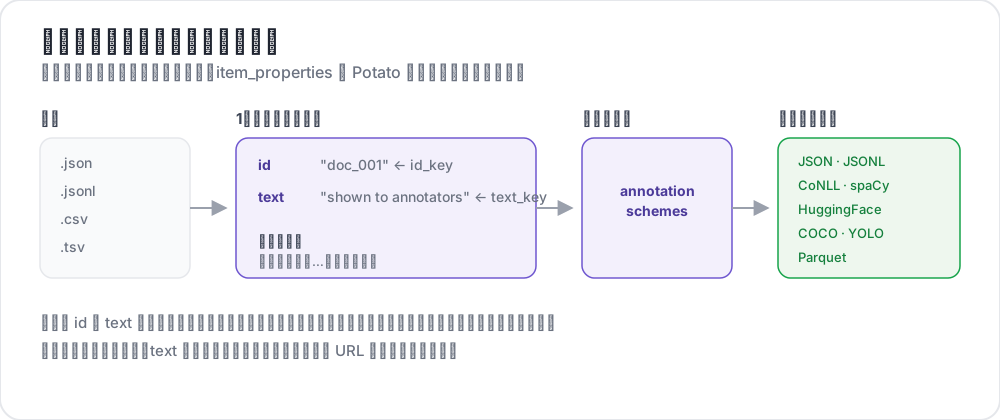 入力ファイルからエクスポートされたラベルまで
サポートされる形式
| 形式 | 拡張子 | 説明 |
|---|---|---|
| JSON | .json | オブジェクトの配列 |
| JSON Lines | .jsonl | 1行に1つのJSONオブジェクト |
| CSV | .csv | カンマ区切り値 |
| TSV | .tsv | タブ区切り値 |
JSON形式
最も一般的な形式です。データはオブジェクトの配列として構成します:
[
  {
    "id": "doc_001",
    "text": "This is the first document to annotate.",
    "source": "twitter",
    "date": "2024-01-15"
  },
  {
    "id": "doc_002",
    "text": "This is the second document.",
    "source": "reddit",
    "date": "2024-01-16"
  }
]
JSON Lines形式
各行が独立したJSONオブジェクトです。大規模データセットに適しています:
{"id": "doc_001", "text": "First document"}
{"id": "doc_002", "text": "Second document"}
{"id": "doc_003", "text": "Third document"}
CSV/TSV形式
ヘッダー付きの表形式データ:
id,text,source
doc_001,"This is the first document",twitter
doc_002,"This is the second document",reddit
設定
基本セットアップ
YAMLでデータファイルとフィールドマッピングを設定します:
data_files:
  - "data/documents.json"

item_properties:
  id_key: id      # Field name for unique ID
  text_key: text  # Field name for content to annotate
複数のデータファイル
複数のデータソースを組み合わせる:
data_files:
  - "data/batch_1.json"
  - "data/batch_2.json"
  - "data/batch_3.jsonl"
ファイルは順番に処理され、結合されます。
データタイプ
プレーンテキスト
シンプルなテキストコンテンツ:
{
  "id": "1",
  "text": "The product arrived quickly and works great!"
}
メディアファイル
画像・動画・音声のアイテムは、レコードのフィールドにファイル名を書き、instance_display のフィールドがそれをページに表示します:
{
  "id": "1",
  "image_path": "photo_001.jpg"
}media_directory: media # the default, relative to task_dir
instance_display:
fields:
- key: image_path
type: imagePotato は media_directory 内のファイルを /media/ で配信します。フォルダのデフォルトは task_dir 配下の media/ で、絶対パスを指定するとマシン上の任意の場所にあるフォルダを指せます。メディア表示フィールド(image、video、audio、pdf など)では、photo_001.jpg のようにファイル名だけを書いた値は、そのファイルがフォルダ内にあれば /media/photo_001.jpg に変換され、完全な URL は書かれたとおりに使われます。item_properties.image_key は画像をページに表示しません。どのフィールドに画像があるかを AIサポートと重複検出に伝えるキーです。
対話/リスト
JSONリストを持つtextフィールドは、1行に1アイテムずつ並べて表示されます。対話は縦に読むほうが読みやすいためです。ペアワイズ比較のためにアイテムを横に並べるには、list_as_text.horizontalを設定します:
{
  "id": "1",
  "text": ["Option A", "Option B", "Option C"]
}
テキストペア
JSONオブジェクトを持つtextフィールドは、設定で宣言した表示タイプ(conversation_tree、web_agent_traceなど)によってレンダリングされます。表示タイプが宣言されていなければ整形されたJSONとして表示されるので、比較タスクでは表示タイプを宣言してください:
{
  "id": "pair_001",
  "text": {
    "A": "Response from Model A",
    "B": "Response from Model B"
  }
}
HTMLファイル
.htmlファイルはtask_dir配下のフォルダに置き、通常のtextフィールドから参照します。PotatoにはHTML専用のアイテムプロパティがないためです。同梱のexamples/advanced/html-annotationタスクは各ファイルを埋め込んでいます:
{
  "id": "1",
  "text": "<embed width=\"1020\" height=\"440\" src=\"data/html_data/1.html\" type=\"text/html\">"
}
コンテキスト付きアノテーション
メインテキストとともにコンテキストを含める:
{
  "id": "1",
  "text": "This is great!",
  "context": "Previous message: How do you like the new feature?"
}idとtext以外のフィールドはkwargsを通じてページに渡されます。kwargsには各アイテムから引き継ぐ追加キーの名前を指定します:
item_properties:
  id_key: id
  text_key: text
  kwargs:
    - context
表示設定
リスト表示オプション
リスト値を持つフィールドの配置を制御します。このキーは3つのサブキーを取り、list_as_text: trueと書くとデフォルト値で有効になります:
list_as_text:
  # Prefix each item so an annotator can refer to one by name.
  text_list_prefix_type: alphabet   # alphabet, number, bullet, or none

  # Side-by-side suits a pairwise comparison. The default is vertical.
  horizontal: true

  # Shade alternate turns, which keeps a long dialogue readable.
  alternating_shading: true
HTMLコンテンツ
textフィールド内のマークアップは、設定キーなしでレンダリングされます。Potatoはマークアップをエスケープせずにサニタイズするため、許可リストにあるタグ(<b>、<i>、<span>など)は書式として表示され、<script>やリスト外のものはすべてエスケープされて無害になります。スパンのハイライトはマークアップとしてアイテムに挿入されるため、フィールド全体をエスケープすることはできません。
{
  "id": "1",
  "text": "<p>This is <strong>formatted</strong> text.</p>"
}
出力設定
出力ディレクトリ
アノテーションの保存先を指定します:
output_annotation_dir: "output/"出力形式
アノテーションは常にユーザーごとのuser_state.jsonファイルに保存されます。export_annotation_formatを指定すると、それに加えて<output_annotation_dir>/exports/<format>/にフラットなエクスポートが定期的に書き出されます。分析に使うのはこちらの形式です。jsonという名前のエクスポーターはありません:
export_annotation_format: "jsonl" # or csv, tsv, parquet, coco, conll_2003, ...レジストリの全体を見るにはpython -m potato.export --list-formatsを実行してください。
出力構造
各user_state.jsonには、そのアノテーターのラベルがインスタンスごとに保存され、スパンは別に記録されます:
{
  "user_id": "annotator_1",
  "instance_id_to_label_to_value": {
    "doc_001": {
      "sentiment": {"labels": {"positive": true}}
    }
  },
  "instance_id_to_span_to_value": {
    "doc_001": {
      "ner": [
        {"start": 0, "end": 5, "label": "PERSON", "text": "Alice"}
      ]
    }
  }
}
特殊データタイプ
ベスト・ワーストスケーリング
ランキングタスクでは、カンマ区切りのアイテムを使用します:
{
  "id": "1",
  "text": "Item A,Item B,Item C,Item D"
}
カスタム引数
表示やフィルタリング用の追加フィールドを含める:
{
  "id": "1",
  "text": "Document content",
  "category": "news",
  "priority": "high",
  "custom_field": "any value"
}
データベースバックエンド
大規模データセットにはMySQLを使用します:
database:
  type: mysql
  host: localhost
  port: 3306
  database: potato_db
  username: ${DB_USER}
  password: ${DB_PASSWORD}
Potatoは初回起動時に必要なテーブルを自動的に作成します。
データ検証
Potatoは起動時にデータを検証します:
- IDフィールドの欠落:すべてのアイテムに一意の識別子が必要
- テキストフィールドの欠落:アイテムにはアノテーション対象のコンテンツが必要
- 重複ID:すべてのIDが一意である必要がある
- ファイルが見つからない:データファイルのパスを確認
完全な例
annotation_task_name: "Document Classification"
task_dir: "."
port: 8000

# Data configuration
data_files:
  - "data/documents.json"

item_properties:
  id_key: id
  text_key: text

# Display settings
list_as_text:
  text_list_prefix_type: number
  horizontal: false

# Output
output_annotation_dir: "output/"
export_annotation_format: "jsonl"

# Annotation scheme
annotation_schemes:
  - annotation_type: radio
    name: category
    description: "Select the document category"
    labels:
      - News
      - Opinion
      - Tutorial
      - Other

user_config:
  allow_all_users: true
  users: []
ベストプラクティス
1. 意味のあるIDを使用
追跡とデバッグが容易になります:
{"id": "twitter_2024_001", "text": "..."}2. テキストを簡潔に
長いテキストはアノテーションを遅くします。検討事項:
- 重要な部分に切り詰める
- 要約を提供する
- スクロールコンテナを使用する
3. メタデータを含める
フィルタリングと分析に役立ちます:
{
  "id": "1",
  "text": "Content",
  "source": "twitter",
  "date": "2024-01-15",
  "language": "en"
}
4. 読み込み前に検証
オフラインでデータを確認します:
import json

with open('data.json') as f:
    data = json.load(f)

# Check for required fields
for item in data:
    assert 'id' in item, f"Missing id: {item}"
    assert 'text' in item, f"Missing text: {item}"

# Check for duplicates
ids = [item['id'] for item in data]
assert len(ids) == len(set(ids)), "Duplicate IDs found"

print(f"Validated {len(data)} items")
5. 元データをバックアップ
再現性のために、生データをアノテーションとは別に保管してください。
6. 大きなファイルにはJSON Linesを使用
JSON配列よりメモリ効率が良い形式です:
# Convert JSON array to JSON Lines
cat data.json | jq -c '.[]' > data.jsonl
関連資料
- データディレクトリ読み込み:ライブ監視によるディレクトリからの読み込み
- 対話アノテーション:マルチアイテムデータ表示
- エクスポート形式:出力形式オプション
実装の詳細については、ソースドキュメントを参照してください。