빠른 시작
5분 안에 Potato를 실행하세요. pip로 설치하고, YAML 설정을 작성하고, 서버를 시작한 다음 코드 없이 첫 데이터셋에 주석을 답니다.
이 가이드는 새로 설치한 상태에서 데이터에 주석을 다는 단계까지 5분 안에 안내합니다. 이 페이지는 작업을 직접 작성하는 방법을 설명합니다. 다른 시작 방법은 연구 내용을 코딩 에이전트에게 설명하고 potato-skill이 설계하고 구축하도록 맡기는 것이며, 코딩 에이전트로 빠른 시작에서 다룹니다.
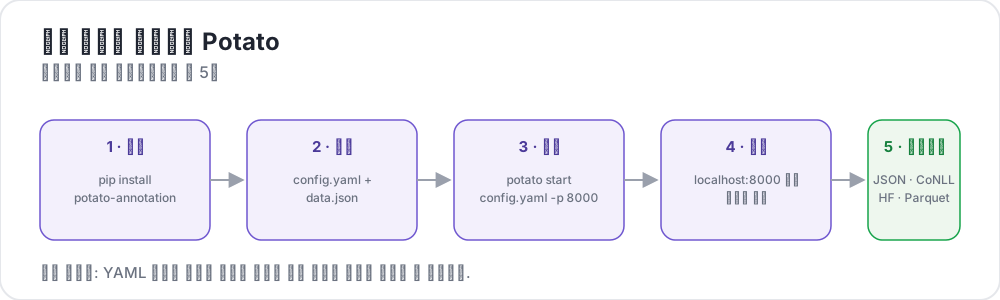 Potato의 다섯 단계
사전 준비
- Python 3.9 이상
pip패키지 관리자- 터미널
설치
Potato가 시스템 Python과 충돌하지 않도록 가상 환경에 설치하는 것을 권장합니다.
python -m venv potato-env
source potato-env/bin/activate   # Windows: potato-env\Scripts\activate
pip install potato-annotation
설치를 확인합니다.
python -c "import potato; print(potato.__version__)"2.10.3이 출력되어야 합니다. 버전 2.9부터는 potato --version도 같은 번호를 출력하며, 체크아웃에서 실행 중이면 커밋도 함께 표시합니다.
첫 프로젝트 만들기
1. 프로젝트 디렉터리 만들기
mkdir my-annotation-task
cd my-annotation-task
2. 데이터 파일 만들기
data 폴더를 만들고 그 안에 data.json이라는 파일을 만듭니다.
mkdir data[
{"id": "1", "text": "I love this product! It's amazing."},
{"id": "2", "text": "This is the worst experience ever."},
{"id": "3", "text": "It's okay, nothing special."}
]Potato는 data_files에 .jsonl(한 줄에 JSON 객체 하나), .csv, .tsv도 받습니다. 해당 확장자를 가진 파일을 지정하면 Potato가 확장자에 맞는 리더를 선택합니다.
3. 설정 만들기
프로젝트 디렉터리에 config.yaml이라는 파일을 만듭니다.
경로 샌드박스: 설정 안의 상대 경로(
data_files나output_annotation_dir등)는task_dir을 기준으로 해석되며 그 안에 있어야 합니다.task_dir바깥으로 해석되는 경로는 경로 탐색(path traversal)을 방지하기 위해 거부됩니다.
annotation_task_name: "Sentiment Analysis"

# All relative paths below are resolved against task_dir.
task_dir: "."

# Data configuration
data_files:
  - "data/data.json"

# Tell Potato which fields in each record to use.
# id_key = unique identifier; text_key = the text shown to annotators.
item_properties:
  id_key: id
  text_key: text

# Where per-user annotation state is stored (relative to task_dir).
output_annotation_dir: "annotation_output/"

# Also write a periodic flat export, because the per-user state files are
# awkward to analyze. No exporter is named "json", so use "jsonl".
export_annotation_format: "jsonl"

# Annotation scheme
annotation_schemes:
  - annotation_type: radio
    name: sentiment
    description: "What is the sentiment of this text?"   # required for radio schemes
    labels:
      - Positive
      - Negative
      - Neutral

# Skip password authentication so anyone can log in with just a username.
require_password: false팁: 전체 서버를 시작하지 않고도 미리 보기 CLI를 사용해 설정을 검증할 수 있습니다. 주석 작업을 시작하기 전에 오타를 잡아내는 가장 빠른 방법입니다.
4. 서버 시작하기
potato start config.yaml -p 8000동등한 전체 형식:
python -m potato start config.yaml -p 8000포트 8000이 이미 사용 중이면 -p 8001로 다른 포트를 선택하세요. 서버를 중지하려면 터미널에서 Ctrl+C를 누릅니다.
더 빠른 첫 실행: 실험하는 동안 로그인 화면을 완전히 건너뛰려면
potato start config.yaml --debug처럼--debug를 추가하세요.
5. 브라우저 열기
http://localhost:8000으로 이동합니다. username 필드 하나만 있는 로그인 화면이 나타납니다. 아무 값(예: alice)이나 입력하고 Continue를 클릭하면 바로 주석 작업을 시작할 수 있습니다.
라벨을 선택하고 Next를 클릭할 때마다 주석이 자동으로 저장됩니다. 별도의 "저장" 버튼은 없습니다.
주석이 저장되는 위치
Potato는 주석을 다는 동안 사용자별 상태를 기록합니다.
my-annotation-task/
├── config.yaml
├── data/
│   └── data.json
└── annotation_output/              # created automatically
    └── alice/
        └── user_state.json         # one folder per username
user_state.json에는 해당 사용자의 전체 주석 상태가 담겨 있습니다. 모든 주석자의 결과를 하나로 합친 평탄한 파일을 만들려면 Potato의 export CLI를 실행하세요. 사용법은 export 문서에 설명되어 있습니다. python -m potato.export --list-formats를 실행하면 등록된 모든 형식을 볼 수 있습니다.
첫 실행 시 흔한 문제
Address already in use. 포트 8000이 사용 중입니다.-p 8001(또는 비어 있는 포트)을 사용하세요.KeyError: 'description'. radio(또는 유사한) 스킴에 필수description필드가 없습니다. 모든 스킴에는 하나가 필요합니다.Path ... is outside the task directory.data_files나output_annotation_dir경로가task_dir을 벗어납니다. 모든 것을 프로젝트 폴더 안에 두거나, 해당 경로들을 포함하는 절대 경로로task_dir을 설정하세요.- 로그인 페이지에 비밀번호 필드가 표시됨.
require_password: false를 빠뜨렸거나, 캐시된 브라우저 탭을 보고 있는 것입니다. 서버를 재시작하고 강력 새로고침을 하세요.
자주 묻는 질문
아래 질문은 Potato 설치, Docker에서 실행하는 방법, 주석자가 보기 전에 설정을 확인하는 방법을 다룹니다.
Potato는 어떻게 설치하나요?
Python 3.9 이상에서 pip install potato-annotation으로 PyPI에서 설치합니다. 가상 환경에 설치하면 Potato의 의존성이 시스템 Python과 분리되며, potato --version은 버전 번호를 출력해 설치를 확인해 줍니다.
Potato를 Docker에서 실행할 수 있나요?
네. Potato는 미리 빌드된 이미지 ghcr.io/davidjurgens/potato를 GitHub Container Registry에 게시합니다. 프로젝트 폴더는 컨테이너의 /app에 마운트되고 서버는 컨테이너 안에서 포트 7860으로 요청을 받으므로, 이미지 하나로 모든 작업을 실행할 수 있습니다. 재시작 후에도 주석자 세션이 유지되도록 POTATO_SECRET_KEY를 설정하세요. 전체 docker run 명령은 서버에 Potato 배포하기에 나와 있습니다.
주석자가 보기 전에 Potato 설정을 확인하려면 어떻게 하나요?
potato validate config.yaml --strict를 실행하세요. 이 명령은 서버가 시작할 때와 같은 방식으로 설정을 검사하고, 인식되지 않는 키 같은 경고를 실패로 처리합니다. 이어서 potato preview config.yaml은 설정이 선언하는 내용을 보여 주고 인터페이스를 브라우저에 렌더링하므로, 누군가 로그인하기 전에 주석자가 보게 될 모습 그대로 작업을 확인할 수 있습니다.
다음 단계
- 더 많은 옵션을 위해 구성 기초를 알아보세요
- potato-skill로 코딩 에이전트에게 다음 작업의 설계와 구축을 맡겨 보세요
- 다양한 주석 유형을 살펴보세요
- 팀을 위한 사용자 관리를 설정하세요
- AI 지원과 액티브 러닝을 포함한 v2의 새로운 기능을 확인하세요
도구 및 유틸리티
기본기에 익숙해지면 다음의 유용한 도구들을 확인해 보세요.