인스턴스 표시
instance_display 블록을 구성하여 Potato 작업에서 텍스트, 이미지, 오디오, 비디오 콘텐츠가 어노테이션 컨트롤과 함께 어떻게 표시되는지 제어합니다.
v2.1.0의 새 기능
인스턴스 표시는 어노테이터에게 어떤 콘텐츠를 보여줄지를 어떤 어노테이션을 수집할지와 분리합니다. 이를 통해 모든 콘텐츠 유형 조합(이미지, 비디오, 오디오, 텍스트)을 모든 어노테이션 스키마(라디오 버튼, 체크박스, span 등)와 함께 표시할 수 있습니다.
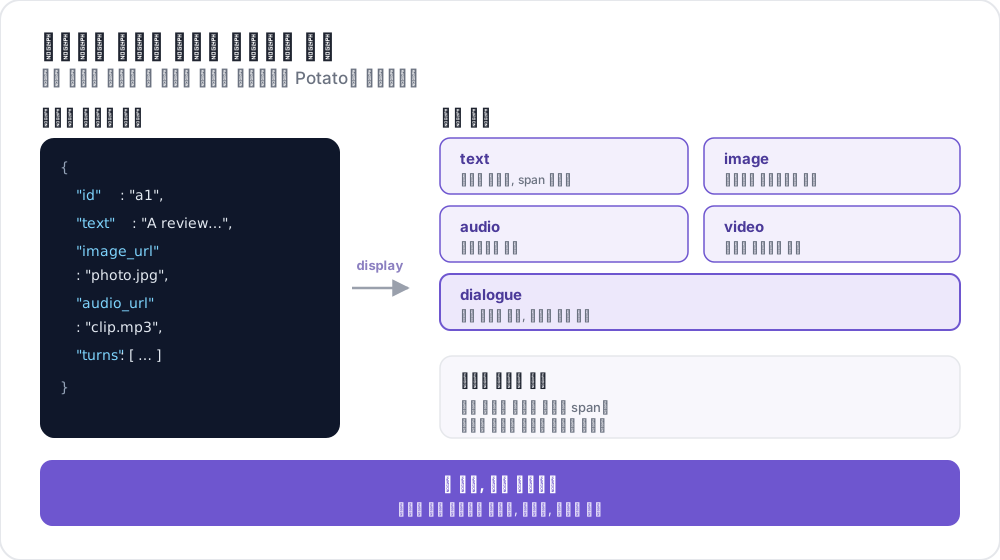 인스턴스 표시가 필드를 매핑하는 방식
인스턴스 표시를 사용하는 이유
이전에는 분류용 라디오 버튼과 함께 이미지를 보여주려면, 이미지를 표시하기 위한 목적만으로 min_annotations: 0이 설정된 image_annotation 스키마를 추가해야 했습니다. 이는 혼란스럽고 의미상으로도 올바르지 않았습니다.
instance_display를 사용하면 어떤 콘텐츠를 표시할지 명시적으로 구성합니다:
# OLD (deprecated workaround)
annotation_schemes:
  - annotation_type: image_annotation
    name: image_display
    min_annotations: 0  # Just to show the image
    tools: [bbox]
    labels: [unused]
  - annotation_type: radio
    name: category
    labels: [A, B, C]

# NEW (recommended)
instance_display:
  fields:
    - key: image_url
      type: image

annotation_schemes:
  - annotation_type: radio
    name: category
    labels: [A, B, C]
기본 구성
YAML 구성에 instance_display 섹션을 추가합니다:
instance_display:
  fields:
    - key: "image_url"           # Field name in your data JSON
      type: "image"              # Content type
      label: "Image to classify" # Optional header
      display_options:
        max_width: 600
        zoomable: true

  layout:
    direction: "vertical"        # vertical or horizontal
    gap: "20px"
지원되는 표시 유형
| 유형 | 설명 | Span 대상 |
|---|---|---|
text | 일반 텍스트 콘텐츠 | 예 |
html | 정제된 HTML 콘텐츠 | 아니요 |
image | 확대 기능이 있는 이미지 표시 | 아니요 |
video | 비디오 플레이어 | 아니요 |
audio | 오디오 플레이어 | 아니요 |
dialogue | 대화 턴 | 예 |
pairwise | 나란히 비교 | 아니요 |
code | 구문 강조가 적용된 소스 코드 | 예 |
spreadsheet | 표 형식 데이터 (Excel/CSV) | 예 (행/셀) |
document | 리치 문서 (Word, Markdown, HTML) | 예 |
pdf | 페이지 컨트롤이 있는 PDF 문서 | 예 |
표시 유형 옵션
텍스트 표시
- key: "text"
  type: "text"
  label: "Document"
  display_options:
    collapsible: false        # Make content collapsible
    max_height: 400           # Max height in pixels before scrolling
    preserve_whitespace: true # Preserve line breaks and spacing
이미지 표시
- key: "image_url"
  type: "image"
  label: "Image"
  display_options:
    max_width: 800            # Max width (number or CSS string)
    max_height: 600           # Max height
    zoomable: true            # Enable zoom controls
    alt_text: "Description"   # Alt text for accessibility
    object_fit: "contain"     # CSS object-fit property
비디오 표시
- key: "video_url"
  type: "video"
  label: "Video"
  display_options:
    max_width: 800
    max_height: 450
    controls: true            # Show video controls
    autoplay: false           # Auto-play on load
    loop: false               # Loop playback
    muted: false              # Start muted
오디오 표시
- key: "audio_url"
  type: "audio"
  label: "Audio"
  display_options:
    controls: true            # Show audio controls
    autoplay: false
    loop: false
    show_waveform: false      # Show waveform visualization
대화 표시
- key: "conversation"
  type: "dialogue"
  label: "Conversation"
  display_options:
    alternating_shading: true    # Alternate background colors
    speaker_extraction: true     # Extract "Speaker:" from text
    show_turn_numbers: false     # Show turn numbers
대화의 데이터 형식 (JSONL 파일의 각 줄):
{"id": "conv_001", "conversation": ["Speaker A: Hello there!", "Speaker B: Hi, how are you?"]}또는 구조화된 데이터로:
{"id": "conv_001", "conversation": [{"speaker": "Alice", "text": "Hello there!"}, {"speaker": "Bob", "text": "Hi, how are you?"}]}쌍대 표시
- key: "comparison"
  type: "pairwise"
  label: "Compare Options"
  display_options:
    cell_width: "50%"           # Width of each cell
    show_labels: true           # Show A/B labels
    labels: ["Option A", "Option B"]
    vertical_on_mobile: true    # Stack vertically on mobile
레이아웃 옵션
여러 필드가 배치되는 방식을 제어합니다:
instance_display:
  layout:
    direction: horizontal  # horizontal or vertical
    gap: 24px              # Space between fields
Span 어노테이션 지원
텍스트 기반 표시 유형(text, dialogue)은 span 어노테이션의 대상이 될 수 있습니다:
instance_display:
  fields:
    - key: "document"
      type: "text"
      span_target: true  # Enable span annotation on this field

annotation_schemes:
  - annotation_type: span
    name: entities
    labels: [PERSON, LOCATION, ORG]
여러 Span 대상
span 어노테이션을 지원하는 여러 텍스트 필드를 둘 수 있습니다:
instance_display:
  fields:
    - key: "source_text"
      type: "text"
      label: "Source Document"
      span_target: true

    - key: "summary"
      type: "text"
      label: "Summary"
      span_target: true

annotation_schemes:
  - annotation_type: span
    name: factual_errors
    labels: [contradiction, unsupported, fabrication]
여러 span 대상을 사용하면, 어노테이션이 필드 연결과 함께 저장됩니다:
{
  "factual_errors": {
    "source_text": [],
    "summary": [
      {"start": 45, "end": 67, "label": "unsupported"}
    ]
  }
}
어노테이션 스키마를 표시 필드에 연결하기
미디어 어노테이션 스키마(image_annotation, video_annotation, audio_annotation)의 경우, source_field를 사용하여 표시 필드에 연결합니다:
instance_display:
  fields:
    - key: "image_url"
      type: "image"

annotation_schemes:
  - annotation_type: image_annotation
    source_field: "image_url"  # Links to display field
    tools: [bbox]
    labels: [person, car]
턴별 대화 평가
개별 대화 턴에 인라인 평가 위젯을 추가합니다:
instance_display:
  fields:
    - key: conversation
      type: dialogue
      label: "Conversation"
      display_options:
        show_turn_numbers: true
        per_turn_ratings:
          speakers: ["Agent"]          # Only show ratings for these speakers
          schema_name: "turn_quality"  # Name for the stored annotation data
          scheme:
            type: likert
            size: 5
            labels: ["Poor", "Excellent"]
평가 원은 일치하는 각 발화자의 턴 아래에 인라인으로 표시됩니다. 평가는 선택한 값까지 채워지며, 모든 턴별 평가는 단일 JSON 객체로 저장됩니다:
{
  "turn_quality": "{\"0\": 4, \"2\": 5, \"4\": 3}"
}
예시: 이미지 분류
annotation_task_name: "Image Classification"

data_files:
  - data/images.json

item_properties:
  id_key: id
  text_key: image_url

task_dir: .
output_annotation_dir: annotation_output

instance_display:
  fields:
    - key: image_url
      type: image
      label: "Image to Classify"
      display_options:
        max_width: 600
        zoomable: true

    - key: context
      type: text
      label: "Additional Context"
      display_options:
        collapsible: true

annotation_schemes:
  - annotation_type: radio
    name: category
    description: "What category best describes this image?"
    labels:
      - nature
      - urban
      - people
      - objects

user_config:
  allow_all_users: true
샘플 데이터 파일 (data/images.json)은 JSONL 형식입니다:
{"id": "img_001", "image_url": "https://example.com/image1.jpg", "context": "Taken in summer 2023"}
{"id": "img_002", "image_url": "https://example.com/image2.jpg", "context": "Winter landscape"}
예시: 멀티모달 어노테이션
span 어노테이션이 적용된 전사본과 함께 표시되는 비디오:
annotation_task_name: "Video Analysis"

instance_display:
  layout:
    direction: horizontal
    gap: 24px

  fields:
    - key: video_url
      type: video
      label: "Video"
      display_options:
        max_width: "45%"

    - key: transcript
      type: text
      label: "Transcript"
      span_target: true

annotation_schemes:
  - annotation_type: radio
    name: sentiment
    labels: [positive, neutral, negative]

  - annotation_type: span
    name: highlights
    labels:
      - key_point
      - question
      - supporting_evidence
하위 호환성
instance_display가 없는 기존 구성은 변경 없이 계속 작동합니다item_properties의text_key는 여전히 폴백으로 사용됩니다- 어노테이션 스키마를 통한 레거시 미디어 감지도 여전히 작동합니다
- 기존의 표시 전용 패턴을 사용하면 로그에 지원 중단 경고가 표시됩니다
표시 전용 패턴에서 마이그레이션하기
콘텐츠를 표시하기 위한 목적만으로 어노테이션 스키마를 사용하고 있었다면:
이전 (지원 중단):
annotation_schemes:
  - annotation_type: image_annotation
    name: image_display
    min_annotations: 0
    tools: [bbox]
    labels: [unused]
이후 (권장):
instance_display:
  fields:
    - key: image_url
      type: image
더 읽어보기
- 데이터 형식 - 지원되는 입력 데이터 형식
- UI 구성 - 인터페이스 사용자 지정
- 레이아웃 사용자 지정 - 사용자 지정 HTML 템플릿
- 이미지 어노테이션 - 이미지 어노테이션 도구
구현 세부 정보는 원본 문서를 참고하세요.