實例顯示
配置 instance_display 塊,控制 Potato 任務中文本、影像、音訊和影片內容在標註控制元件旁的顯示方式。
v2.1.0 新增
實例顯示把向標註者展示什麼內容和收集什麼標註分開,因此任意組合的內容類型(影像、影片、音訊、文本)都可以和任意標註方案(單選按鈕、核取方塊、片段等)並列出現。
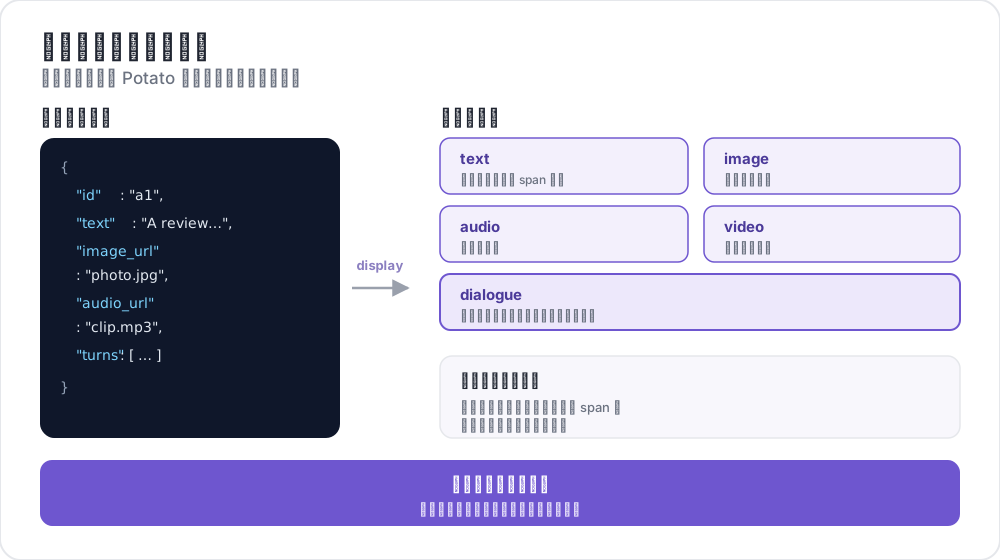 實例顯示如何對映欄位
為什麼使用實例顯示?
要顯示一張影像並用單選按鈕對它分類,把影像寫在 instance_display 下,把問題寫在 annotation_schemes 下。image_annotation 方案的用途是在影像上繪製,而不是顯示影像;早先那種加一個 min_annotations: 0 的方案來湊合的寫法,等於聲明瞭一個本來就沒打算讓人做的繪製任務。
下面就是那種已棄用的湊合寫法:
annotation_schemes:
  - annotation_type: image_annotation
    name: image_display
    description: "Unused, present only to display the image"
    min_annotations: 0
    tools: [bbox]
    labels: [unused]
  - annotation_type: radio
    name: category
    description: "What category is this?"
    labels: [A, B, C]
把影像宣告為內容之後,方案列表就只用來描述真正要問的問題:
instance_display:
  fields:
    - key: image_url
      type: image

annotation_schemes:
  - annotation_type: radio
    name: category
    description: "What category is this?"
    labels: [A, B, C]
基本配置
在 YAML 配置中加入 instance_display 部分:
instance_display:
  fields:
    - key: "image_url"           # Field name in your data JSON
      type: "image"              # Content type
      label: "Image to classify" # Optional header
      display_options:
        max_width: 600
        zoomable: true

  layout:
    direction: "vertical"        # vertical or horizontal
    gap: "20px"
每個欄位指定資料檔案中的一個鍵,以及 Potato 渲染它所用的顯示類型。顯示類型不認識的選項名會報配置錯誤,而不是被悄悄忽略,錯誤資訊會給出最接近的真實選項名。
支援的顯示類型
Potato 提供 27 種顯示類型。“片段目標”一列說明該類型能否通過下文介紹的 span_target 標誌承載片段標註。
| 類型 | 描述 | 片段目標 |
|---|---|---|
text | 純文本內容 | 是 |
html | 經過清理的 HTML 內容 | 否 |
image | 帶縮放的影像顯示 | 否 |
video | 影片播放器 | 否 |
audio | 音訊播放器 | 否 |
audio_dialogue | 與音訊同步的分說話人文字稿,可逐輪播放 | 是 |
gallery | 可滾動的影像畫廊,帶說明文字 | 否 |
depth_map | 深度圖,帶遠近視窗、色彩對映和米數讀數 | 否 |
dialogue | 對話輪次 | 是 |
conversation_tree | 對話樹,分支節點可摺疊 | 否 |
multi_agent_discussion | 多智慧體討論,帶智慧體圖例和篩選 | 是 |
interactive_chat | 互動式智慧體對話,附互動結束後的軌跡 | 是 |
pairwise | 並排比較 | 否 |
code | 語法高亮的原始碼 | 是 |
spreadsheet | 表格資料(Excel/CSV),按行或按單元格標註 | 否 |
document | 富文件(Word、Markdown、HTML) | 是 |
pdf | 帶頁面控制元件的 PDF 文件 | 否 |
agent_trace | 智慧體軌跡,顯示為縱向的步驟卡片 | 否 |
coding_trace | 程式設計智慧體軌跡,帶差異、終端塊和檔案樹 | 是 |
eval_trace | 一條軌跡分三欄顯示:推理、函式呼叫、最終答案 | 是 |
cot_trace | 長思維鏈軌跡,帶固定的進度導軌 | 否 |
web_agent_trace | 網頁智慧體軌跡,帶截圖和點選疊加層 | 否 |
live_agent | 即時 AI 智慧體檢視器,帶即時截圖 | 否 |
live_coding_agent | 即時程式設計智慧體檢視器,帶即時流式輸出 | 否 |
image_region | 大圖中的一個矩形區域(如一行文字),在瀏覽器中裁剪顯示(數位人文) | 否 |
protein_structure | 在 3Dmol.js 或 Mol* 中顯示蛋白質結構(mmCIF、BinaryCIF、PDB),可選擇殘基(蛋白質結構) | 否 |
genome_locus | 在 igv.js 中顯示基因組位點,含參考序列、reads、變異和註釋軌道(基因組位點) | 否 |
spreadsheet 和 pdf 標為“否”,是因為它們不接受 span_target 標誌。兩者仍各有自己的標註錨定方式:電子表格按行或按單元格標註,PDF 通過 PDF.js 的文本層標註。
每種顯示類型都支援的選項
有三個選項屬於 Potato 包在每個欄位外面的可調整大小的容器,而不屬於某一個渲染器,所以它們對每種顯示類型都有效:
| 選項 | 預設值 | 描述 |
|---|---|---|
resizable | true | 把欄位包在一個標註者可以拖動調整大小的容器裡 |
max_height | 500 | 欄位在內部開始滾動之前可以長到多高 |
min_height | 100 | 欄位最矮可以被拖到多高 |
長度可以寫數字,也可以寫 CSS 長度,400、"400px" 和 "50vh" 都可以,只寫數字表示畫素。欄位很短時適合設 resizable: false,因為給一行標籤配一個拖拽手柄看起來像是出了錯。
顯示類型選項
文本顯示
- key: "text"
  type: "text"
  label: "Document"
  display_options:
    collapsible: false           # Make content collapsible
    collapsed_by_default: false  # Start collapsed (needs collapsible)
    max_height: 400              # Max height in pixels before scrolling
    preserve_whitespace: true    # Preserve line breaks and spacing
collapsed_by_default 讓篇幅很長的案卷先收起來,等標註者需要時再展開,而不是每一條都把問題擠到頁面下方。
影像顯示
- key: "image_url"
  type: "image"
  label: "Image"
  display_options:
    max_width: 800            # Max width (number or CSS string)
    max_height: 600           # Max height
    zoomable: true            # Enable zoom controls
    alt_text: "Description"   # Alt text for accessibility
    object_fit: "contain"     # CSS object-fit property
影片顯示
- key: "video_url"
  type: "video"
  label: "Video"
  display_options:
    max_width: 800
    max_height: 450
    controls: true            # Show video controls
    autoplay: false           # Auto-play on load
    loop: false               # Loop playback
    muted: false              # Start muted
音訊顯示
- key: "audio_url"
  type: "audio"
  label: "Audio"
  display_options:
    controls: true            # Show audio controls
    autoplay: false
    loop: false
    show_waveform: false      # Show waveform visualization
對話顯示
- key: "conversation"
  type: "dialogue"
  label: "Conversation"
  display_options:
    alternating_shading: true    # Alternate background colors
    speaker_extraction: true     # Extract "Speaker:" from text
    show_turn_numbers: false     # Show turn numbers
max_height: 600 # Cap the height and scroll inside it否則長對話會把標註表單擠出頁面底部,max_height 會讓容器內部滾動,而不是把內容裁掉。
對話的資料格式(JSONL 檔案中的每一行):
{"id": "conv_001", "conversation": ["Speaker A: Hello there!", "Speaker B: Hi, how are you?"]}或者使用結構化資料:
{"id": "conv_001", "conversation": [{"speaker": "Alice", "text": "Hello there!"}, {"speaker": "Bob", "text": "Hi, how are you?"}]}成對顯示
- key: "comparison"
  type: "pairwise"
  label: "Compare Options"
  display_options:
    cell_width: "auto"          # "auto" splits the row evenly
    show_labels: true           # Show A/B labels
    labels: ["Option A", "Option B"]
    vertical_on_mobile: true    # Stack vertically on mobile
佈局選項
控制多個欄位的排列方式:
instance_display:
  layout:
    direction: horizontal  # horizontal or vertical
    gap: 24px              # Space between fields
當兩個欄位需要標註者互相對照時,例如原文和它的摘要,適合用水平方向。按順序閱讀的材料則適合上下堆疊。
片段標註支援
有九種顯示類型可以作為片段標註的目標:text、dialogue、audio_dialogue、code、document、coding_trace、eval_trace、interactive_chat 和 multi_agent_discussion。把一個欄位標記為片段目標:
instance_display:
  fields:
    - key: "document"
      type: "text"
      span_target: true  # Enable span annotation on this field

annotation_schemes:
  - annotation_type: span
    name: entities
    description: "Highlight named entities"
    labels: [PERSON, LOCATION, ORG]
在不支援的類型上設定 span_target 會報配置錯誤,錯誤資訊會列出支援的類型。
多片段目標
可以有多個支援片段標註的文本欄位:
instance_display:
  fields:
    - key: "source_text"
      type: "text"
      label: "Source Document"
      span_target: true

    - key: "summary"
      type: "text"
      label: "Summary"
      span_target: true

annotation_schemes:
  - annotation_type: span
    name: factual_errors
    description: "Mark claims in the summary that the source does not support"
    labels: [contradiction, unsupported, fabrication]
使用多個片段目標時,標註會連同所屬欄位一起儲存:
{
  "factual_errors": {
    "source_text": [],
    "summary": [
      {"start": 45, "end": 67, "label": "unsupported"}
    ]
  }
}
偏移量按欄位分別記錄,因此摘要裡的片段不會和原文中同一字元位置的片段混淆。
將標註方案連結到顯示欄位
對於媒體標註方案(image_annotation、video_annotation、audio_annotation),用 source_field 把它們連結到顯示欄位:
instance_display:
  fields:
    - key: "image_url"
      type: "image"

annotation_schemes:
  - annotation_type: image_annotation
    name: objects
    description: "Draw a box around each object"
    source_field: "image_url"  # Links to display field
    tools: [bbox]
labels: [person, car]當一個條目帶有多張影像,或者方案應該畫在它預設會找到的那個欄位以外的欄位上時,才需要指明欄位。只有一個影像欄位時,image_annotation 會自己找到它。
逐輪次對話評分
為單個對話輪次新增內聯評分控制元件:
instance_display:
  fields:
    - key: conversation
      type: dialogue
      label: "Conversation"
      display_options:
        show_turn_numbers: true
        per_turn_ratings:
          speakers: ["Agent"]          # Only show ratings for these speakers
          schema_name: "turn_quality"  # Name for the stored annotation data
          scheme:
            type: likert
            size: 5
            labels: ["Poor", "Excellent"]
把 speakers 限制在一方,可以讓評分只落在被評估的那些輪次上;當另一方是固定的使用者指令碼時,這正是你要的效果。評分圓圈內聯顯示在每個匹配輪次的下方,填充到選中的值,並以輪次索引為鍵存為一個 JSON 物件:
{
  "turn_quality": "{\"0\": 4, \"2\": 5, \"4\": 3}"
}
示例:影像分類
annotation_task_name: "Image Classification"

data_files:
  - data/images.json

item_properties:
  id_key: id
  text_key: image_url

task_dir: .
output_annotation_dir: annotation_output

instance_display:
  fields:
    - key: image_url
      type: image
      label: "Image to Classify"
      display_options:
        max_width: 600
        zoomable: true

    - key: context
      type: text
      label: "Additional Context"
      display_options:
        collapsible: true

annotation_schemes:
  - annotation_type: radio
    name: category
    description: "What category best describes this image?"
    labels:
      - nature
      - urban
      - people
      - objects

user_config:
  allow_all_users: true
context 欄位設為可摺疊,是因為它屬於輔助材料。預設收起可以讓影像和問題出現在同一屏上。
示例資料檔案(data/images.json),JSONL 格式:
{"id": "img_001", "image_url": "https://example.com/image1.jpg", "context": "Taken in summer 2023"}
{"id": "img_002", "image_url": "https://example.com/image2.jpg", "context": "Winter landscape"}
示例:多模態標註
影片與可做片段標註的文字稿並排顯示:
annotation_task_name: "Video Analysis"

data_files:
  - data/videos.json

item_properties:
  id_key: id
  text_key: transcript

task_dir: .
output_annotation_dir: annotation_output

instance_display:
  layout:
    direction: horizontal
    gap: 24px

  fields:
    - key: video_url
      type: video
      label: "Video"
      display_options:
        max_width: "45%"

    - key: transcript
      type: text
      label: "Transcript"
      span_target: true

annotation_schemes:
  - annotation_type: radio
    name: sentiment
    description: "What is the overall sentiment of this clip?"
    labels: [positive, neutral, negative]

  - annotation_type: span
    name: highlights
    description: "Highlight the passages that support your rating"
    labels:
      - key_point
      - question
      - supporting_evidence
水平佈局把影片放在文字稿旁邊,標註者標記一段文字時不必滾動離開它所描述的畫面。
向後相容性
- 沒有
instance_display的現有配置繼續照常工作 item_properties中的text_key仍作為後備使用- 通過標註方案進行的舊版媒體檢測仍然有效
- 使用舊的僅顯示模式時,日誌中會出現棄用警告
從僅顯示模式遷移
如果你之前只是用標註方案來顯示內容:
之前(已棄用):
annotation_schemes:
  - annotation_type: image_annotation
    name: image_display
    description: "Unused, present only to display the image"
    min_annotations: 0
    tools: [bbox]
    labels: [unused]
之後(推薦):
instance_display:
  fields:
    - key: image_url
      type: image
延伸閱讀
有關實現細節,請參閱源文件。