物体検出のためのバウンディングボックス描画
Potatoで物体検出タスクを構築します。3ラベルの初期設定から運転映像向けの本番設定まで進め、COCOまたはYOLOにエクスポートします。
このチュートリアルでは、Potatoで物体検出のアノテーションタスクを構築します。3つのラベルを持つ設定から始め、検出器の学習に使うCOCOまたはYOLOのエクスポートまでを扱います。画像ツールとそのオプションの一覧は、画像アノテーションのドキュメントを参照してください。
データファイル
データファイルの各行が1枚の画像です。Potatoには識別子と、画像のURLまたはパスを持つフィールドが必要で、どのフィールドがどちらにあたるかはitem_propertiesで指定します。
{"id": "img_001", "image_url": "https://example.com/street_001.jpg"}
{"id": "img_002", "image_url": "/static/images/street_002.jpg"}相対パスはmedia_directoryを基準に解決されるため、ローカル画像のためにファイルサーバーを動かしておく必要はありません。
最小構成
描画領域を受け持つのはimage_annotationスキームです。必要なのは名前、アノテーターが指示として読む説明、有効にするツール、そしてラベルセットです。
annotation_task_name: "Object Detection Annotation"
task_dir: "."
output_annotation_dir: "annotation_output/"

data_files:
  - "data/images.json"

item_properties:
  id_key: id
  text_key: image_url

annotation_schemes:
  - annotation_type: image_annotation
    name: objects
    description: "Draw a box around every car, person, and bicycle"
    tools:
      - bbox
    labels:
      - name: car
        color: "#FF6B6B"
      - name: person
        color: "#4ECDC4"
      - name: bicycle
        color: "#45B7D1"
ラベルを3つにしているのは意図的な出発点です。ラベルを1つ追加するたびに、アノテーターはすべての物体でその判断を下すことになり、どう解決するかを伝えておくべき境界事例も1つ増えます。まずモデルが本当に必要とするクラスから始め、ガイドラインが安定してから残りを追加してください。
サーバーを起動してタスクを開きます。
potato start config.yaml -p 8000アノテーターの作業
アノテーターはラベルを選び、各物体の周りに矩形をドラッグで描き、ボックスが物体にぴったり合うまで角を調整します。
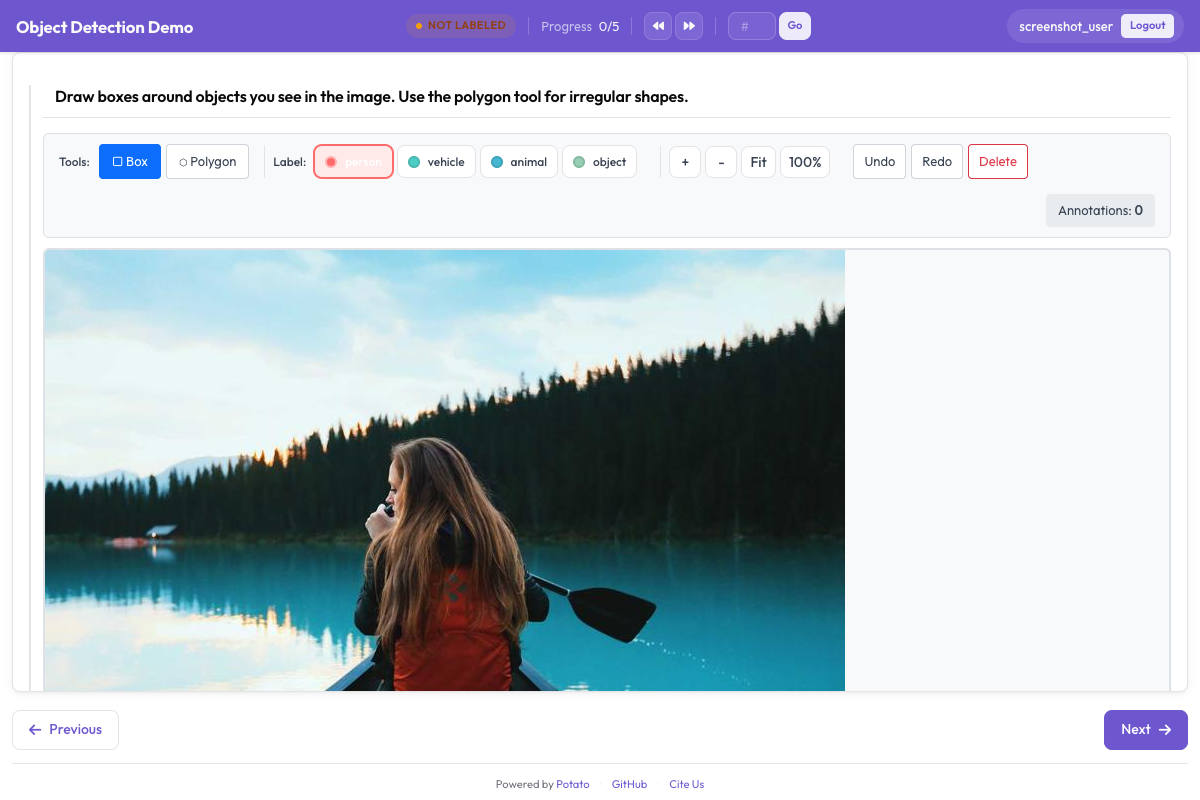 バウンディングボックスツールでは、アノテーターが画像上に矩形領域を描いてラベルを付けられます
ズームとパンは既定で有効になっており、小さな物体や遠くの物体を扱うときに役立ちます。画像が均一で追加の操作がかえって邪魔になる場合は、zoom_enabled: falseとpan_enabled: falseでどちらも無効にできます。
ラベルのショートカット
既定のv7キーバインドプロファイルでは、ツールに文字キーが割り当てられています。rでボックスツール、pでポリゴン、bでブラシを選択します。ラベルのショートカットはラベルごとにkey_valueで設定します。数字を使うのが安全です。key_valueがツールのキーと重なったラベルは、両方の動作を同時に実行してしまうためです。
annotation_schemes:
  - annotation_type: image_annotation
    name: objects
    description: "Annotate all visible objects"
    tools:
      - bbox
    labels:
      - name: person
        color: "#FF6B6B"
        key_value: "1"

      - name: car
        color: "#4ECDC4"
        key_value: "2"

      - name: motorcycle
        color: "#45B7D1"
        key_value: "3"

      - name: bicycle
        color: "#96CEB4"
        key_value: "4"

      - name: traffic_light
        color: "#FFEAA7"
        key_value: "5"

      - name: stop_sign
        color: "#DDA0DD"
        key_value: "6"
色は既定のまま受け入れず、選ぶ価値があります。混雑した交通シーンでは、アノテーターは見落としを探して画面を見渡しています。隣り合うクラスに似た色が付いていると、その確認が遅くなります。アノテーターがPotato 2.8より前のキー配置に慣れていて、再教育を避けたい場合はkeybinding_profile: legacyを設定してください。
オブジェクト属性の追加
Potatoにはボックスごとの属性ブロックがありません。image_annotationのラベルから読み取られるのはname、color、key_valueだけで、ラベルの辞書にあるそれ以外の項目は破棄されます。そのため、入れ子にしたattributes:リストは何の効果もなく、ボックスを描いた後に入力を促す画面も表示されません。
同じ情報を記録する方法は2つあります。1つは、その区別をラベルセットに組み込み、属性をアノテーターが選ぶものの一部にする方法です。
annotation_schemes:
  - annotation_type: image_annotation
    name: objects
    description: "Draw a box around each object"
    tools:
      - bbox
    labels:
      - name: person
        color: "#FF6B6B"
      - name: person_occluded
        color: "#C44536"
もう1つは、2つ目のスキームで画像全体について尋ねる方法です。これは個々のボックスではなくアイテムに適用されるので、その点が引き換えになります。画像内の何かが遮蔽されていたことはわかりますが、それがどのボックスだったかはわかりません。
  - annotation_type: multiselect
    name: image_conditions
    description: "Conditions affecting this image"
    labels:
      - Heavy occlusion
      - Truncated objects
- Low light属性が残るのはVIAからインポートする場合だけです。via_importerは各領域のregion_attributesを読み取り、ラベルに組み込みます。これはインポート時の概念であり、設定の概念ではありません。
少なくとも1つのボックスを必須にする
ボックスが1つもない画像は曖昧です。アノテーターが何も見つけなかったのか、アイテムを飛ばしたのか区別できないからです。min_annotationsは、図形の数が下限に満たない送信を拒否することでこの区別を強制します。そのため、本当に何も写っていない画像には明示的な否定ラベルが必要になります。
annotation_schemes:
  - annotation_type: image_annotation
    name: objects
    description: "Draw a box around every traffic participant"
    tools:
      - bbox
    labels: [...]
    min_annotations: 1
画像の表示サイズを制御する
描画領域は表示された画像に合わせて決まるため、小さく表示された画像ではアノテーターのキャンバスも小さくなります。サイズはinstance_displayで設定し、細部の作業にはズームを引き続き使えます。
instance_display:
  fields:
    - key: image_url
      type: image
      label: "Frame"
      display_options:
        max_width: 1200
        max_height: 800
        zoomable: true
本番用の設定
以下の運転シーン向け設定には、検出データセットに必要な5つのクラスが含まれています。アノテーターの左手が数字キーの列から離れないようにラベルには数字のショートカットを残し、このコーパスのすべてのフレームに少なくとも1つの交通参加者が写っているためmin_annotations: 1を設定しています。
annotation_task_name: "Autonomous Driving - Object Detection"
task_dir: "."
output_annotation_dir: "annotation_output/"

data_files:
  - "data/driving_frames.json"

item_properties:
  id_key: id
  text_key: frame_path

annotation_schemes:
  - annotation_type: image_annotation
    name: objects
    description: "Annotate all traffic participants and objects"
    tools:
      - bbox
    min_annotations: 1
    labels:
      - name: vehicle
        color: "#FF6B6B"
        key_value: "1"

      - name: pedestrian
        color: "#4ECDC4"
        key_value: "2"

      - name: cyclist
        color: "#45B7D1"
        key_value: "3"

      - name: traffic_sign
        color: "#FFEAA7"
        key_value: "4"

      - name: traffic_light
        color: "#DDA0DD"
        key_value: "5"
5クラスの時点で、数字のショートカットで無理なく扱える範囲の限界に近づいています。10を超えると、アノテーターはフレームを読むよりキーを探すことに時間を取られます。そうなったら、ラベルをさらに追加するよりタスクを2つに分けるほうが適切です。
アノテーションの形式
Potatoは、どのツールで描いたかに関係なく、1枚の画像のすべての図形をフラットなJSON配列に保存します。座標は画像に対して0から1の範囲に正規化されるため、後で画像が別のサイズで配信されてもアノテーションは正しいままです。
[
  {
    "type": "bbox",
    "label": "vehicle",
    "color": "#FF6B6B",
    "coordinates": {"x": 0.234, "y": 0.352, "width": 0.120, "height": 0.130}
  },
  {
    "type": "bbox",
    "label": "pedestrian",
    "color": "#4ECDC4",
    "coordinates": {"x": 0.427, "y": 0.370, "width": 0.026, "height": 0.139}
  }
]bboxは幾何情報をcoordinatesの下に{x, y, width, height}として持ちます。ポリゴンは同じキーの下に点のリストを持ち、マスクは代わりにrleの下にランレングス符号化のデータを持ちます。
学習用のエクスポート
検出器の学習コードはCOCOかYOLOを読み込みます。Potatoはどちらも出力できます。
python -m potato.export --config config.yaml --format coco --output ./export/
python -m potato.export --config config.yaml --format yolo --output ./export/2つのエクスポートの違いは構文だけではありません。COCOは単一のannotations.jsonを書き出し、ボックスはピクセル単位の[x, y, width, height]で表されます。画像はコピーしないので、file_nameの値は画像が元々置かれている場所を指します。YOLOは画像ごとに1つのテキストファイルを正規化された中心座標で書き出し、画像とラベルをtrain/とval/ディレクトリに分け、さらにdata.yamlとclasses.txtを追加します。これにより、学習の実行時にクラス一覧を別途指定しなくても読み込めます。
ボックスの一貫性を保つ
ボックスは物体にぴったり合わせて描いてください。ボックス内の背景のピクセルは、1つ残らずモデルが前景として学習してしまうピクセルだからです。扱いにくいケース(遮蔽、フレームの端で切れた物体、映り込み)の処理方法を文書にまとめ、ガイドラインの変更にまだコストがかからない最初の週に、例をまとめて一緒にレビューしてください。調査の進行中は、アノテーターごとのボックス数とサイズ分布を監視してください。急な変化は、画像が変わったことよりも、誰かがルールを違う意味で読み始めたことを示している場合がほとんどです。
次のステップ
- ボックスではタスクに対して粗すぎる場合はポリゴンアノテーションを追加する
- 姿勢推定にはキーポイントセットを使う
- 調査が少人数のアノテーターの規模を超える前に品質管理を設定する
その他の画像オプションについては、画像アノテーションを参照してください。