Webブラウジングエージェントのアノテーション:WebArenaトレースから人間評価まで
PotatoのWebエージェントトレース表示を使い、ステップごとのスクリーンショット、SVGオーバーレイ、ステップ単位のアノテーションスキーマで自律型Webブラウジングエージェントを評価する方法。
エージェントのトレースをPotatoのWebエージェント形式に変換し、web_agent_traceビューアで表示して各スクリーンショットにエージェントのクリック位置を示すオーバーレイを重ね、trajectory_evalスキーマでステップを評価します。
Webブラウジングエージェントは、ページに対して実行したアクションで評価されます。そのため評価には各ステップの両面、つまりエージェントが見たページの状態と、それに対して取ったアクションの両方が必要です。アクションログだけでは判断を支えられません。「Clicked element product-101」という記録からは、それがページ上で最も安いノートPCだったかどうかがレビュアーにはわかりません。マーカーのないスクリーンショットでは、十数個あるリンクのどれがターゲットだったのかを推測するしかありません。
このガイドでは、WebArenaトレースを対象にこの評価を構築します。1つのコンバータがすべてに対応しているため、同じ手順がVisualWebArena、Mind2Web、Anthropic Computer Useのログ、生のブラウザ記録にも使えます。設定の完全なリファレンスはソースドキュメントを参照してください。
必要なもの
pip install potato-annotationトレース自体も必要です。WebArenaの場合、これはエピソードごとのスクリーンショットとJSON形式のアクションログです。VisualWebArenaは同じ構造に追加の視覚的グラウンディング情報を加えて記録し、生のブラウザ記録にはその代わりにビューポートとマウス軌跡のデータが含まれます。
生のWebArenaトレースの中身
WebArenaのエピソードには、タスクの説明、アクションの系列、各スクリーンショットのパスが含まれます:
{
  "trace_id": "wa_001",
  "task": "Find the cheapest laptop on the electronics store and add it to the cart",
  "website": "shopping",
  "steps": [
    {
      "step": 0,
      "url": "http://shop.example.com/",
      "action_type": "click",
      "action_target": "Electronics category link",
      "element_id": "nav-electronics",
      "coordinates": [245, 82],
      "screenshot": "screenshots/wa_001_step_00.png"
    },
    {
      "step": 1,
      "url": "http://shop.example.com/electronics",
      "action_type": "click",
      "action_target": "Laptops subcategory",
      "element_id": "cat-laptops",
      "coordinates": [180, 310],
      "screenshot": "screenshots/wa_001_step_01.png"
    }
  ],
  "success": true
}
トレースの変換
Potatoのビューアはフレームワークごとの独自形式ではなく正規化されたステップ形式を読み込むため、生のエピソードはまずコンバータを通します:
python -m potato.trace_converter -i traces.json -f web_agent -o data/web_traces.jsonlこれによりエピソードごとに1つのインスタンスが書き出され、各ステップにはstep_index、screenshot_url、action_type、ターゲットのelementとそのバウンディングボックス、coordinates、任意のmouse_path、さらにソースログに記録されている場合はエージェントのthoughtとobservationが含まれます。-f web_agentの代わりに--auto-detectを指定するとコンバータが形式を自動で判別します。1つのディレクトリに複数のフレームワークのトレースが混在する場合は、このオプションを使います。
プロジェクト設定
ビューアはアノテーションタイプではなく表示タイプなので、instance_display.fieldsの下に置き、アノテーションスキーマはそれとは別に定義します。最初に決めるべき設定はスクリーンショットのサイズです。幅900ピクセルなら、アノテーションコントロールを画面の下に押し出すことなく、デスクトップページ全体を読める大きさで表示できます。
annotation_task_name: "WebArena Agent Evaluation"
task_dir: "."

data_files:
  - "data/web_traces.jsonl"

item_properties:
  id_key: id
  text_key: task_description

output_annotation_dir: "output/"
export_annotation_format: "jsonl"

instance_display:
  layout:
    direction: vertical
    gap: 16px
  fields:
    - key: task_description
      type: text
      label: "Task"

    - key: steps
      type: web_agent_trace
      label: "Agent Browsing Trace"
      display_options:
        show_overlays: true
        show_filmstrip: true
        show_thought: true
        show_observation: true
        show_element_info: true
        screenshot_max_width: 900
        screenshot_max_height: 600
        filmstrip_size: 80

annotation_schemes:
  - annotation_type: radio
    name: task_success
    description: "Did the agent complete the task?"
    labels:
      - "Success"
      - "Partial success"
      - "Failure"
    label_requirement:
      required: true

  - annotation_type: radio
    name: task_efficiency
    description: "Was the agent's path to the goal efficient?"
    labels:
      - "Optimal path"
      - "Reasonable but not optimal"
      - "Inefficient, unnecessary steps"
      - "Completely wrong direction"
    label_requirement:
      required: true

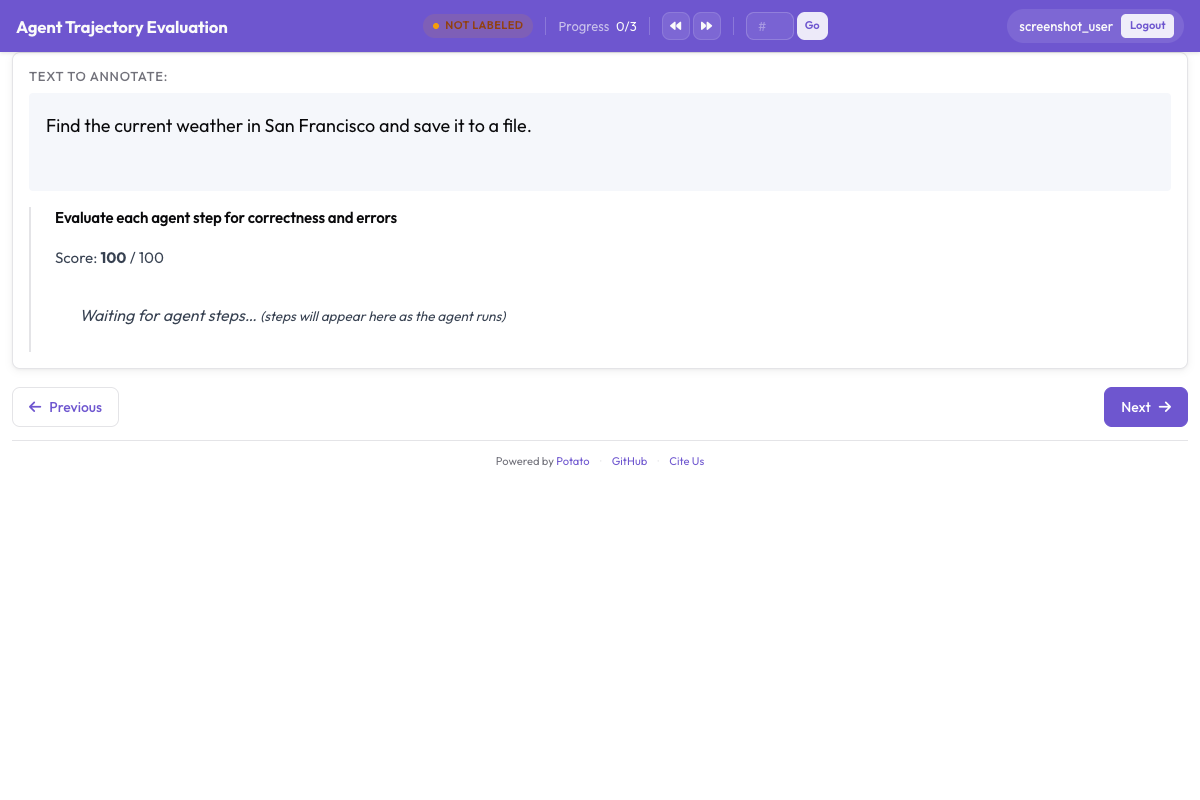
  - annotation_type: trajectory_eval
    name: step_evaluation
    description: "Judge each action against the task"
    steps_key: steps
    step_text_key: action_type
    correctness_options:
      - correct
      - acceptable
      - incorrect
      - unnecessary
    error_types:
      - name: wrong_element_clicked
      - name: wrong_page_navigated_to
      - name: missed_better_option
      - name: incorrect_form_input
      - name: premature_completion
      - name: unnecessary_navigation
      - name: failed_to_scroll
      - name: wrong_page_section
      - name: other
    severities:
      - name: minor
        weight: -1
      - name: major
        weight: -5
      - name: critical
        weight: -10
    show_score: true
    max_score: 100

user_config:
allow_all_users: true1つのtrajectory_evalスキーマで、ステップごとの評価パス全体をまかなえます。各ステップをカードとして表示し、カードごとに正確性、エラータイプ、深刻度、記述式の根拠を収集したうえで、深刻度の重みからトレース単位の品質スコアを算出します。上の重みでは、majorのエラー1件でトレースから5点、criticalのエラー1件で10点が引かれます。この重みは意図を持って設定してください。深刻な失敗が1つあるトレースと、小さな失敗が4つあるトレースのどちらが上位になるかを決めるのはこの重みです。
アノテーターに見えるもの
現在のステップのスクリーンショットがメインパネルいっぱいに表示され、その上にSVGオーバーレイが描画されます。各オーバーレイはステップの異なる部分を示し、色は固定です:
| オーバーレイ | 示すもの |
|---|---|
| 十字線付きの赤い円 | クリック座標 |
| 黄色のハイライト | エージェントが入力したフィールド |
| 緑の矢印 | スクロールの方向と大きさ |
| 青い破線の矩形 | ターゲット要素のバウンディングボックス |
| オレンジの曲線 | ターゲットまでのマウス軌跡 |
下部にはサムネイルのフィルムストリップが並び、どれかをクリックするとそのステップに移動します。10ステップ程度を超えるトレースでは、実行全体の流れを把握できるレビュアーと、手探りでスクロールするレビュアーの差はフィルムストリップで決まります。ステップ詳細パネルには要素情報、エージェント自身の思考、エージェントが記録した観察が表示されます。ソースログに有用な内容がない場合は、それぞれdisplay_optionsでオフにできます。
ビューアの下にあるチェックボックスの列で、オーバーレイのオン・オフを切り替えます:
| コントロール | オーバーレイ |
|---|---|
| Clicks | 赤いクリックの十字線 |
| Bounding Boxes | 青い破線の矩形 |
| Mouse Path | オレンジの曲線 |
| Scroll | 緑のスクロール矢印 |
オーバーレイをオフにする操作は、情報量の多いページで効いてきます。クリックが正しかったかどうかを判断するためのテキストの上に、クリックマーカーが重なることがあるからです。なお、黄色の入力ハイライトには専用のコントロールがありません。5つのオーバーレイのうち4つは個別に切り替えられますが、入力フィールドのハイライトは常に描画されます。このビューアにはキーボードショートカットがないため、ステップ間の移動はフィルムストリップとステップコントロールで行います。
アノテーションパス
レビュアーは1つのトレースを5つの手順で処理します:
- タスクの説明を読む。 以降の判断はすべてこれに照らして行います。
- フィルムストリップに目を通す。 何かを評価する前に実行全体の流れをつかみます。後になって初めて現れる証拠をもとに、序盤のステップを正しいと判定してしまわないためです。
- ステップを順に確認する。 各ステップでページの状態を読み、オーバーレイでエージェントが何に対して操作したかを確認し、アクションを評価します。誤っていればエラータイプと深刻度を選び、エージェントが代わりに何をすべきだったかを根拠欄に書きます。
- トレースを評価する。 すべてのステップを見終えてから、全体の成否と効率を判断します。
- 送信して次へ進む。
4つの正確性オプションは、学習データにとって重要な境界線に沿ってステップを分けます。正しいアクションは、想定どおりの方法でゴールに向かって進みます。許容できるアクションは、検索ボックスを使わずにカテゴリページをたどるなど、遅い経路で前進します。誤ったアクションはミスであり、間違った要素、無関係なページ、フォームへの誤ったテキスト入力などがこれにあたります。不要なアクションは益にも害にもならないもので、クリックの直後に前のページへ戻る操作などです。さまようエージェントと誤るエージェントは別の問題なので、ミスとは分けておく価値があります。
エラー分類
エラータイプは、失敗したトレースの山を、エージェント開発者が手を打てるものに変えるためのものです。そのため、カテゴリは誤りの程度ではなく、区別できる原因に対応させるべきです:
| エラータイプ | 意味 | 例 |
|---|---|---|
| 間違った要素のクリック | エージェントが間違ったUI要素を操作した | 「Laptops」ではなく「Tablets」をクリックした |
| 間違ったページへの移動 | エージェントが無関係な場所に行き着いた | 商品一覧ではなく「About Us」に移動した |
| より良い選択肢の見逃し | より良いアクションがあった | 検索ボックスがすぐそこにあるのにカテゴリをたどった |
| フォーム入力の誤り | エージェントが間違ったテキストを入力した | 「laptop」ではなく「labtop」で検索した |
| 早すぎる完了 | エージェントが早い段階で成功を宣言した | 間違った商品をカートに入れて終了した |
| 不要なナビゲーション | そのステップがゴールに寄与しない | 2つのカテゴリページの間でホームページを訪れた |
| スクロールの失敗 | ターゲットがビューポートの下にあった | 要素は一度も表示されず、エージェントは一度もスクロールしなかった |
| 間違ったページセクション | ページは正しいが領域が違う | メインコンテンツではなくヘッダーをクリックした |
難しいトレースへの取り組み方
15ステップを超えるトレースで全ステップを同じ深さで評価すると、明らかに問題のないステップに労力の大半を使うことになります。問題の兆候となる3つのパターンをフィルムストリップで探し、そこに労力を集中させてください。そのパターンとは、予期せず変わるURL、エージェントが後戻りするステップ、そしてほぼ同じスクリーンショットの連続です。最後のものは、たいていエージェントがループにはまっていることを意味します。
失敗したトレースでは、最初の誤ったステップこそ正確にアノテーションすべき箇所です。それ以降はすべて、エージェントが本来到達するはずのなかった状態で起きているため、後のエラーは原因ではなく結果を表しています。
スクリーンショットだけでは判断できないアクションもあります。多くはクリック位置で複数の要素が重なっている場合です。ステップパネルの要素情報にはターゲットのタグ、テキスト、バウンディングボックスが示され、実際に何がクリックされたかを判断するには通常それで十分です。show_element_infoを有効にすると、このパネルが表示されたままになります。
VisualWebArena
VisualWebArenaのトレースも同じコンバータを通ります。コンバータはアクションステップのaction_typeとelementフィールドから両方の形式を認識します。これらのトレースが持つグラウンディング情報はバウンディングボックスのオーバーレイとして表示されるため、グラウンディングに焦点を当てたパスは、設定の変更ではなく、アノテーターが画面に何を表示しておくかの問題になります。Bounding BoxesをチェックしたままClicksのチェックを外すと、エージェントが正しいピクセルだけでなく正しい要素を狙っていたかどうかがわかる表示になります。
結果の読み方
Webエージェントのエラーはトレースの特定の地点に集中する傾向があり、それがどこかを最も早く知る方法は、ステップ位置ごとのエラー率です。各trajectory_evalアノテーションはステップごとのレコードのリストを保存しており、各レコードにはstep_indexとcorrectnessが含まれます:
import json

annotations = []
with open("output/exports/jsonl/annotations.jsonl") as f:
    for line in f:
        annotations.append(json.loads(line))

step_counts = {}
for ann in annotations:
    evaluation = ann["labels"].get("step_evaluation", {})
    for step in evaluation.get("steps", []):
        pos = step["step_index"]
        counts = step_counts.setdefault(pos, {})
        label = step.get("correctness", "unrated")
        counts[label] = counts.get(label, 0) + 1

print("Error rate by step position:")
for pos in sorted(step_counts):
    counts = step_counts[pos]
    total = sum(counts.values())
    errors = counts.get("incorrect", 0) + counts.get("unnecessary", 0)
    print(f"  Step {pos}: {errors / total:.1%} error rate ({total} observations)")
エラータイプの分布は、もう1つの問い、つまりエージェントがいつではなく何を誤るのかに答えます:
error_counts = {}
for ann in annotations:
    evaluation = ann["labels"].get("step_evaluation", {})
    for step in evaluation.get("steps", []):
        error = step.get("error_type")
        if error:
            error_counts[error] = error_counts.get(error, 0) + 1

for error, count in sorted(error_counts.items(), key=lambda x: -x[1]):
    print(f"  {error}: {count}")
評価のスケールアップ
公表するつもりの結果であれば、トレースごとにレビュアー1人では足りません。ステップ単位の判断には、一致度の統計がまさに測定するために存在するたぐいの曖昧さが含まれているからです。カバレッジの目標と割り当て順序を設定のトップレベルで指定します:
num_annotators_per_item: 3
assignment_strategy: random
次に、トレース単位のラベルでアノテーター同士を比較します。不一致が曖昧さなく判断できるのはこのラベルです。比較をパース済みJSONではなく列に対して行えるよう、まずParquetにエクスポートします:
python -m potato.export -c config.yaml -f parquet -o ./parquet_export/from sklearn.metrics import cohen_kappa_score
import pandas as pd
df = pd.read_parquet("parquet_export/annotations.parquet")
success = df[df["schema_name"] == "task_success"]
pivot = success.pivot(index="instance_id", columns="annotator", values="value")
annotators = pivot.columns.tolist()
for i in range(len(annotators)):
for j in range(i + 1, len(annotators)):
pair = pivot[[annotators[i], annotators[j]]].dropna()
kappa = cohen_kappa_score(pair[annotators[i]], pair[annotators[j]])
print(f"Kappa ({annotators[i]} vs {annotators[j]}): {kappa:.3f}")数百件規模のトレースを評価する場合、Solo Modeは人間のレビュアーと同じキューにモデルを配置します。モデルがラベルを提案し、人間がそれを修正していき、両者の一致が十分な頻度に達したら残りをモデルが仕上げます:
solo_mode:
  enabled: true
  labeling_models:
    - endpoint_type: "anthropic"
      model: "claude-sonnet-4-20250514"
      api_key: "${ANTHROPIC_API_KEY}"
  thresholds:
    end_human_annotation_agreement: 0.90
    minimum_validation_sample: 50
検討すべきはモデルの選択ではなく、一致度のしきい値です。0.90の場合、少なくとも50件の比較で測って、モデルのラベルの10件中9件が人間のラベルと一致するまで人間がアノテーションを続けます。この値を下げるとラベル品質とレビュー時間を引き換えにすることになり、しかもその影響は後から気づきにくいものです。
関連資料
- エージェンティックアノテーション(コンバータと表示の完全なリファレンス)
- Webエージェントアノテーション(ビューアの表示オプション)
- AIエージェントの評価(ブラウザ以外のエージェント評価)
- Parquetエクスポート(上の分析が読み込む列)