Annotating Web Browsing Agents: From WebArena Traces to Human Evaluation
How to use Potato's web agent trace display to evaluate autonomous web browsing agents, with step-by-step screenshots, SVG overlays, and per-step annotation schemas.
Convert the agent's trace into Potato's web agent format, display it with the web_agent_trace viewer so each screenshot carries an overlay showing where the agent clicked, and rate the steps with a trajectory_eval scheme.
A web browsing agent is judged on actions taken against a page, so the evaluation needs both halves of each step, the page state the agent saw and the action it took on it. An action log alone will not support the judgment. "Clicked element product-101" tells a reviewer nothing about whether that was the cheapest laptop on the page, and a screenshot without a marker leaves them guessing which of a dozen links was the target.
This guide sets up that evaluation for WebArena traces. The same path works for VisualWebArena, Mind2Web, Anthropic Computer Use logs, and raw browser recordings, since one converter covers all of them. For the full configuration reference, see the source documentation.
What you need
pip install potato-annotationYou also need the traces themselves, which for WebArena means screenshots plus a JSON action log per episode. VisualWebArena records the same structure with extra visual grounding information, and raw browser recordings carry viewport and mouse-path data instead.
What a raw WebArena trace holds
A WebArena episode carries the task description, the action sequence, and the path to each screenshot:
{
  "trace_id": "wa_001",
  "task": "Find the cheapest laptop on the electronics store and add it to the cart",
  "website": "shopping",
  "steps": [
    {
      "step": 0,
      "url": "http://shop.example.com/",
      "action_type": "click",
      "action_target": "Electronics category link",
      "element_id": "nav-electronics",
      "coordinates": [245, 82],
      "screenshot": "screenshots/wa_001_step_00.png"
    },
    {
      "step": 1,
      "url": "http://shop.example.com/electronics",
      "action_type": "click",
      "action_target": "Laptops subcategory",
      "element_id": "cat-laptops",
      "coordinates": [180, 310],
      "screenshot": "screenshots/wa_001_step_01.png"
    }
  ],
  "success": true
}
Converting the trace
Potato's viewer reads a normalized step format rather than each framework's own, so the raw episodes go through the converter first:
python -m potato.trace_converter -i traces.json -f web_agent -o data/web_traces.jsonlThat writes one instance per episode, with each step carrying step_index, screenshot_url, action_type, the target element and its bounding box, coordinates, an optional mouse_path, and the agent's thought and observation where the source log recorded them. Dropping -f web_agent for --auto-detect lets the converter identify the format itself, which is the option to use when a directory holds traces from more than one framework.
The project config
The viewer is a display type rather than an annotation type, so it goes under instance_display.fields and the annotation schemes stay separate from it. The screenshot size is the setting worth deciding first: 900 pixels wide keeps a full desktop page readable without pushing the annotation controls off the bottom of the screen.
annotation_task_name: "WebArena Agent Evaluation"
task_dir: "."

data_files:
  - "data/web_traces.jsonl"

item_properties:
  id_key: id
  text_key: task_description

output_annotation_dir: "output/"
export_annotation_format: "jsonl"

instance_display:
  layout:
    direction: vertical
    gap: 16px
  fields:
    - key: task_description
      type: text
      label: "Task"

    - key: steps
      type: web_agent_trace
      label: "Agent Browsing Trace"
      display_options:
        show_overlays: true
        show_filmstrip: true
        show_thought: true
        show_observation: true
        show_element_info: true
        screenshot_max_width: 900
        screenshot_max_height: 600
        filmstrip_size: 80

annotation_schemes:
  - annotation_type: radio
    name: task_success
    description: "Did the agent complete the task?"
    labels:
      - "Success"
      - "Partial success"
      - "Failure"
    label_requirement:
      required: true

  - annotation_type: radio
    name: task_efficiency
    description: "Was the agent's path to the goal efficient?"
    labels:
      - "Optimal path"
      - "Reasonable but not optimal"
      - "Inefficient, unnecessary steps"
      - "Completely wrong direction"
    label_requirement:
      required: true

  - annotation_type: trajectory_eval
    name: step_evaluation
    description: "Judge each action against the task"
    steps_key: steps
    step_text_key: action_type
    correctness_options:
      - correct
      - acceptable
      - incorrect
      - unnecessary
    error_types:
      - name: wrong_element_clicked
      - name: wrong_page_navigated_to
      - name: missed_better_option
      - name: incorrect_form_input
      - name: premature_completion
      - name: unnecessary_navigation
      - name: failed_to_scroll
      - name: wrong_page_section
      - name: other
    severities:
      - name: minor
        weight: -1
      - name: major
        weight: -5
      - name: critical
        weight: -10
    show_score: true
    max_score: 100

user_config:
  allow_all_users: true
One trajectory_eval scheme covers the whole per-step pass. It renders each step as a card and collects correctness, an error type, a severity, and a written rationale on each one, then computes a trace-level quality score from the severity weights. The weights above cost a trace five points for a major error and ten for a critical one. Set them deliberately, because they decide how a trace with one serious failure ranks against a trace with four small ones.
What the annotator sees
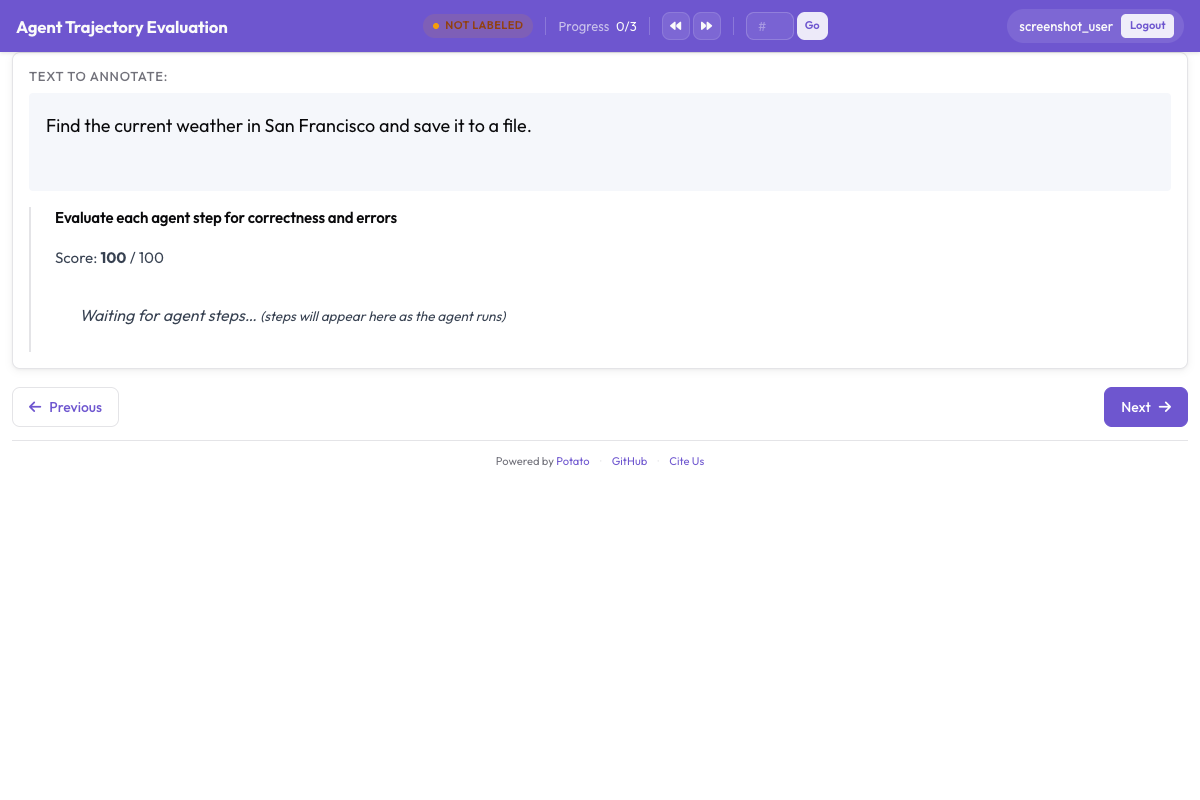
The current step's screenshot fills the main panel, with SVG overlays drawn on top of it. Each overlay marks a different part of the step, and their colors are fixed:
| Overlay | Marks |
|---|---|
| Red circle with crosshair | The click coordinates |
| Yellow highlight | The field the agent typed into |
| Green arrow | The direction and magnitude of a scroll |
| Blue dashed rectangle | The target element's bounding box |
| Orange curved line | The mouse path taken to the target |
A filmstrip of thumbnails runs along the bottom, and clicking one jumps to that step. On traces past about ten steps, the filmstrip is the difference between a reviewer who can see the shape of the run and one who is scrolling blind. The step details panel carries the element information, the agent's own thought, and the observation it recorded, each of which can be switched off in display_options when the source log has nothing useful in it.
A row of checkboxes under the viewer turns the overlays on and off:
| Control | Overlay |
|---|---|
| Clicks | The red click crosshair |
| Bounding Boxes | The blue dashed rectangle |
| Mouse Path | The orange curved line |
| Scroll | The green scroll arrow |
Turning overlays off matters on dense pages, where a click marker can sit on top of the text that tells you whether the click was right. Note that the yellow type highlight has no control of its own: four of the five overlays can be switched individually, and the typed-field highlight is always drawn. There are no keyboard shortcuts in this viewer, so step navigation is the filmstrip and the step controls.
The annotation pass
A reviewer works one trace in five moves:
- Read the task description. Everything downstream is a judgment against it.
- Scan the filmstrip. Get the shape of the run before rating anything, so an early step is not marked correct on evidence that only arrives later.
- Walk the steps. For each one, read the page state, check the overlay to see what the agent acted on, and rate the action. If it is wrong, pick the error type and a severity, and say in the rationale what the agent should have done instead.
- Rate the trace. Judge overall success and efficiency once every step has been seen.
- Submit and move on.
The four correctness options divide the steps along the line that matters for training data. Correct actions move toward the goal in the expected way. Acceptable actions make progress by a slower route, such as browsing to a category page instead of using the search box. Incorrect actions are mistakes, such as a wrong element, an irrelevant page, or wrong text in a form. Unnecessary actions neither help nor hurt, such as a click followed immediately by a back navigation, and they are worth separating from mistakes because an agent that wanders is a different problem from an agent that is wrong.
The error taxonomy
Error types are what turn a pile of failed traces into something an agent developer can act on, so the categories should map to distinguishable causes rather than to degrees of wrongness:
| Error type | What it means | Example |
|---|---|---|
| Wrong element clicked | The agent acted on the wrong UI element | Clicked "Tablets" instead of "Laptops" |
| Wrong page navigated to | The agent ended up somewhere irrelevant | Navigated to "About Us" instead of the product listing |
| Missed better option | A better action was available | Browsed categories when the search box was right there |
| Incorrect form input | The agent entered the wrong text | Searched for "labtop" instead of "laptop" |
| Premature completion | The agent declared success too early | Added the wrong item to the cart and stopped |
| Unnecessary navigation | The step does not contribute to the goal | Visited the homepage between two category pages |
| Failed to scroll | The target was below the viewport | The element was never visible and the agent never scrolled |
| Wrong page section | Right page, wrong area | Clicked the header instead of the main content |
Working through hard traces
On a trace past fifteen steps, rating every step at the same depth spends most of the effort on the steps that were obviously fine. Scan the filmstrip for the three patterns that mark a problem, then concentrate the effort there. The patterns are a URL that changes unexpectedly, a step where the agent moves backward, and a run of near-identical screenshots, which usually means the agent is stuck in a loop.
On a failed trace, the first incorrect step is the annotation worth getting right. Everything after it happens in a state the agent should never have reached, so the later errors describe the consequences rather than the cause.
Some actions cannot be judged from the screenshot alone, usually where several elements overlap at the click point. The element information in the step panel gives the target's tag, text, and bounding box, which is normally enough to settle what was actually clicked; show_element_info keeps that panel visible.
VisualWebArena
VisualWebArena traces go through the same converter, which recognizes both formats from the action_type and element fields in their action steps. The grounding information those traces carry shows up as the bounding box overlay, so a grounding-focused pass is a matter of what annotators keep on screen rather than a config edit. Leaving Bounding Boxes ticked and clearing Clicks gives the view that shows whether the agent targeted the right element rather than merely the right pixel.
Reading the results
Web agent errors tend to cluster at particular points in a trace, and the error rate by step position is the quickest way to see where. Each trajectory_eval annotation stores a list of per-step records, each with its step_index and correctness:
import json

annotations = []
with open("output/exports/jsonl/annotations.jsonl") as f:
    for line in f:
        annotations.append(json.loads(line))

step_counts = {}
for ann in annotations:
    evaluation = ann["labels"].get("step_evaluation", {})
    for step in evaluation.get("steps", []):
        pos = step["step_index"]
        counts = step_counts.setdefault(pos, {})
        label = step.get("correctness", "unrated")
        counts[label] = counts.get(label, 0) + 1

print("Error rate by step position:")
for pos in sorted(step_counts):
    counts = step_counts[pos]
    total = sum(counts.values())
    errors = counts.get("incorrect", 0) + counts.get("unnecessary", 0)
    print(f"  Step {pos}: {errors / total:.1%} error rate ({total} observations)")
The error type distribution answers the other question, which is what the agent gets wrong rather than when:
error_counts = {}
for ann in annotations:
    evaluation = ann["labels"].get("step_evaluation", {})
    for step in evaluation.get("steps", []):
        error = step.get("error_type")
        if error:
            error_counts[error] = error_counts.get(error, 0) + 1

for error, count in sorted(error_counts.items(), key=lambda x: -x[1]):
    print(f"  {error}: {count}")
Scaling the evaluation
For a result you intend to publish, one reviewer per trace is not enough, because the per-step judgments carry exactly the kind of ambiguity that agreement statistics exist to measure. Set the coverage target and the assignment order at the top level of the config:
num_annotators_per_item: 3
assignment_strategy: random
Then compare the annotators on the trace-level label, which is the one where a disagreement is unambiguous. Export to Parquet first, so the comparison runs over columns rather than over parsed JSON:
python -m potato.export -c config.yaml -f parquet -o ./parquet_export/from sklearn.metrics import cohen_kappa_score
import pandas as pd
df = pd.read_parquet("parquet_export/annotations.parquet")
success = df[df["schema_name"] == "task_success"]
pivot = success.pivot(index="instance_id", columns="annotator", values="value")
annotators = pivot.columns.tolist()
for i in range(len(annotators)):
for j in range(i + 1, len(annotators)):
pair = pivot[[annotators[i], annotators[j]]].dropna()
kappa = cohen_kappa_score(pair[annotators[i]], pair[annotators[j]])
print(f"Kappa ({annotators[i]} vs {annotators[j]}): {kappa:.3f}")On evaluations in the hundreds of traces, Solo Mode puts a model on the same queue as the human reviewer, with the model proposing labels and the human correcting them until the two agree often enough for the model to finish the rest:
solo_mode:
  enabled: true
  labeling_models:
    - endpoint_type: "anthropic"
      model: "claude-sonnet-4-20250514"
      api_key: "${ANTHROPIC_API_KEY}"
  thresholds:
    end_human_annotation_agreement: 0.90
    minimum_validation_sample: 50
The agreement threshold is the setting to think about rather than the model choice. At 0.90 the human keeps annotating until nine in ten of the model's labels match theirs, measured over at least fifty comparisons, and lowering it trades label quality for reviewer hours in a way that is hard to detect afterward.
Further reading
- Agentic Annotation for the full converter and display reference
- Web Agent Annotation for the viewer's display options
- Evaluating AI Agents for agent evaluation beyond the browser
- Parquet Export for the columns the analysis above reads