객체 탐지를 위한 바운딩 박스 그리기
Potato에서 객체 탐지 작업을 만듭니다. 레이블 세 개짜리 시작 구성부터 주행 영상용 프로덕션 구성까지 진행한 뒤 COCO나 YOLO로 내보냅니다.
이 튜토리얼은 Potato에서 객체 탐지 어노테이션 작업을 만듭니다. 레이블 세 개짜리 구성에서 시작해, 탐지기 학습에 쓰이는 COCO 또는 YOLO 내보내기로 끝납니다. 이미지 도구와 옵션의 전체 목록은 이미지 어노테이션 문서를 참조하십시오.
데이터 파일
데이터 파일의 각 줄이 이미지 한 장입니다. Potato에는 식별자와 이미지 URL 또는 경로를 담은 필드가 필요하며, 어느 필드가 어느 것인지는 item_properties로 지정합니다:
{"id": "img_001", "image_url": "https://example.com/street_001.jpg"}
{"id": "img_002", "image_url": "/static/images/street_002.jpg"}
상대 경로는 media_directory를 기준으로 해석되므로, 로컬 이미지를 위해 파일 서버를 따로 실행할 필요가 없습니다.
최소 구성
그리기 영역은 image_annotation 스킴이 담당합니다. 이 스킴에는 이름, 어노테이터가 지시문으로 읽는 설명, 활성화할 도구, 그리고 레이블 세트가 필요합니다:
annotation_task_name: "Object Detection Annotation"
task_dir: "."
output_annotation_dir: "annotation_output/"

data_files:
  - "data/images.json"

item_properties:
  id_key: id
  text_key: image_url

annotation_schemes:
  - annotation_type: image_annotation
    name: objects
    description: "Draw a box around every car, person, and bicycle"
    tools:
      - bbox
    labels:
      - name: car
        color: "#FF6B6B"
      - name: person
        color: "#4ECDC4"
      - name: bicycle
        color: "#45B7D1"
레이블을 세 개로 시작하는 것은 의도한 선택입니다. 레이블을 하나 추가할 때마다 어노테이터는 모든 객체에서 판단을 하나 더 내려야 하고, 어떻게 처리할지 알려 줘야 하는 경계 사례도 하나 늘어납니다. 그러니 모델에 실제로 필요한 클래스부터 시작하고, 가이드라인이 자리를 잡은 뒤에 나머지를 추가하십시오.
서버를 시작하고 작업을 여십시오:
potato start config.yaml -p 8000어노테이터가 하는 일
어노테이터는 레이블을 고른 다음 각 객체 주위로 직사각형을 드래그해 그리고, 박스가 객체에 딱 맞을 때까지 모서리를 조정합니다:
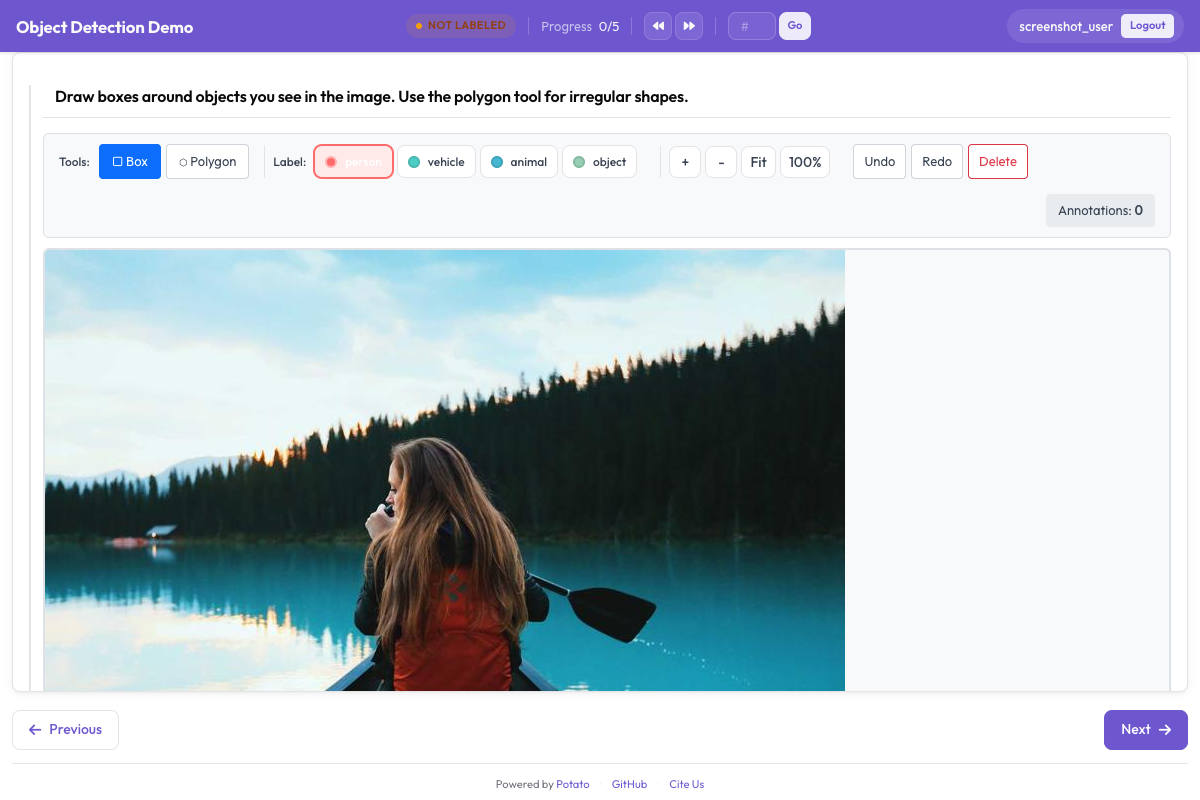 바운딩 박스 도구를 사용하면 어노테이터가 이미지에서 직사각형 영역을 그리고 레이블을 지정할 수 있습니다
확대와 이동은 기본으로 켜져 있으며, 작거나 멀리 있는 객체를 다룰 때 중요합니다. 이미지가 균일해서 추가 컨트롤이 오히려 방해만 된다면 zoom_enabled: false와 pan_enabled: false로 둘 다 끌 수 있습니다.
레이블 단축키
기본 v7 키 바인딩 프로필에서는 도구에 문자 키가 배정되어 있어, r은 박스 도구, p는 폴리곤, b는 브러시를 선택합니다. 레이블 단축키는 레이블마다 key_value로 설정하며, 숫자를 쓰는 것이 안전합니다. key_value가 도구 키와 겹치는 레이블은 두 동작을 동시에 실행하기 때문입니다:
annotation_schemes:
  - annotation_type: image_annotation
    name: objects
    description: "Annotate all visible objects"
    tools:
      - bbox
    labels:
      - name: person
        color: "#FF6B6B"
        key_value: "1"

      - name: car
        color: "#4ECDC4"
        key_value: "2"

      - name: motorcycle
        color: "#45B7D1"
        key_value: "3"

      - name: bicycle
        color: "#96CEB4"
        key_value: "4"

      - name: traffic_light
        color: "#FFEAA7"
        key_value: "5"

      - name: stop_sign
        color: "#DDA0DD"
        key_value: "6"
색상은 주어진 대로 받아들이지 말고 골라서 쓸 만합니다. 복잡한 교통 장면에서 어노테이터는 놓친 객체를 찾으며 화면을 훑는데, 인접한 클래스에 비슷한 색이 두 개 있으면 그 확인이 느려집니다. 어노테이터가 Potato 2.8 이전의 키에 익숙하고 다시 교육하고 싶지 않다면 keybinding_profile: legacy를 설정하십시오.
객체 속성 추가하기
Potato에는 박스별 속성 블록이 없습니다. image_annotation 레이블에서 읽는 값은 name, color, key_value뿐이고 레이블 딕셔너리의 나머지 항목은 버려집니다. 따라서 중첩된 attributes: 목록은 아무 효과가 없으며, 박스를 그린 뒤 입력을 요청하는 창도 나타나지 않습니다.
같은 정보를 수집하는 방법은 두 가지입니다. 첫째, 그 구분을 레이블 세트에 넣어 속성이 어노테이터가 고르는 항목의 일부가 되게 하는 방법입니다:
annotation_schemes:
  - annotation_type: image_annotation
    name: objects
    description: "Draw a box around each object"
    tools:
      - bbox
    labels:
      - name: person
        color: "#FF6B6B"
      - name: person_occluded
        color: "#C44536"
둘째, 두 번째 스킴으로 이미지 전체에 대해 묻는 방법입니다. 이는 개별 박스가 아니라 항목에 적용되며, 그것이 감수해야 할 점입니다. 이미지 안의 무언가가 가려져 있었다는 것은 알 수 있지만, 그것이 어느 박스였는지는 알 수 없습니다:
  - annotation_type: multiselect
    name: image_conditions
    description: "Conditions affecting this image"
    labels:
      - Heavy occlusion
      - Truncated objects
      - Low light
속성이 살아남는 유일한 경우는 VIA에서 가져올 때입니다. via_importer는 각 영역의 region_attributes를 읽어 레이블에 합칩니다. 이것은 가져오기 시점의 개념이지 구성의 개념이 아닙니다.
박스를 최소 하나 이상 요구하기
박스가 하나도 없는 이미지는 모호합니다. 어노테이터가 아무것도 찾지 못했다는 뜻일 수도 있고, 항목을 건너뛰었다는 뜻일 수도 있기 때문입니다. min_annotations는 도형 수가 하한보다 적은 제출을 거부해 이 구분을 강제하므로, 정말로 비어 있는 이미지에는 명시적인 부정 레이블이 필요합니다:
annotation_schemes:
  - annotation_type: image_annotation
    name: objects
    description: "Draw a box around every traffic participant"
    tools:
      - bbox
    labels: [...]
    min_annotations: 1
이미지 표시 크기 제어하기
그리기 영역은 렌더링된 이미지를 따르므로, 작게 렌더링된 이미지는 어노테이터에게 작은 캔버스를 줍니다. 크기는 instance_display로 설정하며, 세부 작업에는 계속 확대를 쓸 수 있습니다:
instance_display:
  fields:
    - key: image_url
      type: image
      label: "Frame"
      display_options:
        max_width: 1200
        max_height: 800
        zoomable: true
프로덕션 구성
아래 주행 구성에는 탐지 데이터셋에 필요한 다섯 가지 클래스가 들어 있습니다. 어노테이터의 왼손이 숫자 키 줄에 머물도록 레이블에 숫자 단축키를 유지했고, 이 코퍼스의 모든 프레임에 교통 참여자가 최소 하나는 있으므로 min_annotations: 1이 성립합니다:
annotation_task_name: "Autonomous Driving - Object Detection"
task_dir: "."
output_annotation_dir: "annotation_output/"

data_files:
  - "data/driving_frames.json"

item_properties:
  id_key: id
  text_key: frame_path

annotation_schemes:
  - annotation_type: image_annotation
    name: objects
    description: "Annotate all traffic participants and objects"
    tools:
      - bbox
    min_annotations: 1
    labels:
      - name: vehicle
        color: "#FF6B6B"
        key_value: "1"

      - name: pedestrian
        color: "#4ECDC4"
        key_value: "2"

      - name: cyclist
        color: "#45B7D1"
        key_value: "3"

      - name: traffic_sign
        color: "#FFEAA7"
        key_value: "4"

      - name: traffic_light
        color: "#DDA0DD"
        key_value: "5"
다섯 개 클래스만으로도 이미 숫자 단축키가 무리 없이 감당할 수 있는 한계에 가깝습니다. 열 개를 넘으면 어노테이터가 프레임을 읽기보다 키를 찾는 데 시간을 쓰게 되고, 그 지점에서는 레이블을 하나 더 추가하기보다 작업을 둘로 나누는 편이 낫습니다.
어노테이션의 형태
Potato는 어떤 도구로 그렸든 이미지 한 장의 모든 도형을 평평한 JSON 배열 하나에 저장합니다. 좌표는 이미지를 기준으로 0에서 1 범위로 정규화되므로, 나중에 이미지가 다른 크기로 제공되어도 어노테이션은 정확하게 유지됩니다:
[
  {
    "type": "bbox",
    "label": "vehicle",
    "color": "#FF6B6B",
    "coordinates": {"x": 0.234, "y": 0.352, "width": 0.120, "height": 0.130}
  },
  {
    "type": "bbox",
    "label": "pedestrian",
    "color": "#4ECDC4",
    "coordinates": {"x": 0.427, "y": 0.370, "width": 0.026, "height": 0.139}
  }
]bbox는 기하 정보를 coordinates 아래에 {x, y, width, height} 형태로 담습니다. 폴리곤은 같은 키 아래에 점 목록을 담고, 마스크는 대신 rle 아래에 런 렝스 인코딩 데이터를 담습니다.
학습용으로 내보내기
탐지기 학습 코드는 COCO나 YOLO를 읽으며, Potato는 둘 다 작성합니다:
python -m potato.export --config config.yaml --format coco --output ./export/
python -m potato.export --config config.yaml --format yolo --output ./export/
두 내보내기는 문법 이상으로 다릅니다. COCO는 픽셀 단위 박스를 [x, y, width, height]로 담은 annotations.json 파일 하나를 작성하며, 이미지를 복사하지 않으므로 file_name 값은 이미지가 원래 있는 위치를 가리킵니다. YOLO는 정규화된 중심 좌표로 이미지마다 텍스트 파일 하나를 작성하고, 이미지와 레이블을 train/과 val/ 디렉터리로 나누며, data.yaml과 classes.txt를 추가해 학습 실행이 클래스 목록을 따로 전달받지 않고도 읽을 수 있게 합니다.
박스의 일관성 유지하기
박스는 객체에 딱 맞게 그리십시오. 박스 안에 들어간 배경 픽셀 하나하나가 모델이 전경이라고 배우게 되는 픽셀이기 때문입니다. 까다로운 경우(가림, 프레임 가장자리에서 잘린 객체, 반사)를 어떻게 처리할지 문서로 정리하고, 가이드라인을 바꾸는 비용이 아직 적은 첫 주에 예시 한 묶음을 함께 검토하십시오. 연구가 진행되는 동안 어노테이터별 박스 수와 크기 분포를 주시하십시오. 갑작스러운 변화는 이미지가 바뀌었다기보다 누군가가 규칙을 다르게 읽기 시작했다는 뜻인 경우가 대부분입니다.
다음 단계
- 박스가 작업에 비해 너무 거칠다면 폴리곤 어노테이션을 추가하십시오
- 자세 추정에는 키포인트 세트를 사용하십시오
- 연구 규모가 소수의 어노테이터를 넘어서기 전에 품질 관리를 설정하십시오
나머지 이미지 옵션은 이미지 어노테이션을 참조하십시오.