웹 브라우징 에이전트 어노테이션: WebArena 트레이스에서 인간 평가까지
Potato의 웹 에이전트 트레이스 표시 기능으로 자율 웹 브라우징 에이전트를 평가하는 방법을 단계별 스크린샷, SVG 오버레이, 단계별 어노테이션 스키마와 함께 알아봅니다.
에이전트의 트레이스를 Potato의 웹 에이전트 형식으로 변환하고, web_agent_trace 뷰어로 표시해 각 스크린샷에 에이전트가 클릭한 위치를 보여 주는 오버레이가 붙도록 한 다음, trajectory_eval 스키마로 단계를 평가하세요.
웹 브라우징 에이전트는 페이지에 대해 수행한 행동으로 평가받습니다. 따라서 평가에는 각 단계의 두 절반, 즉 에이전트가 본 페이지 상태와 그 페이지에서 수행한 행동이 모두 필요합니다. 행동 로그만으로는 판단을 뒷받침할 수 없습니다. "Clicked element product-101"이라는 기록만으로는 그것이 페이지에서 가장 싼 노트북이었는지 검토자가 알 수 없고, 마커 없는 스크린샷으로는 십여 개의 링크 중 어느 것이 대상이었는지 짐작할 수밖에 없습니다.
이 가이드는 WebArena 트레이스를 대상으로 그 평가를 구성합니다. 하나의 변환기가 모두 처리하므로 같은 방법이 VisualWebArena, Mind2Web, Anthropic Computer Use 로그, 원시 브라우저 녹화에도 적용됩니다. 전체 구성 레퍼런스는 원본 문서를 참고하세요.
준비물
pip install potato-annotation트레이스 자체도 필요합니다. WebArena의 경우 에피소드마다 스크린샷과 JSON 행동 로그가 있습니다. VisualWebArena는 같은 구조에 시각적 그라운딩 정보를 더해 기록하고, 원시 브라우저 녹화에는 그 대신 뷰포트와 마우스 경로 데이터가 담겨 있습니다.
원시 WebArena 트레이스에 담긴 내용
WebArena 에피소드에는 작업 설명, 행동 순서, 각 스크린샷의 경로가 들어 있습니다:
{
  "trace_id": "wa_001",
  "task": "Find the cheapest laptop on the electronics store and add it to the cart",
  "website": "shopping",
  "steps": [
    {
      "step": 0,
      "url": "http://shop.example.com/",
      "action_type": "click",
      "action_target": "Electronics category link",
      "element_id": "nav-electronics",
      "coordinates": [245, 82],
      "screenshot": "screenshots/wa_001_step_00.png"
    },
    {
      "step": 1,
      "url": "http://shop.example.com/electronics",
      "action_type": "click",
      "action_target": "Laptops subcategory",
      "element_id": "cat-laptops",
      "coordinates": [180, 310],
      "screenshot": "screenshots/wa_001_step_01.png"
    }
  ],
  "success": true
}
트레이스 변환하기
Potato의 뷰어는 프레임워크마다 다른 고유 형식이 아니라 정규화된 단계 형식을 읽으므로, 원시 에피소드는 먼저 변환기를 거칩니다:
python -m potato.trace_converter -i traces.json -f web_agent -o data/web_traces.jsonl이 명령은 에피소드마다 인스턴스 하나를 기록하며, 각 단계에는 step_index, screenshot_url, action_type, 대상 element와 그 바운딩 박스, coordinates, 선택적인 mouse_path, 그리고 원본 로그에 기록되어 있다면 에이전트의 thought와 observation이 들어갑니다. -f web_agent 대신 --auto-detect를 쓰면 변환기가 형식을 직접 판별하므로, 한 디렉터리에 여러 프레임워크의 트레이스가 섞여 있을 때는 이 옵션을 사용하세요.
프로젝트 구성
뷰어는 어노테이션 유형이 아니라 표시 유형이므로 instance_display.fields 아래에 두고, 어노테이션 스키마는 뷰어와 별도로 둡니다. 가장 먼저 정할 설정은 스크린샷 크기입니다. 너비 900픽셀이면 어노테이션 컨트롤을 화면 아래로 밀어내지 않고도 데스크톱 페이지 전체를 읽을 수 있습니다.
annotation_task_name: "WebArena Agent Evaluation"
task_dir: "."

data_files:
  - "data/web_traces.jsonl"

item_properties:
  id_key: id
  text_key: task_description

output_annotation_dir: "output/"
export_annotation_format: "jsonl"

instance_display:
  layout:
    direction: vertical
    gap: 16px
  fields:
    - key: task_description
      type: text
      label: "Task"

    - key: steps
      type: web_agent_trace
      label: "Agent Browsing Trace"
      display_options:
        show_overlays: true
        show_filmstrip: true
        show_thought: true
        show_observation: true
        show_element_info: true
        screenshot_max_width: 900
        screenshot_max_height: 600
        filmstrip_size: 80

annotation_schemes:
  - annotation_type: radio
    name: task_success
    description: "Did the agent complete the task?"
    labels:
      - "Success"
      - "Partial success"
      - "Failure"
    label_requirement:
      required: true

  - annotation_type: radio
    name: task_efficiency
    description: "Was the agent's path to the goal efficient?"
    labels:
      - "Optimal path"
      - "Reasonable but not optimal"
      - "Inefficient, unnecessary steps"
      - "Completely wrong direction"
    label_requirement:
      required: true

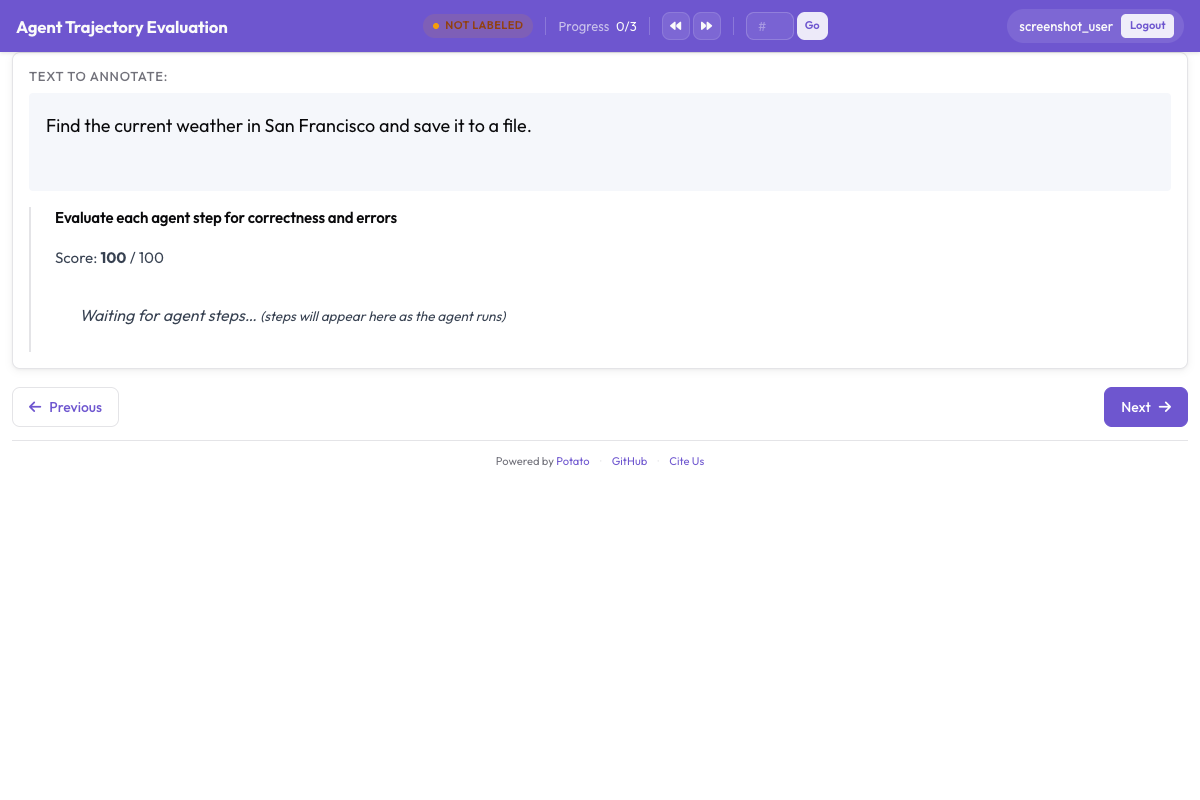
  - annotation_type: trajectory_eval
    name: step_evaluation
    description: "Judge each action against the task"
    steps_key: steps
    step_text_key: action_type
    correctness_options:
      - correct
      - acceptable
      - incorrect
      - unnecessary
    error_types:
      - name: wrong_element_clicked
      - name: wrong_page_navigated_to
      - name: missed_better_option
      - name: incorrect_form_input
      - name: premature_completion
      - name: unnecessary_navigation
      - name: failed_to_scroll
      - name: wrong_page_section
      - name: other
    severities:
      - name: minor
        weight: -1
      - name: major
        weight: -5
      - name: critical
        weight: -10
    show_score: true
    max_score: 100

user_config:
  allow_all_users: true
trajectory_eval 스키마 하나로 단계별 평가 과정 전체를 처리합니다. 이 스키마는 각 단계를 카드로 표시하고 카드마다 정확성, 오류 유형, 심각도, 서술형 근거를 수집한 뒤, 심각도 가중치로 트레이스 수준의 품질 점수를 계산합니다. 위 가중치에서는 major 오류 하나에 5점, critical 오류 하나에 10점이 트레이스에서 깎입니다. 가중치는 의도를 갖고 정하세요. 심각한 실패 하나가 있는 트레이스와 작은 실패 네 개가 있는 트레이스 중 어느 쪽이 더 높은 순위에 오를지를 이 값이 결정합니다.
어노테이터가 보는 화면
현재 단계의 스크린샷이 메인 패널을 채우고, 그 위에 SVG 오버레이가 그려집니다. 각 오버레이는 단계의 서로 다른 부분을 표시하며, 색상은 고정되어 있습니다:
| 오버레이 | 표시하는 것 |
|---|---|
| 십자선이 있는 빨간 원 | 클릭 좌표 |
| 노란 강조 | 에이전트가 입력한 필드 |
| 초록 화살표 | 스크롤의 방향과 크기 |
| 파란 점선 사각형 | 대상 요소의 바운딩 박스 |
| 주황 곡선 | 대상까지의 마우스 경로 |
하단에는 썸네일 필름스트립이 이어지며, 썸네일 하나를 클릭하면 해당 단계로 이동합니다. 대략 10단계를 넘는 트레이스에서는 필름스트립이 실행의 전체 흐름을 볼 수 있는 검토자와 무작정 스크롤하는 검토자를 가릅니다. 단계 세부 정보 패널에는 요소 정보, 에이전트 자신의 생각, 에이전트가 기록한 관찰이 표시되며, 원본 로그에 쓸 만한 내용이 없을 때는 각각을 display_options에서 끌 수 있습니다.
뷰어 아래의 체크박스 한 줄로 오버레이를 켜고 끕니다:
| 컨트롤 | 오버레이 |
|---|---|
| Clicks | 빨간 클릭 십자선 |
| Bounding Boxes | 파란 점선 사각형 |
| Mouse Path | 주황 곡선 |
| Scroll | 초록 스크롤 화살표 |
오버레이를 끄는 기능은 정보가 빽빽한 페이지에서 중요합니다. 클릭이 옳았는지 알려 주는 바로 그 텍스트 위에 클릭 마커가 올라앉을 수 있기 때문입니다. 노란 입력 강조에는 전용 컨트롤이 없다는 점에 유의하세요. 오버레이 다섯 개 중 네 개는 개별적으로 켜고 끌 수 있지만, 입력 필드 강조는 항상 그려집니다. 이 뷰어에는 키보드 단축키가 없으므로 단계 간 이동은 필름스트립과 단계 컨트롤로 합니다.
어노테이션 과정
검토자는 트레이스 하나를 다섯 단계로 처리합니다:
- 작업 설명을 읽으세요. 이후의 모든 판단은 이 설명에 비추어 내립니다.
- 필름스트립을 훑어보세요. 무엇이든 평가하기 전에 실행의 전체 흐름을 파악해, 나중에야 드러나는 증거를 근거로 초반 단계를 정확하다고 표시하는 일이 없도록 합니다.
- 단계를 차례로 살펴보세요. 각 단계에서 페이지 상태를 읽고, 오버레이를 확인해 에이전트가 무엇을 대상으로 행동했는지 보고, 행동을 평가합니다. 잘못되었다면 오류 유형과 심각도를 고르고, 에이전트가 대신 무엇을 했어야 하는지 근거에 적으세요.
- 트레이스를 평가하세요. 모든 단계를 본 뒤 전체 성공 여부와 효율성을 판단합니다.
- 제출하고 다음으로 넘어가세요.
네 가지 정확성 옵션은 학습 데이터에 중요한 기준선을 따라 단계를 나눕니다. 정확한 행동은 예상한 방식으로 목표를 향해 나아갑니다. 허용 가능한 행동은 검색창을 쓰는 대신 카테고리 페이지를 탐색하는 것처럼 더 느린 경로로 진전을 이룹니다. 부정확한 행동은 실수이며, 잘못된 요소, 무관한 페이지, 폼에 입력한 잘못된 텍스트 등이 여기에 해당합니다. 불필요한 행동은 도움도 해도 되지 않는 행동으로, 클릭 직후 곧바로 이전 페이지로 돌아가는 경우가 그 예입니다. 헤매는 에이전트는 틀리는 에이전트와 다른 문제이므로, 이런 행동은 실수와 구분해 둘 가치가 있습니다.
오류 분류 체계
오류 유형은 실패한 트레이스 더미를 에이전트 개발자가 조치할 수 있는 정보로 바꿔 줍니다. 따라서 범주는 틀린 정도가 아니라 구별 가능한 원인에 대응해야 합니다:
| 오류 유형 | 의미 | 예시 |
|---|---|---|
| 잘못된 요소 클릭 | 에이전트가 잘못된 UI 요소에 행동함 | "Laptops" 대신 "Tablets"를 클릭함 |
| 잘못된 페이지로 이동 | 에이전트가 무관한 곳에 도달함 | 제품 목록 대신 "About Us"로 이동함 |
| 더 나은 옵션 놓침 | 더 나은 행동이 가능했음 | 검색창이 바로 앞에 있는데 카테고리를 탐색함 |
| 잘못된 폼 입력 | 에이전트가 잘못된 텍스트를 입력함 | "laptop" 대신 "labtop"으로 검색함 |
| 조기 완료 | 에이전트가 너무 일찍 성공을 선언함 | 잘못된 항목을 장바구니에 담고 멈춤 |
| 불필요한 이동 | 단계가 목표에 기여하지 않음 | 두 카테고리 페이지 사이에 홈페이지를 방문함 |
| 스크롤 실패 | 대상이 뷰포트 아래에 있었음 | 요소가 한 번도 보이지 않았고 에이전트는 한 번도 스크롤하지 않음 |
| 잘못된 페이지 영역 | 페이지는 맞지만 영역이 틀림 | 메인 콘텐츠 대신 헤더를 클릭함 |
어려운 트레이스 다루기
15단계를 넘는 트레이스에서 모든 단계를 같은 깊이로 평가하면, 노력의 대부분을 명백히 문제없는 단계에 쓰게 됩니다. 필름스트립에서 문제를 알리는 세 가지 패턴을 찾은 다음 그곳에 노력을 집중하세요. 그 패턴은 예기치 않게 바뀌는 URL, 에이전트가 뒤로 돌아가는 단계, 그리고 거의 같은 스크린샷의 연속입니다. 마지막 패턴은 보통 에이전트가 루프에 갇혔다는 뜻입니다.
실패한 트레이스에서는 첫 번째 부정확한 단계가 제대로 어노테이션해야 할 지점입니다. 그 이후의 모든 일은 에이전트가 애초에 도달하지 말았어야 할 상태에서 일어나므로, 이후의 오류는 원인이 아니라 결과를 설명합니다.
어떤 행동은 스크린샷만으로 판단할 수 없는데, 대개 클릭 지점에서 여러 요소가 겹칠 때입니다. 단계 패널의 요소 정보는 대상의 태그, 텍스트, 바운딩 박스를 알려 주며, 실제로 무엇이 클릭되었는지 가리기에는 보통 이것으로 충분합니다. show_element_info를 켜 두면 그 패널이 계속 표시됩니다.
VisualWebArena
VisualWebArena 트레이스도 같은 변환기를 거치며, 변환기는 행동 단계의 action_type과 element 필드로 두 형식을 모두 인식합니다. 이 트레이스에 담긴 그라운딩 정보는 바운딩 박스 오버레이로 나타나므로, 그라운딩에 초점을 둔 검토는 구성을 고치는 문제가 아니라 어노테이터가 화면에 무엇을 띄워 두느냐의 문제입니다. Bounding Boxes를 체크한 채 Clicks를 해제하면, 에이전트가 올바른 픽셀만이 아니라 올바른 요소를 겨냥했는지 보여 주는 화면이 됩니다.
결과 읽기
웹 에이전트의 오류는 트레이스의 특정 지점에 몰리는 경향이 있으며, 단계 위치별 오류율이 그 지점을 가장 빨리 찾는 방법입니다. 각 trajectory_eval 어노테이션은 단계별 레코드 목록을 저장하며, 각 레코드에는 step_index와 correctness가 있습니다:
import json

annotations = []
with open("output/exports/jsonl/annotations.jsonl") as f:
    for line in f:
        annotations.append(json.loads(line))

step_counts = {}
for ann in annotations:
    evaluation = ann["labels"].get("step_evaluation", {})
    for step in evaluation.get("steps", []):
        pos = step["step_index"]
        counts = step_counts.setdefault(pos, {})
        label = step.get("correctness", "unrated")
        counts[label] = counts.get(label, 0) + 1

print("Error rate by step position:")
for pos in sorted(step_counts):
    counts = step_counts[pos]
    total = sum(counts.values())
    errors = counts.get("incorrect", 0) + counts.get("unnecessary", 0)
    print(f"  Step {pos}: {errors / total:.1%} error rate ({total} observations)")
오류 유형 분포는 다른 질문, 즉 에이전트가 언제가 아니라 무엇을 틀리는지에 답합니다:
error_counts = {}
for ann in annotations:
    evaluation = ann["labels"].get("step_evaluation", {})
    for step in evaluation.get("steps", []):
        error = step.get("error_type")
        if error:
            error_counts[error] = error_counts.get(error, 0) + 1

for error, count in sorted(error_counts.items(), key=lambda x: -x[1]):
    print(f"  {error}: {count}")
평가 확장하기
발표할 결과라면 트레이스당 검토자 한 명으로는 부족합니다. 단계별 판단에는 일치도 통계가 측정하려고 존재하는 바로 그런 종류의 모호함이 있기 때문입니다. 구성의 최상위 수준에서 커버리지 목표와 할당 순서를 지정하세요:
num_annotators_per_item: 3
assignment_strategy: random
그런 다음 트레이스 수준 라벨로 어노테이터들을 비교합니다. 불일치가 모호하지 않은 라벨이 바로 이것입니다. 비교가 파싱한 JSON이 아니라 열 단위로 이루어지도록 먼저 Parquet으로 내보내세요:
python -m potato.export -c config.yaml -f parquet -o ./parquet_export/from sklearn.metrics import cohen_kappa_score
import pandas as pd
df = pd.read_parquet("parquet_export/annotations.parquet")
success = df[df["schema_name"] == "task_success"]
pivot = success.pivot(index="instance_id", columns="annotator", values="value")
annotators = pivot.columns.tolist()
for i in range(len(annotators)):
for j in range(i + 1, len(annotators)):
pair = pivot[[annotators[i], annotators[j]]].dropna()
kappa = cohen_kappa_score(pair[annotators[i]], pair[annotators[j]])
print(f"Kappa ({annotators[i]} vs {annotators[j]}): {kappa:.3f}")트레이스가 수백 개에 이르는 평가에서는 Solo Mode가 인간 검토자와 같은 대기열에 모델을 올립니다. 모델이 라벨을 제안하고 인간이 이를 고쳐 나가다가, 둘의 일치가 충분히 잦아지면 나머지는 모델이 마무리합니다:
solo_mode:
  enabled: true
  labeling_models:
    - endpoint_type: "anthropic"
      model: "claude-sonnet-4-20250514"
      api_key: "${ANTHROPIC_API_KEY}"
  thresholds:
    end_human_annotation_agreement: 0.90
    minimum_validation_sample: 50
고민해야 할 설정은 모델 선택이 아니라 일치도 임곗값입니다. 0.90에서는 최소 50건의 비교로 측정했을 때 모델 라벨 10개 중 9개가 인간의 라벨과 일치할 때까지 인간이 어노테이션을 계속합니다. 이 값을 낮추면 라벨 품질을 검토 시간과 맞바꾸게 되는데, 그 영향은 나중에 알아채기 어렵습니다.
더 읽어보기
- 전체 변환기 및 표시 레퍼런스는 에이전틱 어노테이션
- 뷰어의 표시 옵션은 웹 에이전트 어노테이션
- 브라우저 너머의 에이전트 평가는 AI 에이전트 평가하기
- 위 분석이 읽는 열은 Parquet 내보내기