Formati di Dati
Formati di input per Potato: testo, JSON, JSONL, CSV, immagini, audio e video. Output verso CoNLL, HuggingFace Datasets, COCO, YOLO, Parquet e altri.
Potato legge l'input di annotazione da file JSON, JSON Lines, CSV e TSV. Questa guida spiega come strutturare questi dati, quali campi Potato richiede da ogni record e dove vengono salvate le annotazioni.
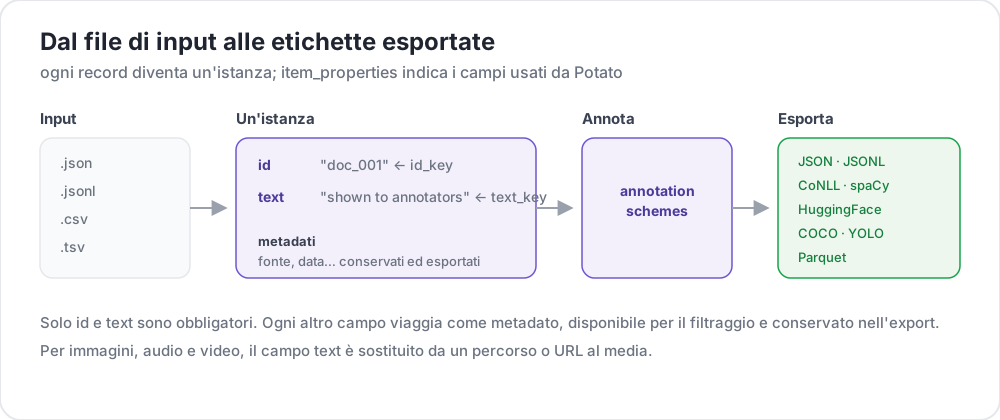 Dal file di input alle etichette esportate
Formati Supportati
| Formato | Estensione | Descrizione |
|---|---|---|
| JSON | .json | Array di oggetti |
| JSON Lines | .jsonl | Un oggetto JSON per riga |
| CSV | .csv | Valori separati da virgola |
| TSV | .tsv | Valori separati da tabulazione |
Formato JSON
Il formato più comune. I dati devono essere un array di oggetti:
[
  {
    "id": "doc_001",
    "text": "This is the first document to annotate.",
    "source": "twitter",
    "date": "2024-01-15"
  },
  {
    "id": "doc_002",
    "text": "This is the second document.",
    "source": "reddit",
    "date": "2024-01-16"
  }
]
Formato JSON Lines
Ogni riga è un oggetto JSON separato. Utile per dataset di grandi dimensioni:
{"id": "doc_001", "text": "First document"}
{"id": "doc_002", "text": "Second document"}
{"id": "doc_003", "text": "Third document"}
Formato CSV/TSV
Dati tabulari con intestazioni:
id,text,source
doc_001,"This is the first document",twitter
doc_002,"This is the second document",reddit
Configurazione
Configurazione Base
Configura i file di dati e le mappature dei campi nel tuo YAML:
data_files:
  - "data/documents.json"

item_properties:
  id_key: id      # Field name for unique ID
  text_key: text  # Field name for content to annotate
File di Dati Multipli
Combina più sorgenti di dati:
data_files:
  - "data/batch_1.json"
  - "data/batch_2.json"
  - "data/batch_3.jsonl"
I file vengono elaborati in ordine e combinati.
Tipi di Dati
Testo Semplice
Contenuto testuale semplice:
{
  "id": "1",
  "text": "The product arrived quickly and works great!"
}
File Multimediali
Un elemento immagine, video o audio indica il proprio file in un campo del record, e un campo di instance_display lo mostra nella pagina:
{
  "id": "1",
  "image_path": "photo_001.jpg"
}media_directory: media # the default, relative to task_dir
instance_display:
fields:
- key: image_path
type: imagePotato serve i file di media_directory sotto /media/. Per impostazione predefinita la cartella è media/ dentro task_dir, e un percorso assoluto la fa puntare a una cartella in qualsiasi punto della macchina. In un campo di visualizzazione multimediale (ad es. image, video, audio, pdf), un semplice nome di file come photo_001.jpg diventa /media/photo_001.jpg quando il file si trova in quella cartella, e un URL completo viene usato così com'è scritto. item_properties.image_key non mette l'immagine nella pagina. Indica al Supporto AI e al rilevamento dei duplicati quale campo contiene l'immagine.
Dialogo/Liste
Un campo text che contiene una lista JSON viene visualizzato con un elemento per riga, perché la lettura verticale si adatta a un dialogo. Imposta list_as_text.horizontal per affiancare gli elementi in un confronto a coppie:
{
  "id": "1",
  "text": ["Option A", "Option B", "Option C"]
}
Coppie di Testo
Un campo text che contiene un oggetto JSON viene reso dal tipo di visualizzazione dichiarato nella configurazione (conversation_tree, web_agent_trace e simili). Se non è dichiarato alcun tipo di visualizzazione, viene mostrato come JSON formattato, quindi dichiarane uno per un'attività di confronto:
{
  "id": "pair_001",
  "text": {
    "A": "Response from Model A",
    "B": "Response from Model B"
  }
}
File HTML
Tieni i file .html in una cartella sotto task_dir e richiamali dal normale campo text, poiché Potato non ha una proprietà dell'elemento separata per l'HTML. L'attività inclusa examples/advanced/html-annotation incorpora ciascuno di essi:
{
  "id": "1",
  "text": "<embed width=\"1020\" height=\"440\" src=\"data/html_data/1.html\" type=\"text/html\">"
}
Annotazione Contestuale
Includi il contesto accanto al testo principale:
{
  "id": "1",
  "text": "This is great!",
  "context": "Previous message: How do you like the new feature?"
}
I campi diversi dall'id e dal testo arrivano alla pagina tramite kwargs, che elenca le chiavi aggiuntive da riportare da ogni elemento:
item_properties:
  id_key: id
  text_key: text
  kwargs:
    - context
Configurazione della Visualizzazione
Opzioni di Visualizzazione delle Liste
Controlla come viene disposto un campo il cui valore è una lista. La chiave accetta tre sottochiavi, e list_as_text: true la attiva con i valori predefiniti:
list_as_text:
  # Prefix each item so an annotator can refer to one by name.
  text_list_prefix_type: alphabet   # alphabet, number, bullet, or none

  # Side-by-side suits a pairwise comparison. The default is vertical.
  horizontal: true

  # Shade alternate turns, which keeps a long dialogue readable.
  alternating_shading: true
Contenuto HTML
Il markup in un campo text viene reso senza alcuna chiave di configurazione. Potato lo sanifica invece di farne l'escape: i tag presenti in una allowlist (<b>, <i>, <span> e simili) diventano formattazione, mentre <script> e tutto ciò che non è nella lista subisce l'escape e resta inerte. Le evidenziazioni degli span vengono inserite nell'elemento come markup, ed è per questo che fare l'escape dell'intero campo non è possibile.
{
  "id": "1",
  "text": "<p>This is <strong>formatted</strong> text.</p>"
}
Configurazione dell'Output
Directory di Output
Specifica dove vengono salvate le annotazioni:
output_annotation_dir: "output/"Formato di Output
Le annotazioni vengono sempre conservate in file user_state.json per utente. export_annotation_format scrive inoltre un'esportazione piatta periodica in <output_annotation_dir>/exports/<format>/, che è la forma adatta all'analisi. Nessun esportatore si chiama json:
export_annotation_format: "jsonl" # or csv, tsv, parquet, coco, conll_2003, ...Esegui python -m potato.export --list-formats per il registro completo.
Struttura dell'Output
Ogni user_state.json contiene le etichette di quell'annotatore indicizzate per istanza, con gli span registrati separatamente:
{
  "user_id": "annotator_1",
  "instance_id_to_label_to_value": {
    "doc_001": {
      "sentiment": {"labels": {"positive": true}}
    }
  },
  "instance_id_to_span_to_value": {
    "doc_001": {
      "ner": [
        {"start": 0, "end": 5, "label": "PERSON", "text": "Alice"}
      ]
    }
  }
}
Tipi di Dati Speciali
Best-Worst Scaling
Per attività di classificazione, usa elementi separati da virgola:
{
  "id": "1",
  "text": "Item A,Item B,Item C,Item D"
}
Argomenti Personalizzati
Includi campi aggiuntivi per la visualizzazione o il filtraggio:
{
  "id": "1",
  "text": "Document content",
  "category": "news",
  "priority": "high",
  "custom_field": "any value"
}
Backend Database
Per dataset di grandi dimensioni, utilizza MySQL:
database:
  type: mysql
  host: localhost
  port: 3306
  database: potato_db
  username: ${DB_USER}
  password: ${DB_PASSWORD}
Potato crea automaticamente le tabelle necessarie al primo avvio.
Validazione dei Dati
Potato valida i tuoi dati all'avvio:
- Campo ID mancante - Tutti gli elementi devono avere identificatori univoci
- Campo testo mancante - Gli elementi devono avere contenuto da annotare
- ID duplicati - Tutti gli ID devono essere univoci
- File non trovato - Verifica i percorsi dei file di dati
Esempio Completo
annotation_task_name: "Document Classification"
task_dir: "."
port: 8000

# Data configuration
data_files:
  - "data/documents.json"

item_properties:
  id_key: id
  text_key: text

# Display settings
list_as_text:
  text_list_prefix_type: number
  horizontal: false

# Output
output_annotation_dir: "output/"
export_annotation_format: "jsonl"

# Annotation scheme
annotation_schemes:
  - annotation_type: radio
    name: category
    description: "Select the document category"
    labels:
      - News
      - Opinion
      - Tutorial
      - Other

user_config:
  allow_all_users: true
  users: []
Buone Pratiche
1. Usa ID Significativi
Facilita il tracciamento e il debug:
{"id": "twitter_2024_001", "text": "..."}2. Mantieni il Testo Conciso
I testi lunghi rallentano l'annotazione. Considera di:
- Troncare alle parti essenziali
- Fornire riassunti
- Usare contenitori scorrevoli
3. Includi Metadati
Facilitano il filtraggio e l'analisi:
{
  "id": "1",
  "text": "Content",
  "source": "twitter",
  "date": "2024-01-15",
  "language": "en"
}
4. Valida Prima del Caricamento
Controlla i dati offline:
import json

with open('data.json') as f:
    data = json.load(f)

# Check for required fields
for item in data:
    assert 'id' in item, f"Missing id: {item}"
    assert 'text' in item, f"Missing text: {item}"

# Check for duplicates
ids = [item['id'] for item in data]
assert len(ids) == len(set(ids)), "Duplicate IDs found"

print(f"Validated {len(data)} items")
5. Fai il Backup dei Dati Originali
Tieni i dati grezzi separati dalle annotazioni per garantire la riproducibilità.
6. Usa JSON Lines per File di Grandi Dimensioni
Più efficiente in termini di memoria rispetto agli array JSON:
# Convert JSON array to JSON Lines
cat data.json | jq -c '.[]' > data.jsonl
Approfondimenti
- Caricamento della Directory Dati - Carica da directory con monitoraggio in tempo reale
- Annotazione di Dialoghi - Visualizzazione di dati con più elementi
- Formati di Esportazione - Opzioni per il formato di output
Per i dettagli implementativi, consulta la documentazione sorgente.