Dessiner des boîtes englobantes pour la détection d'objets
Créez une tâche de détection d'objets dans Potato, d'une configuration de départ à trois étiquettes jusqu'à une configuration de production pour des vidéos de conduite, puis exportez en COCO ou YOLO.
Ce tutoriel construit une tâche d'annotation pour la détection d'objets dans Potato, d'une configuration à trois étiquettes jusqu'à l'export COCO ou YOLO sur lequel s'entraîne un détecteur. Pour la liste complète des outils d'image et de leurs options, consultez la documentation sur l'annotation d'images.
Le fichier de données
Chaque ligne du fichier de données correspond à une image. Potato a besoin d'un identifiant et d'un champ contenant l'URL ou le chemin de l'image, et item_properties indique quel champ joue quel rôle :
{"id": "img_001", "image_url": "https://example.com/street_001.jpg"}
{"id": "img_002", "image_url": "/static/images/street_002.jpg"}
Un chemin relatif est résolu par rapport à media_directory, donc les images locales n'exigent pas de serveur de fichiers en cours d'exécution.
Une configuration minimale
Le schéma image_annotation gère la surface de dessin. Il lui faut un nom, une description que les annotateurs lisent comme consigne, les outils à activer et l'ensemble d'étiquettes :
annotation_task_name: "Object Detection Annotation"
task_dir: "."
output_annotation_dir: "annotation_output/"

data_files:
  - "data/images.json"

item_properties:
  id_key: id
  text_key: image_url

annotation_schemes:
  - annotation_type: image_annotation
    name: objects
    description: "Draw a box around every car, person, and bicycle"
    tools:
      - bbox
    labels:
      - name: car
        color: "#FF6B6B"
      - name: person
        color: "#4ECDC4"
      - name: bicycle
        color: "#45B7D1"
Trois étiquettes, c'est un point de départ délibéré. Chaque étiquette ajoutée est une décision que l'annotateur doit prendre pour chaque objet, et un cas limite dont il faut lui expliquer la résolution. Commencez donc par les classes dont le modèle a réellement besoin et ajoutez les autres une fois que les consignes tiennent.
Lancez le serveur et ouvrez la tâche :
potato start config.yaml -p 8000Ce que fait l'annotateur
L'annotateur choisit une étiquette, puis trace un rectangle autour de chaque objet en ajustant les coins jusqu'à ce que la boîte soit bien serrée :
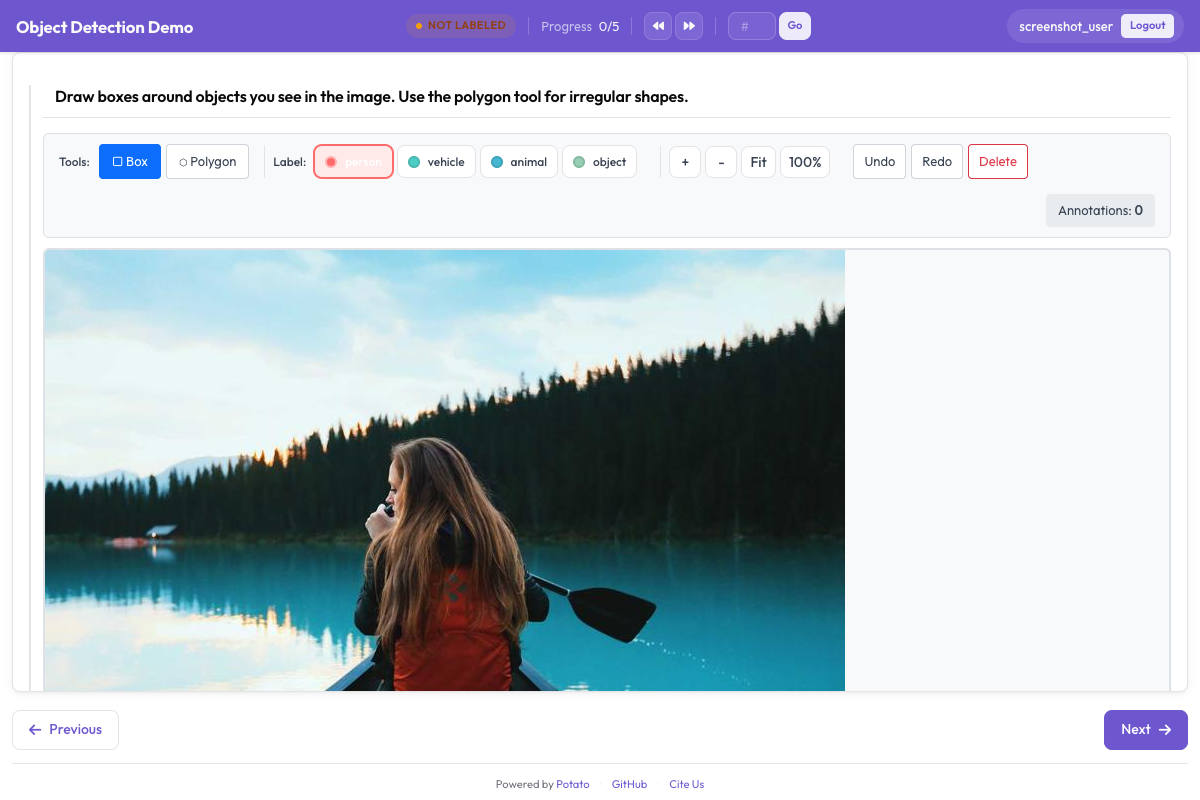 L'outil de boîtes englobantes permet aux annotateurs de dessiner et d'étiqueter des zones rectangulaires sur les images
Le zoom et le déplacement sont activés par défaut, ce qui compte pour les objets petits ou lointains. On peut désactiver les deux avec zoom_enabled: false et pan_enabled: false lorsque les images sont uniformes et que ces contrôles ne font que gêner.
Raccourcis d'étiquettes
Avec le profil de touches par défaut v7, les outils utilisent des lettres : r sélectionne l'outil boîte, p le polygone et b le pinceau. Les raccourcis d'étiquettes se définissent étiquette par étiquette avec key_value, et les chiffres sont le choix sûr, car une étiquette dont le key_value entre en conflit avec une touche d'outil déclenche les deux actions à la fois :
annotation_schemes:
  - annotation_type: image_annotation
    name: objects
    description: "Annotate all visible objects"
    tools:
      - bbox
    labels:
      - name: person
        color: "#FF6B6B"
        key_value: "1"

      - name: car
        color: "#4ECDC4"
        key_value: "2"

      - name: motorcycle
        color: "#45B7D1"
        key_value: "3"

      - name: bicycle
        color: "#96CEB4"
        key_value: "4"

      - name: traffic_light
        color: "#FFEAA7"
        key_value: "5"

      - name: stop_sign
        color: "#DDA0DD"
        key_value: "6"
Les couleurs méritent d'être choisies plutôt que subies. Sur des scènes de circulation denses, l'annotateur parcourt l'image à la recherche de ce qu'il a manqué, et deux couleurs proches sur des classes voisines ralentissent ce parcours. Réglez keybinding_profile: legacy si vos annotateurs ont appris les touches de Potato antérieures à la 2.8 et que vous préférez ne pas les former à nouveau.
Ajout d'attributs aux objets
Potato n'a pas de bloc d'attributs par boîte. D'une étiquette image_annotation, seuls name, color et key_value sont lus, et tout le reste du dictionnaire de l'étiquette est ignoré. Une liste imbriquée attributes: n'a donc aucun effet, et aucune question n'apparaît après le tracé d'une boîte.
Il existe deux façons de recueillir la même information. Intégrez la distinction à l'ensemble d'étiquettes, pour que l'attribut fasse partie de ce que l'annotateur choisit :
annotation_schemes:
  - annotation_type: image_annotation
    name: objects
    description: "Draw a box around each object"
    tools:
      - bbox
    labels:
      - name: person
        color: "#FF6B6B"
      - name: person_occluded
        color: "#C44536"
Ou interrogez l'image dans son ensemble avec un second schéma. Celui-ci porte sur l'élément et non sur une boîte particulière, et c'est là le compromis. Vous apprenez que quelque chose dans l'image était occulté, mais pas quelle boîte était concernée :
  - annotation_type: multiselect
    name: image_conditions
    description: "Conditions affecting this image"
    labels:
      - Heavy occlusion
      - Truncated objects
      - Low light
L'import depuis VIA est le seul cas où les attributs sont conservés. via_importer lit les region_attributes de chaque région et les intègre à l'étiquette. C'est une notion propre à l'import, pas à la configuration.
Exiger au moins une boîte
Une image sans boîte est ambiguë, car elle peut signifier que l'annotateur n'a rien trouvé ou qu'il a sauté l'élément. min_annotations impose la distinction en refusant toute soumission comportant moins de formes que le minimum, de sorte qu'une image réellement vide exige une étiquette négative explicite :
annotation_schemes:
  - annotation_type: image_annotation
    name: objects
    description: "Draw a box around every traffic participant"
    tools:
      - bbox
    labels: [...]
    min_annotations: 1
Contrôler la taille d'affichage de l'image
La surface de dessin suit l'image affichée, donc une image affichée en petit donne à l'annotateur un petit canevas. instance_display fixe la taille, et le zoom reste disponible pour le travail de détail :
instance_display:
  fields:
    - key: image_url
      type: image
      label: "Frame"
      display_options:
        max_width: 1200
        max_height: 800
        zoomable: true
Une configuration de production
La configuration de conduite ci-dessous comporte les cinq classes dont un jeu de données de détection a besoin. Les étiquettes gardent des raccourcis numériques pour que la main gauche de l'annotateur reste sur la rangée des chiffres, et min_annotations: 1 est justifié parce que chaque image de ce corpus contient au moins un usager de la route :
annotation_task_name: "Autonomous Driving - Object Detection"
task_dir: "."
output_annotation_dir: "annotation_output/"

data_files:
  - "data/driving_frames.json"

item_properties:
  id_key: id
  text_key: frame_path

annotation_schemes:
  - annotation_type: image_annotation
    name: objects
    description: "Annotate all traffic participants and objects"
    tools:
      - bbox
    min_annotations: 1
    labels:
      - name: vehicle
        color: "#FF6B6B"
        key_value: "1"

      - name: pedestrian
        color: "#4ECDC4"
        key_value: "2"

      - name: cyclist
        color: "#45B7D1"
        key_value: "3"

      - name: traffic_sign
        color: "#FFEAA7"
        key_value: "4"

      - name: traffic_light
        color: "#DDA0DD"
        key_value: "5"
Cinq classes, c'est déjà la limite de ce que les raccourcis numériques couvrent confortablement. Au-delà de dix, l'annotateur cherche les touches au lieu de lire l'image, et c'est à ce stade qu'il vaut mieux scinder la tâche en deux que d'ajouter une étiquette.
À quoi ressemblent les annotations
Potato stocke toutes les formes d'une image dans un tableau JSON plat, quel que soit l'outil qui les a tracées. Les coordonnées sont normalisées entre 0 et 1 par rapport à l'image, si bien que les annotations restent correctes lorsque l'image est ensuite servie à une autre taille :
[
  {
    "type": "bbox",
    "label": "vehicle",
    "color": "#FF6B6B",
    "coordinates": {"x": 0.234, "y": 0.352, "width": 0.120, "height": 0.130}
  },
  {
    "type": "bbox",
    "label": "pedestrian",
    "color": "#4ECDC4",
    "coordinates": {"x": 0.427, "y": 0.370, "width": 0.026, "height": 0.139}
  }
]
Un bbox porte sa géométrie sous coordinates, sous la forme {x, y, width, height}. Les polygones portent une liste de points sous la même clé, et les masques portent un encodage run-length sous rle.
Exporter pour l'entraînement
Le code d'entraînement des détecteurs lit COCO ou YOLO, et Potato écrit les deux :
python -m potato.export --config config.yaml --format coco --output ./export/
python -m potato.export --config config.yaml --format yolo --output ./export/
Les deux exports diffèrent par plus que la syntaxe. COCO écrit un unique annotations.json avec des boîtes en pixels au format [x, y, width, height], et ne copie pas les images, donc les valeurs de file_name pointent vers l'emplacement actuel des images. YOLO écrit un fichier texte par image avec des coordonnées de centre normalisées, répartit images et étiquettes dans des répertoires train/ et val/, et ajoute data.yaml et classes.txt pour qu'un entraînement puisse lire la liste des classes sans qu'on la lui fournisse séparément.
Garder des boîtes cohérentes
Tracez des boîtes serrées autour de l'objet, car chaque pixel d'arrière-plan dans la boîte est un pixel que le modèle apprend à considérer comme premier plan. Consignez par écrit la façon de traiter les cas délicats (occlusion, objets coupés au bord de l'image, reflets) et examinez ensemble un lot d'exemples dès la première semaine, tant que modifier la consigne coûte encore peu. Surveillez le nombre de boîtes et la distribution des tailles par annotateur pendant l'étude, car un changement soudain signifie généralement qu'une personne a commencé à interpréter une règle autrement, et non que les images ont changé.
Prochaines étapes
- Ajoutez l'annotation par polygones quand les boîtes sont trop grossières pour la tâche
- Utilisez des ensembles de points clés pour l'estimation de pose
- Mettez en place un contrôle qualité avant que l'étude ne dépasse une poignée d'annotateurs
Pour les autres options d'image, consultez Annotation d'images.