Web browsing agents को annotate करना: WebArena traces से human evaluation तक
स्वायत्त web browsing agents का मूल्यांकन करने के लिए Potato के web agent trace display का उपयोग कैसे करें, चरण-दर-चरण screenshots, SVG overlays और per-step annotation schemas के साथ।
Agent के trace को Potato के web agent format में convert करें, उसे web_agent_trace viewer में दिखाएं ताकि हर screenshot पर एक overlay हो जो बताए कि agent ने कहाँ click किया, और steps को trajectory_eval scheme से rate करें।
Web browsing agent का आकलन page पर किए गए actions से होता है, इसलिए evaluation को हर step के दोनों हिस्से चाहिए, agent ने page की जो state देखी और उस पर जो action लिया। अकेला action log इस निर्णय के लिए काफ़ी नहीं है। "Clicked element product-101" से reviewer को यह पता नहीं चलता कि वह page का सबसे सस्ता laptop था या नहीं, और बिना marker वाला screenshot उसे अंदाज़ा लगाने पर छोड़ देता है कि दर्जन भर links में से target कौन-सा था।
यह गाइड WebArena traces के लिए यही evaluation सेट करती है। यही रास्ता VisualWebArena, Mind2Web, Anthropic Computer Use logs और raw browser recordings के लिए भी काम करता है, क्योंकि एक ही converter इन सबको संभालता है। पूरे configuration reference के लिए source documentation देखें।
आपको क्या चाहिए
pip install potato-annotationआपको traces भी चाहिए, जो WebArena में screenshots और हर episode के लिए एक JSON action log होते हैं। VisualWebArena यही structure अतिरिक्त visual grounding जानकारी के साथ record करता है, जबकि raw browser recordings में इसकी जगह viewport और mouse-path data होता है।
Raw WebArena trace में क्या होता है
एक WebArena episode में task description, action sequence और हर screenshot का path होता है:
{
  "trace_id": "wa_001",
  "task": "Find the cheapest laptop on the electronics store and add it to the cart",
  "website": "shopping",
  "steps": [
    {
      "step": 0,
      "url": "http://shop.example.com/",
      "action_type": "click",
      "action_target": "Electronics category link",
      "element_id": "nav-electronics",
      "coordinates": [245, 82],
      "screenshot": "screenshots/wa_001_step_00.png"
    },
    {
      "step": 1,
      "url": "http://shop.example.com/electronics",
      "action_type": "click",
      "action_target": "Laptops subcategory",
      "element_id": "cat-laptops",
      "coordinates": [180, 310],
      "screenshot": "screenshots/wa_001_step_01.png"
    }
  ],
  "success": true
}
Trace को convert करना
Potato का viewer हर framework का अपना format नहीं, बल्कि एक normalized step format पढ़ता है, इसलिए raw episodes पहले converter से गुज़रते हैं:
python -m potato.trace_converter -i traces.json -f web_agent -o data/web_traces.jsonlयह हर episode के लिए एक instance लिखता है, और हर step में step_index, screenshot_url, action_type, target element और उसका bounding box, coordinates, एक वैकल्पिक mouse_path, और जहाँ source log ने उन्हें record किया हो वहाँ agent का thought और observation होता है। -f web_agent की जगह --auto-detect देने पर converter format खुद पहचान लेता है, और जब किसी directory में एक से ज़्यादा frameworks के traces हों तब यही option इस्तेमाल करना चाहिए।
Project config
Viewer एक display type है, annotation type नहीं, इसलिए यह instance_display.fields के नीचे जाता है और annotation schemes उससे अलग रहते हैं। Screenshot का आकार वह setting है जिसे सबसे पहले तय करना चाहिए। 900 pixels चौड़ाई पर पूरा desktop page पढ़ने लायक रहता है और annotation controls screen के नीचे से बाहर नहीं खिसकते।
annotation_task_name: "WebArena Agent Evaluation"
task_dir: "."

data_files:
  - "data/web_traces.jsonl"

item_properties:
  id_key: id
  text_key: task_description

output_annotation_dir: "output/"
export_annotation_format: "jsonl"

instance_display:
  layout:
    direction: vertical
    gap: 16px
  fields:
    - key: task_description
      type: text
      label: "Task"

    - key: steps
      type: web_agent_trace
      label: "Agent Browsing Trace"
      display_options:
        show_overlays: true
        show_filmstrip: true
        show_thought: true
        show_observation: true
        show_element_info: true
        screenshot_max_width: 900
        screenshot_max_height: 600
        filmstrip_size: 80

annotation_schemes:
  - annotation_type: radio
    name: task_success
    description: "Did the agent complete the task?"
    labels:
      - "Success"
      - "Partial success"
      - "Failure"
    label_requirement:
      required: true

  - annotation_type: radio
    name: task_efficiency
    description: "Was the agent's path to the goal efficient?"
    labels:
      - "Optimal path"
      - "Reasonable but not optimal"
      - "Inefficient, unnecessary steps"
      - "Completely wrong direction"
    label_requirement:
      required: true

  - annotation_type: trajectory_eval
    name: step_evaluation
    description: "Judge each action against the task"
    steps_key: steps
    step_text_key: action_type
    correctness_options:
      - correct
      - acceptable
      - incorrect
      - unnecessary
    error_types:
      - name: wrong_element_clicked
      - name: wrong_page_navigated_to
      - name: missed_better_option
      - name: incorrect_form_input
      - name: premature_completion
      - name: unnecessary_navigation
      - name: failed_to_scroll
      - name: wrong_page_section
      - name: other
    severities:
      - name: minor
        weight: -1
      - name: major
        weight: -5
      - name: critical
        weight: -10
    show_score: true
    max_score: 100

user_config:
  allow_all_users: true
एक ही trajectory_eval scheme पूरे per-step pass को संभालता है। यह हर step को एक card के रूप में दिखाता है और हर card पर correctness, एक error type, एक severity और लिखित rationale इकट्ठा करता है, फिर severity weights से trace-level quality score निकालता है। ऊपर के weights एक major error पर trace के पाँच points और critical error पर दस points काटते हैं। इन्हें सोच-समझकर तय करें, क्योंकि यही तय करते हैं कि एक गंभीर गलती वाला trace चार छोटी गलतियों वाले trace के मुकाबले कहाँ rank होगा।
Annotator क्या देखता है
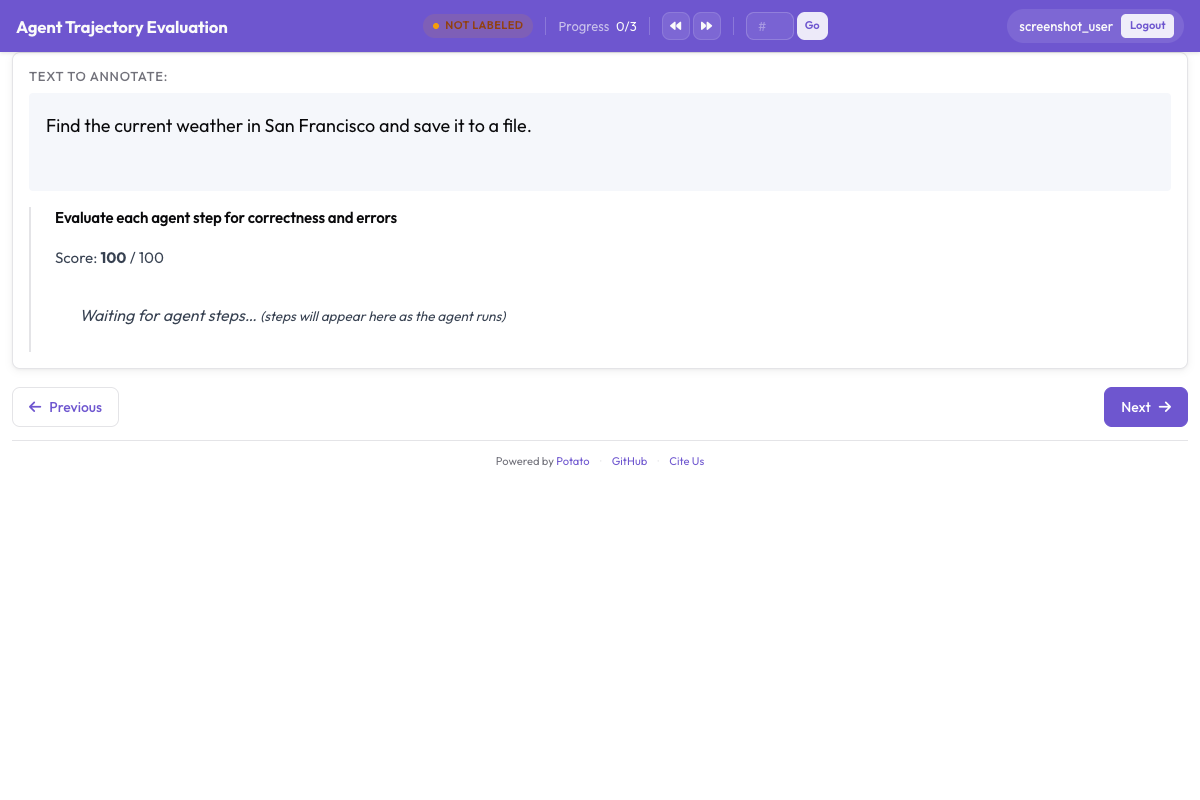
मौजूदा step का screenshot main panel में भरा होता है, और उसके ऊपर SVG overlays बने होते हैं। हर overlay step के अलग हिस्से को चिह्नित करता है, और उनके रंग तय हैं:
| Overlay | क्या चिह्नित करता है |
|---|---|
| Crosshair वाला लाल वृत्त | Click के coordinates |
| पीला highlight | वह field जिसमें agent ने type किया |
| हरा तीर | Scroll की दिशा और परिमाण |
| नीला dashed आयत | Target element का bounding box |
| नारंगी घुमावदार रेखा | Target तक mouse का रास्ता |
नीचे thumbnails की एक filmstrip चलती है, और किसी एक पर click करने से उस step पर पहुँच जाते हैं। लगभग दस steps से लंबे traces पर filmstrip ही वह फ़र्क है जो run का आकार देख सकने वाले reviewer को अंधाधुंध scroll करने वाले reviewer से अलग करता है। Step details panel में element की जानकारी, agent का अपना thought और उसका record किया गया observation दिखता है, और जब source log में इनमें कुछ काम का न हो तो हर एक को display_options में बंद किया जा सकता है।
Viewer के नीचे checkboxes की एक पंक्ति overlays को चालू और बंद करती है:
| Control | Overlay |
|---|---|
| Clicks | लाल click crosshair |
| Bounding Boxes | नीला dashed आयत |
| Mouse Path | नारंगी घुमावदार रेखा |
| Scroll | हरा scroll तीर |
भरे हुए pages पर overlays बंद करना मायने रखता है, जहाँ click marker ठीक उसी text के ऊपर आ सकता है जिससे पता चलता कि click सही था या नहीं। ध्यान दें कि पीले type highlight का अपना कोई control नहीं है। पाँच में से चार overlays अलग-अलग बदले जा सकते हैं, और typed-field highlight हमेशा बनता है। इस viewer में keyboard shortcuts नहीं हैं, इसलिए steps के बीच navigation filmstrip और step controls से होता है।
Annotation pass
Reviewer एक trace पर पाँच कदमों में काम करता है:
- Task description पढ़ें। आगे का हर निर्णय इसी के सापेक्ष होता है।
- Filmstrip पर नज़र डालें। कुछ भी rate करने से पहले run का आकार समझ लें, ताकि कोई शुरुआती step ऐसे सबूत के आधार पर correct न मान लिया जाए जो बाद में ही सामने आता है।
- Steps से गुज़रें। हर step पर page की state पढ़ें, overlay देखकर समझें कि agent ने किस पर action लिया, और action को rate करें। अगर वह गलत है, तो error type और severity चुनें, और rationale में लिखें कि agent को इसकी जगह क्या करना चाहिए था।
- Trace को rate करें। सारे steps देख लेने के बाद कुल success और efficiency का निर्णय करें।
- Submit करें और आगे बढ़ें।
चार correctness options steps को उस रेखा पर बाँटते हैं जो training data के लिए मायने रखती है। Correct actions लक्ष्य की ओर अपेक्षित तरीके से बढ़ते हैं। Acceptable actions धीमे रास्ते से प्रगति करते हैं, जैसे search box इस्तेमाल करने के बजाय category page पर browse करना। Incorrect actions गलतियाँ हैं, जैसे गलत element, असंबंधित page, या form में गलत text। Unnecessary actions न मदद करते हैं न नुकसान, जैसे click के तुरंत बाद वापस पिछले page पर जाना, और इन्हें गलतियों से अलग रखना उपयोगी है क्योंकि भटकने वाला agent गलत होने वाले agent से अलग समस्या है।
Error taxonomy
Error types ही असफल traces के ढेर को ऐसी चीज़ में बदलते हैं जिस पर agent developer काम कर सके, इसलिए categories को गलती की मात्रा के बजाय पहचाने जा सकने वाले कारणों से मेल खाना चाहिए:
| Error type | इसका अर्थ | उदाहरण |
|---|---|---|
| Wrong element clicked | Agent ने गलत UI element पर action लिया | "Laptops" की बजाय "Tablets" click किया |
| Wrong page navigated to | Agent किसी असंबंधित जगह पहुँच गया | Product listing की बजाय "About Us" पर navigate किया |
| Missed better option | एक बेहतर action उपलब्ध था | Search box सामने होते हुए भी categories browse कीं |
| Incorrect form input | Agent ने गलत text डाला | "laptop" की बजाय "labtop" search किया |
| Premature completion | Agent ने बहुत जल्दी सफलता घोषित कर दी | गलत item cart में डाला और रुक गया |
| Unnecessary navigation | Step लक्ष्य में योगदान नहीं देता | दो category pages के बीच homepage पर गया |
| Failed to scroll | Target viewport के नीचे था | Element कभी दिखा ही नहीं और agent ने कभी scroll नहीं किया |
| Wrong page section | सही page, गलत हिस्सा | Main content की बजाय header click किया |
कठिन traces पर काम करना
पंद्रह steps से लंबे trace पर हर step को एक जैसी गहराई से rate करने में ज़्यादातर मेहनत उन steps पर लगती है जो साफ़ तौर पर ठीक थे। Filmstrip में उन तीन patterns को खोजें जो किसी समस्या का संकेत देते हैं, फिर मेहनत वहीं लगाएं। ये patterns हैं अचानक बदलने वाला URL, ऐसा step जहाँ agent पीछे लौटता है, और लगभग एक जैसे screenshots की एक श्रृंखला, जिसका मतलब आमतौर पर यह होता है कि agent किसी loop में फँसा है।
असफल trace पर पहला incorrect step वह annotation है जिसे सही करना सबसे ज़रूरी है। उसके बाद का सब कुछ ऐसी state में होता है जहाँ agent को कभी पहुँचना ही नहीं चाहिए था, इसलिए बाद की गलतियाँ कारण नहीं बल्कि परिणाम बताती हैं।
कुछ actions को सिर्फ़ screenshot से नहीं परखा जा सकता, आमतौर पर जहाँ click point पर कई elements एक-दूसरे पर चढ़े हों। Step panel में element की जानकारी target का tag, text और bounding box देती है, जो आमतौर पर यह तय करने के लिए काफ़ी होती है कि असल में क्या click हुआ; show_element_info उस panel को दिखाता रहता है।
VisualWebArena
VisualWebArena traces उसी converter से गुज़रते हैं, जो दोनों formats को उनके action steps के action_type और element fields से पहचानता है। इन traces में मौजूद grounding जानकारी bounding box overlay के रूप में दिखती है, इसलिए grounding पर केंद्रित pass config बदलने का नहीं, बल्कि इस बात का मामला है कि annotators screen पर क्या रखते हैं। Bounding Boxes को ticked छोड़कर Clicks को हटाने से वह view मिलता है जो दिखाता है कि agent ने सिर्फ़ सही pixel नहीं, बल्कि सही element को निशाना बनाया या नहीं।
Results पढ़ना
Web agent की गलतियाँ trace के कुछ खास बिंदुओं पर इकट्ठा होने लगती हैं, और step position के हिसाब से error rate यह देखने का सबसे तेज़ तरीका है कि कहाँ। हर trajectory_eval annotation per-step records की एक list रखता है, जिनमें से हर एक में उसका step_index और correctness होता है:
import json

annotations = []
with open("output/exports/jsonl/annotations.jsonl") as f:
    for line in f:
        annotations.append(json.loads(line))

step_counts = {}
for ann in annotations:
    evaluation = ann["labels"].get("step_evaluation", {})
    for step in evaluation.get("steps", []):
        pos = step["step_index"]
        counts = step_counts.setdefault(pos, {})
        label = step.get("correctness", "unrated")
        counts[label] = counts.get(label, 0) + 1

print("Error rate by step position:")
for pos in sorted(step_counts):
    counts = step_counts[pos]
    total = sum(counts.values())
    errors = counts.get("incorrect", 0) + counts.get("unnecessary", 0)
    print(f"  Step {pos}: {errors / total:.1%} error rate ({total} observations)")
Error type distribution दूसरे सवाल का जवाब देता है, यानी agent कब नहीं बल्कि क्या गलत करता है:
error_counts = {}
for ann in annotations:
    evaluation = ann["labels"].get("step_evaluation", {})
    for step in evaluation.get("steps", []):
        error = step.get("error_type")
        if error:
            error_counts[error] = error_counts.get(error, 0) + 1

for error, count in sorted(error_counts.items(), key=lambda x: -x[1]):
    print(f"  {error}: {count}")
Evaluation को बढ़ाना
जिस result को आप publish करना चाहते हैं उसके लिए हर trace पर एक reviewer काफ़ी नहीं है, क्योंकि per-step निर्णयों में ठीक उसी तरह की अस्पष्टता होती है जिसे मापने के लिए agreement statistics बनी हैं। Config के top level पर coverage target और assignment order सेट करें:
num_annotators_per_item: 3
assignment_strategy: random
फिर annotators की तुलना trace-level label पर करें, जो वह label है जिस पर असहमति में कोई अस्पष्टता नहीं होती। पहले Parquet में export करें, ताकि तुलना parse किए गए JSON के बजाय columns पर चले:
python -m potato.export -c config.yaml -f parquet -o ./parquet_export/from sklearn.metrics import cohen_kappa_score
import pandas as pd
df = pd.read_parquet("parquet_export/annotations.parquet")
success = df[df["schema_name"] == "task_success"]
pivot = success.pivot(index="instance_id", columns="annotator", values="value")
annotators = pivot.columns.tolist()
for i in range(len(annotators)):
for j in range(i + 1, len(annotators)):
pair = pivot[[annotators[i], annotators[j]]].dropna()
kappa = cohen_kappa_score(pair[annotators[i]], pair[annotators[j]])
print(f"Kappa ({annotators[i]} vs {annotators[j]}): {kappa:.3f}")सैकड़ों traces वाले evaluations में Solo Mode एक model को human reviewer की उसी queue पर रखता है, जहाँ model labels सुझाता है और human उन्हें तब तक सुधारता है जब तक दोनों इतनी बार सहमत न हों कि बाकी काम model पूरा कर सके:
solo_mode:
  enabled: true
  labeling_models:
    - endpoint_type: "anthropic"
      model: "claude-sonnet-4-20250514"
      api_key: "${ANTHROPIC_API_KEY}"
  thresholds:
    end_human_annotation_agreement: 0.90
    minimum_validation_sample: 50
सोचने लायक setting agreement threshold है, model का चुनाव नहीं। 0.90 पर human तब तक annotate करता रहता है जब तक model के दस में से नौ labels उसके labels से मेल न खाएं, जो कम से कम पचास तुलनाओं पर मापा जाता है, और इसे घटाने से label quality के बदले reviewer के घंटे बचते हैं, इस तरह कि बाद में इसे पकड़ना मुश्किल होता है।
आगे पढ़ें
- Agentic Annotation पूरे converter और display reference के लिए
- Web Agent Annotation viewer के display options के लिए
- Evaluating AI Agents browser से आगे agent evaluation के लिए
- Parquet Export उन columns के लिए जिन्हें ऊपर का analysis पढ़ता है