भाव विश्लेषण का कार्य बनाना
radio बटन, tooltip और कीबोर्ड शॉर्टकट के साथ भाव वर्गीकरण का पूरा कार्य बनाइए, ताकि लेबलिंग तेज़ी से हो सके।
भाव विश्लेषण NLP के सबसे आम कार्यों में से है, और Potato में इसके लिए साफ़ लेबल जुटाना सीधा काम है। यह ट्यूटोरियल ऐसा भाव एनोटेशन इंटरफ़ेस बनाता है जिसे आप सचमुच एनोटेटरों के सामने रख सकें, उन कीबोर्ड शॉर्टकट और गुणवत्ता जाँचों के साथ जिनसे लेबलिंग की रफ़्तार बढ़ती है।
परियोजना का खाका
हम सोशल मीडिया की पोस्ट पर एनोटेशन कर रहे हैं। इंटरफ़ेस में शामिल है:
- तीन तरह का भाव वर्गीकरण (Positive, Negative, Neutral)
- हर एनोटेशन के लिए भरोसे की रेटिंग
- वैकल्पिक पाठ में स्पष्टीकरण
- रफ़्तार के लिए कीबोर्ड शॉर्टकट
- गुणवत्ता नियंत्रण के उपाय
पूरा कॉन्फ़िगरेशन
पूरा config.yaml इस तरह है:
annotation_task_name: "Social Media Sentiment Analysis"

# Data configuration
data_files:
  - "data/tweets.json"

item_properties:
  id_key: id
  text_key: text

# Annotation interface
annotation_schemes:
  # Primary sentiment label
  - annotation_type: radio
    name: sentiment
    description: "What is the overall sentiment of this post?"
    labels:
      - name: Positive
        tooltip: "Expresses happiness, satisfaction, or approval"
        key_value: "1"
      - name: Negative
        tooltip: "Expresses sadness, frustration, or disapproval"
        key_value: "2"
      - name: Neutral
        tooltip: "Factual, objective, or lacks emotional content"
        key_value: "3"
    label_requirement:
      required: true

  # Confidence rating
  - annotation_type: likert
    name: confidence
    description: "How confident are you in your sentiment label?"
    size: 5
    min_label: "Not confident"
    max_label: "Very confident"
    label_requirement:
      required: true

  # Optional explanation
  - annotation_type: text
    name: explanation
    description: "Why did you choose this label? (Optional)"
    rows: 4
    label_requirement:
      required: false
    placeholder: "Explain your reasoning..."

# Guidelines
annotation_instructions: |
  ## Sentiment Annotation Guidelines

  ### Your Task
  Classify the sentiment expressed in each social media post.

  ### Labels

  **Positive**: The author expresses positive emotions or opinions
  - Happiness, excitement, gratitude
  - Praise, recommendations, approval
  - Examples: "Love this!", "Best day ever!", "Highly recommend"

  **Negative**: The author expresses negative emotions or opinions
  - Anger, frustration, sadness
  - Complaints, criticism, disapproval
  - Examples: "Terrible service", "So disappointed", "Worst experience"

  **Neutral**: Factual or lacking clear sentiment
  - News, announcements, questions
  - Mixed or balanced opinions
  - Examples: "The store opens at 9am", "Has anyone tried this?"

  ### Tips
  - Focus on the author's sentiment, not the topic
  - Sarcasm should be labeled based on intended meaning
  - When unsure, lower your confidence rating

# User management
automatic_assignment:
  on: true
  sampling_strategy: random
  labels_per_instance: 1
  instance_per_annotator: 100
नमूना डेटा प्रारूप
data/tweets.json बनाइए:
{"id": "t001", "text": "Just got my new laptop and I'm absolutely loving it! Best purchase of the year! #happy"}
{"id": "t002", "text": "Waited 2 hours for customer service and they still couldn't help me. Never shopping here again."}
{"id": "t003", "text": "The new coffee shop on Main Street opens tomorrow at 7am."}
{"id": "t004", "text": "This movie was okay I guess. Some good parts, some boring parts."}
{"id": "t005", "text": "Can't believe how beautiful the sunset was tonight! Nature is amazing."}
कार्य चलाना
एनोटेशन सर्वर चालू कीजिए:
potato start config.yamlhttp://localhost:8000 खोलिए और लॉगिन करके एनोटेशन शुरू कीजिए।
सर्वर चलने के बाद आपके एनोटेटर को यह दिखेगा:
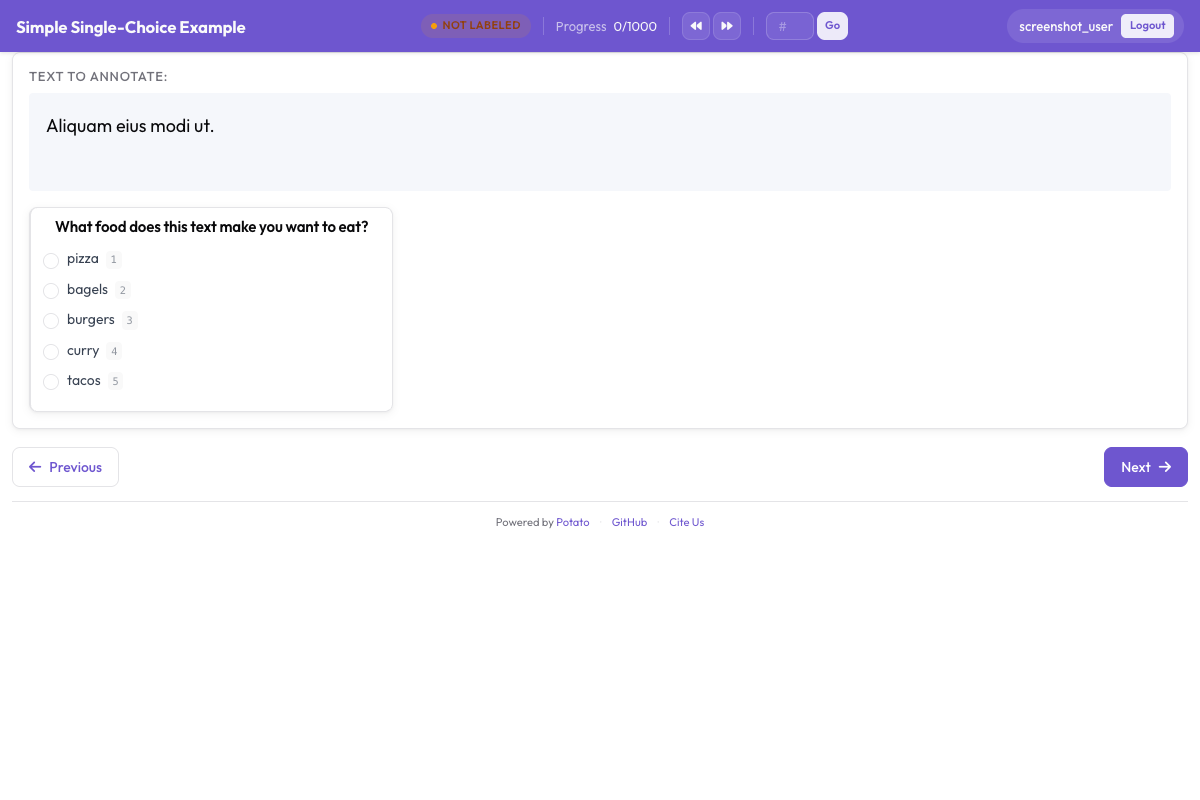 भाव वर्गीकरण का इंटरफ़ेस, जिसमें radio बटन के लेबल, भरोसे का पैमाना, और वैकल्पिक स्पष्टीकरण का फ़ील्ड दिख रहे हैं
इंटरफ़ेस को समझना
मुख्य एनोटेशन क्षेत्र
इंटरफ़ेस में दिखता है:
- एनोटेट किया जाने वाला पाठ (URL, mention और hashtag उभारे हुए)
- tooltip के साथ भाव के radio बटन
- भरोसे का Likert पैमाना
- स्पष्टीकरण का वैकल्पिक टेक्स्ट बॉक्स
कीबोर्ड से काम का क्रम
एक बार लय बन जाने पर सबसे तेज़ चक्र यह रहता है:
- पाठ पढ़िए
- भाव के लिए
1,2या3दबाइए - भरोसे का स्तर क्लिक कीजिए (या माउस से चुनिए)
- जमा करने के लिए
Enterदबाइए
प्रगति पर नज़र
इंटरफ़ेस दिखाता है:
- अब तक की प्रगति (जैसे "15 / 100")
- बचा हुआ अनुमानित समय
- इस सत्र के आँकड़े
आउटपुट प्रारूप
हर एनोटेटर का काम <output_annotation_dir>/<user>/user_state.json में सहेजा जाता है, export_annotation_format में चाहे जो लिखा हो। वह सेटिंग इसके साथ-साथ समय-समय पर एक्सपोर्ट भी जोड़ती है, इसलिए jsonl चुनने पर संयुक्त फ़ाइल <output_annotation_dir>/exports/jsonl/annotations.jsonl होती है, जिसमें हर एनोटेटर के हर इंस्टेंस का एक रिकॉर्ड होता है:
{
  "instance_id": "t001",
  "user_id": "john_doe",
  "labels": {
    "sentiment": {"Positive": "true"},
    "confidence": {"5": "true"},
    "explanation": {"text_box": "Clear expression of happiness with the purchase"}
  },
  "spans": {},
  "links": {}
}
गुणवत्ता नियंत्रण जोड़ना
Attention check
एनोटेटर का ध्यान जाँचने के लिए gold standard आइटम डालिए। यहाँ इस्तेमाल हुई radio और likert स्कीम के सारे विकल्पों के लिए स्रोत दस्तावेज़ देखें।
attention_checks:
  enabled: true
  frequency: 10          # Every 10th item
  items_file: data/attention_checks.json
  failure_handling:
    warn_threshold: 2
    block_threshold: 5
आइटम कॉन्फ़िग के भीतर नहीं लिखे जाते, वे items_file में रहते हैं, और हर आइटम के साथ वह उत्तर होता है जो उसे मिलना चाहिए:
[
  {
    "id": "chk1",
    "text": "I am extremely happy and satisfied! This is the best!",
    "expected_answer": { "sentiment": "Positive" }
  },
  {
    "id": "chk2",
    "text": "This is absolutely terrible and I hate it completely.",
    "expected_answer": { "sentiment": "Negative" }
  }
]
gold standard आइटम expected_answer की जगह gold_label का इस्तेमाल करते हैं, और gold_standards.items_file में जाते हैं। ध्यान दें कि दोनों ब्लॉक सबसे ऊपरी स्तर पर होने चाहिए। Potato attention_checks को कॉन्फ़िग की जड़ से पढ़ता है, इसलिए इसे quality_control: ब्लॉक के भीतर रख देने पर यह पढ़ा ही नहीं जाता और कोई त्रुटि भी नहीं दिखती।
एनोटेटरों के बीच सहमति
शोध परियोजनाओं के लिए एक आइटम पर कई एनोटेशन चालू कीजिए:
automatic_assignment:
  on: true
  sampling_strategy: random
  labels_per_instance: 3  # Each item annotated by 3 people
  instance_per_annotator: 50
नतीजों का विश्लेषण
अपने एनोटेशन एक्सपोर्ट करके उनका विश्लेषण कीजिए:
import json
from collections import Counter

records = []
with open('annotation_output/exports/jsonl/annotations.jsonl') as f:
    for line in f:
        records.append(json.loads(line))

def chosen(record, scheme):
    """The label picked for a single-choice scheme: the key whose value is "true"."""
    for name, value in record["labels"].get(scheme, {}).items():
        if value == "true":
            return name
    return None

sentiments = Counter(chosen(r, "sentiment") for r in records)
print(f"Sentiment distribution: {dict(sentiments)}")

# A likert stores its scale position the same way, as the label name
points = [int(p) for r in records if (p := chosen(r, "confidence"))]
print(f"Average confidence: {sum(points)/len(points):.2f}")
अगले क़दम
- बड़े पैमाने के एनोटेशन के लिए क्राउडसोर्सिंग सेट कीजिए
- लेबलिंग तेज़ करने के लिए AI सुझाव जोड़िए
- मुश्किल मामलों को पहले निपटाने के लिए active learning लगाइए
और एनोटेशन प्रकार हमारे दस्तावेज़ में देखें।