Drawing Bounding Boxes for Object Detection
Build an object detection task in Potato, from a three-label starter config to a production config for driving footage, then export to COCO or YOLO.
This tutorial builds an object detection annotation task in Potato, starting from a three-label config and ending with the COCO or YOLO export a detector trains on. For the full list of image tools and their options, see the image annotation documentation.
The data file
Each line of the data file is one image. Potato needs an identifier and a field holding the image URL or path, and item_properties says which field is which:
{"id": "img_001", "image_url": "https://example.com/street_001.jpg"}
{"id": "img_002", "image_url": "/static/images/street_002.jpg"}
A relative path resolves against media_directory, so local images do not need a running file server.
A minimal configuration
The image_annotation scheme owns the drawing surface. It needs a name, a description that annotators read as the instruction, the tools to enable, and the label set:
annotation_task_name: "Object Detection Annotation"
task_dir: "."
output_annotation_dir: "annotation_output/"

data_files:
  - "data/images.json"

item_properties:
  id_key: id
  text_key: image_url

annotation_schemes:
  - annotation_type: image_annotation
    name: objects
    description: "Draw a box around every car, person, and bicycle"
    tools:
      - bbox
    labels:
      - name: car
        color: "#FF6B6B"
      - name: person
        color: "#4ECDC4"
      - name: bicycle
        color: "#45B7D1"
Three labels is a deliberate starting point. Every label you add is a decision an annotator has to make on every object, and a boundary case they have to be told how to resolve, so start with the classes the model actually needs and add the rest once the guidelines hold up.
Start the server and open the task:
potato start config.yaml -p 8000What the annotator does
The annotator picks a label, then drags a rectangle around each object, adjusting the corners until the box is tight:
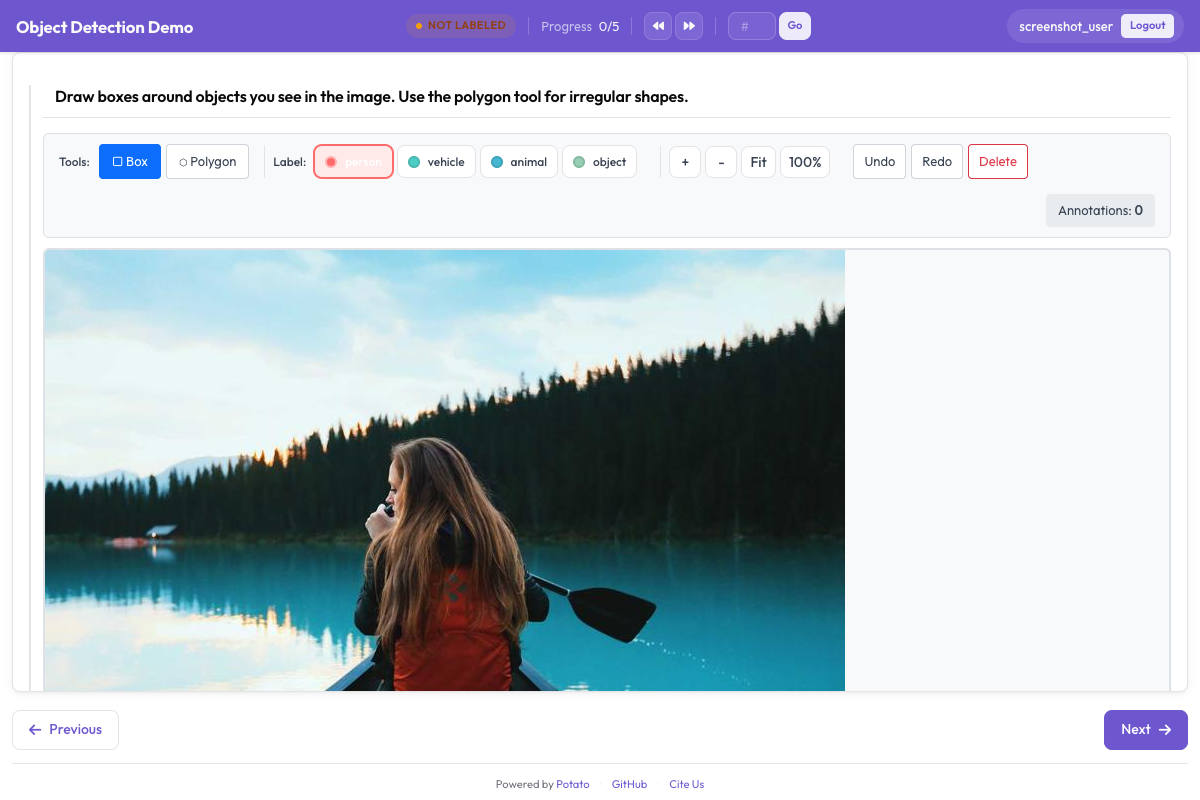 The bounding box tool lets annotators draw and label rectangular regions on images
Zoom and pan are on by default, which matters for small or distant objects. Both can be turned off with zoom_enabled: false and pan_enabled: false when the images are uniform and the extra controls only get in the way.
Label shortcuts
Under the default v7 keybinding profile, the tools take letter keys, so r selects the box tool, p the polygon and b the brush. Label shortcuts are set per label with key_value, and digits are the safe choice, because a label whose key_value collides with a tool key fires both actions at once:
annotation_schemes:
  - annotation_type: image_annotation
    name: objects
    description: "Annotate all visible objects"
    tools:
      - bbox
    labels:
      - name: person
        color: "#FF6B6B"
        key_value: "1"

      - name: car
        color: "#4ECDC4"
        key_value: "2"

      - name: motorcycle
        color: "#45B7D1"
        key_value: "3"

      - name: bicycle
        color: "#96CEB4"
        key_value: "4"

      - name: traffic_light
        color: "#FFEAA7"
        key_value: "5"

      - name: stop_sign
        color: "#DDA0DD"
        key_value: "6"
Colors are worth choosing rather than accepting. On dense traffic scenes the annotator is scanning for what they have missed, and two similar colors on adjacent classes make that scan slower. Set keybinding_profile: legacy if your annotators learned Potato's pre-2.8 keys and you would rather not retrain them.
Adding object attributes
Potato has no per-box attribute block. An image_annotation label is read for
name, color and key_value, and anything else in the label dict is
discarded, so a nested attributes: list does nothing and no prompt appears
after a box is drawn.
Two ways to capture the same information. Fold the distinction into the label set, so the attribute is part of what the annotator picks:
annotation_schemes:
  - annotation_type: image_annotation
    name: objects
    description: "Draw a box around each object"
    tools:
      - bbox
    labels:
      - name: person
        color: "#FF6B6B"
      - name: person_occluded
        color: "#C44536"
Or ask about the image as a whole with a second scheme. That applies to the item rather than to an individual box, which is the trade: you learn that something in the image was occluded, not which box it was:
  - annotation_type: multiselect
    name: image_conditions
    description: "Conditions affecting this image"
    labels:
      - Heavy occlusion
      - Truncated objects
      - Low light
Importing from VIA is the one place attributes survive: via_importer reads
each region's region_attributes and folds them into the label. That is an
import-time concept, not a configuration one.
Requiring at least one box
An image with no boxes is ambiguous, since it could mean the annotator found nothing or that they skipped the item. min_annotations forces the distinction by refusing a submission with fewer shapes than the floor, so a genuinely empty image needs an explicit negative label instead:
annotation_schemes:
  - annotation_type: image_annotation
    name: objects
    description: "Draw a box around every traffic participant"
    tools:
      - bbox
    labels: [...]
    min_annotations: 1
Controlling how large the image renders
The drawing surface follows the rendered image, so an image that renders small gives the annotator a small canvas. instance_display sets the size, and zoom stays available for detail work:
instance_display:
  fields:
    - key: image_url
      type: image
      label: "Frame"
      display_options:
        max_width: 1200
        max_height: 800
        zoomable: true
A production configuration
The driving config below carries the five classes a detection dataset needs. Labels keep digit shortcuts so the annotator's left hand stays on the number row, and min_annotations: 1 holds because every frame in this corpus contains at least one traffic participant:
annotation_task_name: "Autonomous Driving - Object Detection"
task_dir: "."
output_annotation_dir: "annotation_output/"

data_files:
  - "data/driving_frames.json"

item_properties:
  id_key: id
  text_key: frame_path

annotation_schemes:
  - annotation_type: image_annotation
    name: objects
    description: "Annotate all traffic participants and objects"
    tools:
      - bbox
    min_annotations: 1
    labels:
      - name: vehicle
        color: "#FF6B6B"
        key_value: "1"

      - name: pedestrian
        color: "#4ECDC4"
        key_value: "2"

      - name: cyclist
        color: "#45B7D1"
        key_value: "3"

      - name: traffic_sign
        color: "#FFEAA7"
        key_value: "4"

      - name: traffic_light
        color: "#DDA0DD"
        key_value: "5"
Five classes is already at the edge of what digit shortcuts cover comfortably. Past ten the annotator is hunting for keys rather than reading the frame, which is the point at which splitting the task in two beats adding another label.
What the annotations look like
Potato stores every shape from one image in a flat JSON array, whatever tool drew it. Coordinates are normalized to the range 0 to 1 against the image, so the annotations stay correct when the image is later served at a different size:
[
  {
    "type": "bbox",
    "label": "vehicle",
    "color": "#FF6B6B",
    "coordinates": {"x": 0.234, "y": 0.352, "width": 0.120, "height": 0.130}
  },
  {
    "type": "bbox",
    "label": "pedestrian",
    "color": "#4ECDC4",
    "coordinates": {"x": 0.427, "y": 0.370, "width": 0.026, "height": 0.139}
  }
]
A bbox carries its geometry under coordinates as {x, y, width, height}. Polygons carry a list of points under the same key, and masks carry run-length encoding under rle instead.
Exporting for training
Detector training code reads COCO or YOLO, and Potato writes both:
python -m potato.export --config config.yaml --format coco --output ./export/
python -m potato.export --config config.yaml --format yolo --output ./export/
The two exports differ in more than syntax. COCO writes a single annotations.json with pixel boxes as [x, y, width, height], and it does not copy the images, so the file_name values point at wherever the images already live. YOLO writes one text file per image with normalized center coordinates, splits images and labels into train/ and val/ directories, and adds data.yaml and classes.txt so a training run can read the class list without being told it separately.
Keeping the boxes consistent
Draw boxes tight to the object, since every pixel of background inside the box is a pixel the model learns to call foreground. Write down how to handle the awkward cases (occlusion, objects cut off at the frame edge, reflections) and review a batch of examples together in the first week, while changing the guideline is still cheap. Watch box counts and size distributions per annotator as the study runs, because a sudden shift usually means one person has started reading a rule differently rather than that the images changed.
Next steps
- Add polygon annotation when the boxes are too coarse for the task
- Use keypoint sets for pose estimation
- Set up quality control before the study scales past a handful of annotators
For the rest of the image options, see Image Annotation.